OCS SOFTWARE OJMAR 10
4.1.1 Create / Eliminate locks
4.1.1.1 Create locks
The next step consists of creating the locks that will make up the installation in the software. To do so we return to the “Locks”
screen from “Configuration
à
Locks” or pressing the icon.
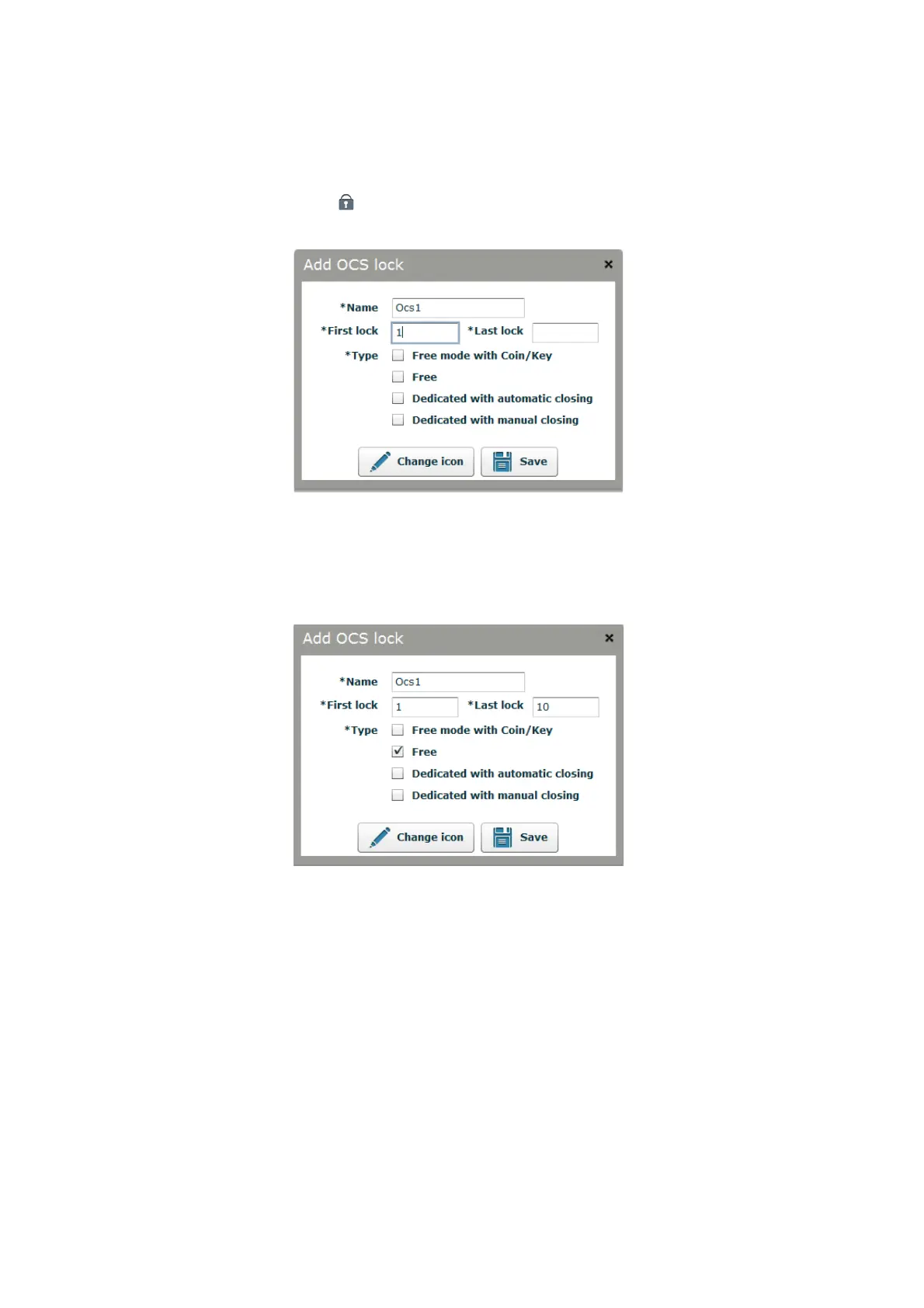
To create locks double left-click the OCS icon. The following window appears:
Figure 3.3.- "Add OCS lock" window
The first thing we see is the lock's name. This field is automatically allocated by the software suing consecutive numbers.
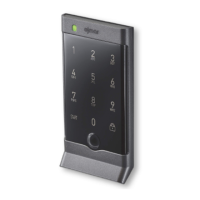
The two next fields “First lock” and “Final lock” are the lock numbers that will be created. In the example in
Figure 3.4
we are
going to create locks from number 1 to 10.
Figure 3.4.- Creating locks in free mode
-Free. Freely assigned lock, the user can occupy an open lock entering a numeric code.
-Free with coin/key. Freely assigned lock, the user can occupy an open lock entering a numeric code and a coin or key.
-Fixed automatic locking. Lock assigned to a member. The lock can only be opened with a previously programmed code. The
lock closes automatically.
-Fixed manual locking. Lock assigned to a member. The lock can only be opened with a previously programmed code. The user
code has to be entered to open and close the lock.


 To Next Page