EasyManua.ls Logo

Oki ML1120 Plus - User Manual

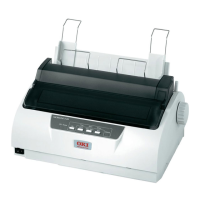
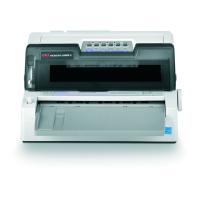
Oki ML1120 Plus
89 pages
Print Icon
To Next Page IconTo Next Page
Loading...
User’s Guide
ML1120 Plus/ML1190 Plus

Table of Contents

Questions and Answers

  • K
    Karen BennettSep 18, 2025
    What to do if the input application control signal is not correct on Oki ML1120 Plus Printer?
    • S
      Steven PearsonSep 22, 2025
      Print in hex dump mode and verify the data content. Make corrections in the application on Oki Printer.
  • M
    mhernandezAug 25, 2025
    What to do if continuous forms jammed in Oki ML1120 Plus Printer?
    • A
      Anthony BurnsAug 25, 2025
      If continuous forms are jammed in your Oki Printer, turn the power off. Tear off any unprinted forms. Remove the Paper Tray and Input Tray together. Raise each Pin Tractor cover and remove the forms from the Pin Tractors. Rotate the Platen Knob and remove the forms from the front of the printer. If a fragment remains, place two or three forms in a stack on the Pin Tractors and turn the Platen Knob to push the fragment out. Replace the Input Tray and Paper Tray, and turn the power back on.
  • J
    Jonathan JacksonAug 25, 2025
    Why print head is moving but no printing takes place on Oki ML1120 Plus Printer?
    • T
      tony61Aug 26, 2025
      If the print head is moving but no printing takes place on your Oki Printer, install the ribbon cartridge.
  • C
    Christopher DavisAug 27, 2025
    What to do if interface cable is not properly connected to Oki ML1120 Plus?
    • T
      Tanner SmithAug 27, 2025
      If the interface cable is not properly connected to your Oki Printer, reconnect the cable correctly.
  • M
    michael72Sep 23, 2025
    How to fix several blank lines appear in the printout on Oki ML1120 Plus Printer?
    • J
      John AndrewsSep 23, 2025
      Cancel the skip over perforation spacing on Oki Printer.
  • K
    Kimberly YoungSep 23, 2025
    What to do if the selected skip over perforation spacing does not match the physical tear-off perforation positions on Oki ML1120 Plus?
    • B
      Bridget JonesSep 23, 2025
      Match the paper length selected in the application with the physical paper length in use. Select the paper length in number of lines in the application on Oki Printer.
  • J
    Jason LeonSep 10, 2025
    Why horizontal printing position is offset on Oki Printer?
    • L
      Lori WhiteSep 10, 2025
      If the horizontal printing position is offset on your Oki Printer, it may be because the start position changes after the printer is powered on. To fix this, when the printer is powered ON, switch from off-line mode to on-line mode by pressing the SEL button. Reset the start position, setting the Power Switch to OFF before you change the start position.
  • J
    Joseph MolinaSep 12, 2025
    What to do if printing cannot be resumed at this stage on Oki ML1120 Plus?
    • J
      Jeremiah FitzgeraldSep 12, 2025
      Turn the power OFF, verify that the carriage moves properly, then turn the power ON again. If the problem is still there after you turn the power ON again, contact your dealer.
  • T
    Timothy GraySep 3, 2025
    Why print direction changes suddenly to unidirectional on Oki ML1120 Plus?
    • M
      Matthew HughesSep 3, 2025
      When the print head overheats in Oki Printer, the printer automatically starts unidirectional split printing.
  • M
    Michael GrossSep 1, 2025
    Why SEL indicator is unlit on Oki ML1120 Plus?
    • J
      johnloweSep 1, 2025
      If the SEL indicator is unlit on your Oki Printer, try the following: Re-install the printer driver correctly, press the SEL button, and load paper.

Summary

ML1120 Plus;ML1190 Plus Users Guide

Preface

Introduction and disclaimers for the user guide.

Introduction and Guide Overview

Overview of the printer and explanation of the user guide's content and navigation.

Getting Started

Initial setup, component identification, and basic operation of the printer.

Connecting to a Computer

Steps for connecting the printer to a computer and installing necessary drivers.

Printer Utilities

Details on available software utilities for controlling and managing the printer.

Paper Handling

Comprehensive guide on loading, feeding, and managing various paper types.

Operating Instructions

How to use the printer's control panel, buttons, menus, and settings.

Troubleshooting

Solutions for common printer problems, including paper jams and error conditions.

Cleaning Your Printer

Procedures for maintaining printer cleanliness, covering both exterior and interior parts.

Consumables and Accessories

Information on printer consumables, replacement procedures, and ordering details.

Printer Specifications

Technical details and performance characteristics for both ML1120 Plus and ML1190 Plus models.

Oki Contact Details

Contact information for Oki support and service centers globally.

Oki ML1120 Plus Specifications

General IconGeneral
TypeDot Matrix Printer
Print Head9-pin
ConnectivityParallel
Number of Pins9
InterfaceParallel
Paper SizeA4, Letter, Legal
Resolution240 x 216 dpi
Print MethodImpact
Print Width80 columns
Paper HandlingContinuous Forms, Cut Sheet

Related product manuals