30 Operating modes
7.3 3D Ground Scan
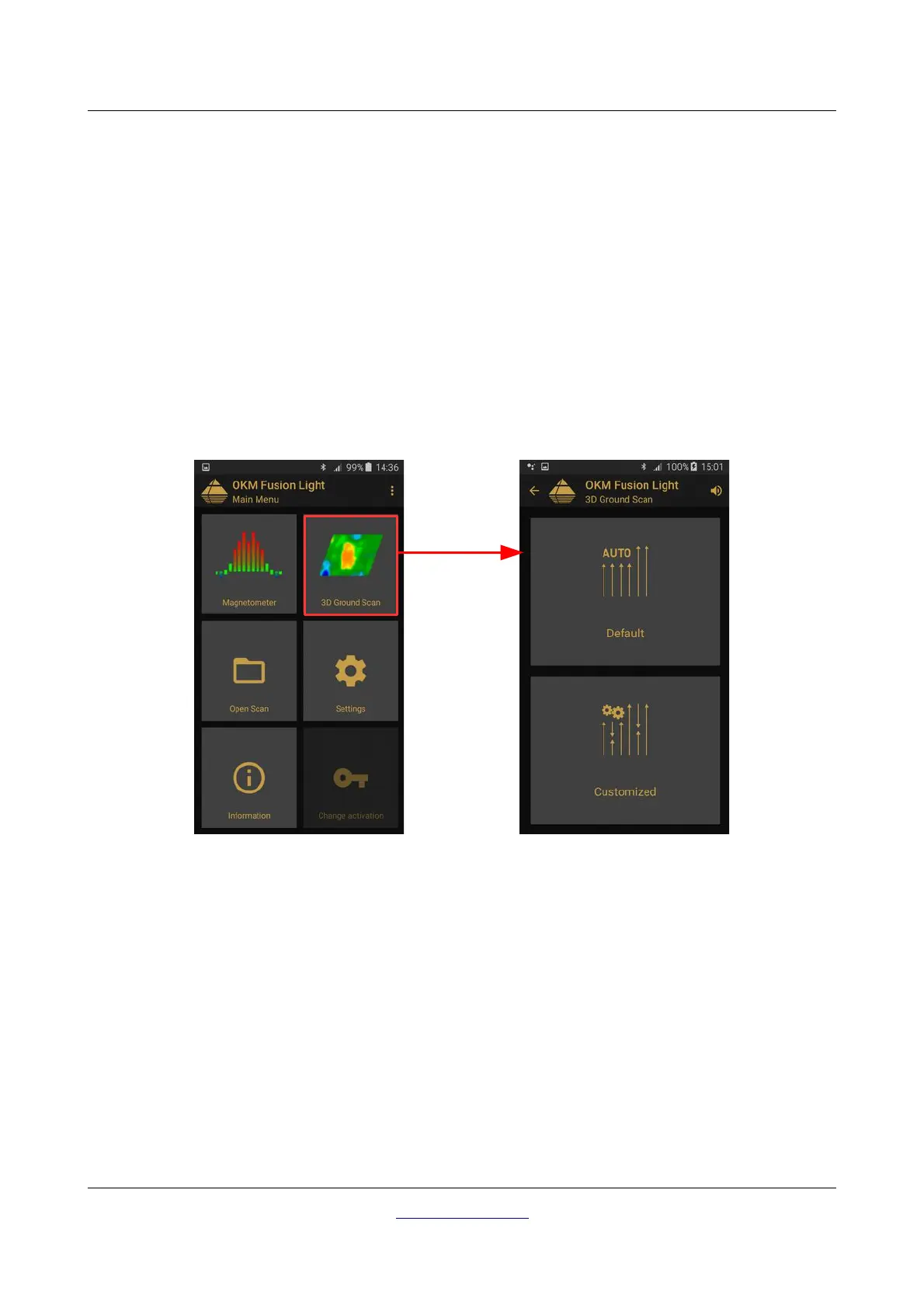
The function “3D Ground Scan” allows for the production of a graphical measurement, also known as a 3d
scan, to be created and stored on the unit for later evaluation of the representation on a computer or in this
case the smartphone. Start the software by clicking the Fusion Light application and select “3D Ground
Scan”. Also as a note, to go back to a previous scan or function on the smartphone, you can push the return
button and this will take you back one step to the previous function and/or screen.
7.3.1 Ground Scan Preparation
After you have selected the function “3D Ground Scan” from the main menu, you will be taken to a
configuration screen as shown in figure 7.4 to choose additional options in how the scan is going to be
performed.
You can choose between the options “Default” and “Customized” as explained in the next sections.
7.3.1.1 Default
This option is a predefined configuration (quick start) with following non-changeable settings:
• Scan Mode: Parallel
• Impulse Mode: Automatic
• Field Length: Automatic
7.3.1.2 Customized
If you like to individually adjust the scan settings, you have to select the “Customized” option. There you can
change all settings by yourself.
OKM GmbH
www.okmdetectors.com
Figure 7.4: Activating operating mode "3D Ground Scan"


 To Next Page