13
EN
Video Recording
Press • [VideoButton] to start recording. When a video is being recorded, a time indicator will display
ontheLCDmonitor( ).Tostoprecording,pressit again.
Topauserecording:• Press [PauseButton] to pause recording (
00:00:36
). To continue the recording,
press it again.
Press • [PlaybackButton] or touch
on the screen to view the recorded video.
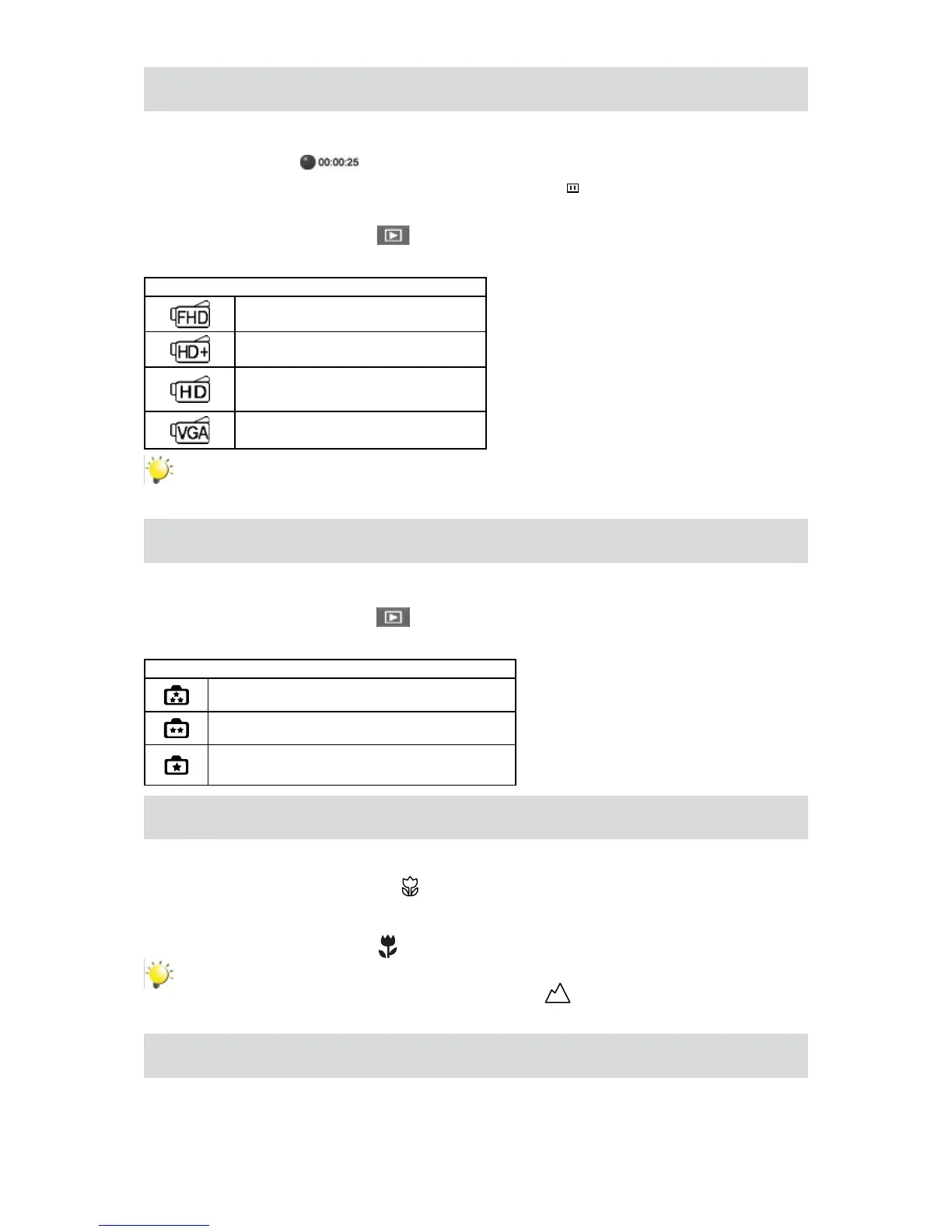
Fourresolutionsettingsareavailable:•
Video Quality
Full HD (1080p 30 fps)
HD (720p 60 fps)
HD (720p 30 fps)
VGA (640X480)
Note
Pause function can not be used when Time Lapse function is activated.•
Photo Capturing
Press • [PhotoButton]totakephoto.
Press • [PlaybackButton] or touch
on the screen to view the photo.
Threeresolutionsettingsareavailable:•
Image Quality
16 Mega Pixels
5 Mega Pixels
3 Mega Pixels
Taking Close up Photo/Video
Slidethemacroswitchtochangethefocusrangefordifferentdistancesofobjects.•
SlidethemacroswitchtoMacro(1.
).
Press 2. [VideoButton] to start recording or press [PhotoButton]totakephoto.
InMacroMode,themacroicon(•
)willappearontheLCDmonitor.
Note
Remember to turn the macro switch back to Normal ( ) when you are not taking close-up
photo.
Using Zoom Function
Thezoommagniesimageswhenrecordingvideoortakingphoto.•
Tozoomin/out,presstheTele/WideButton.1.
Itcanbesetfrom1X~16X(16XDigitalzoom)2.


 To Next Page