14
EN
Using Light Function
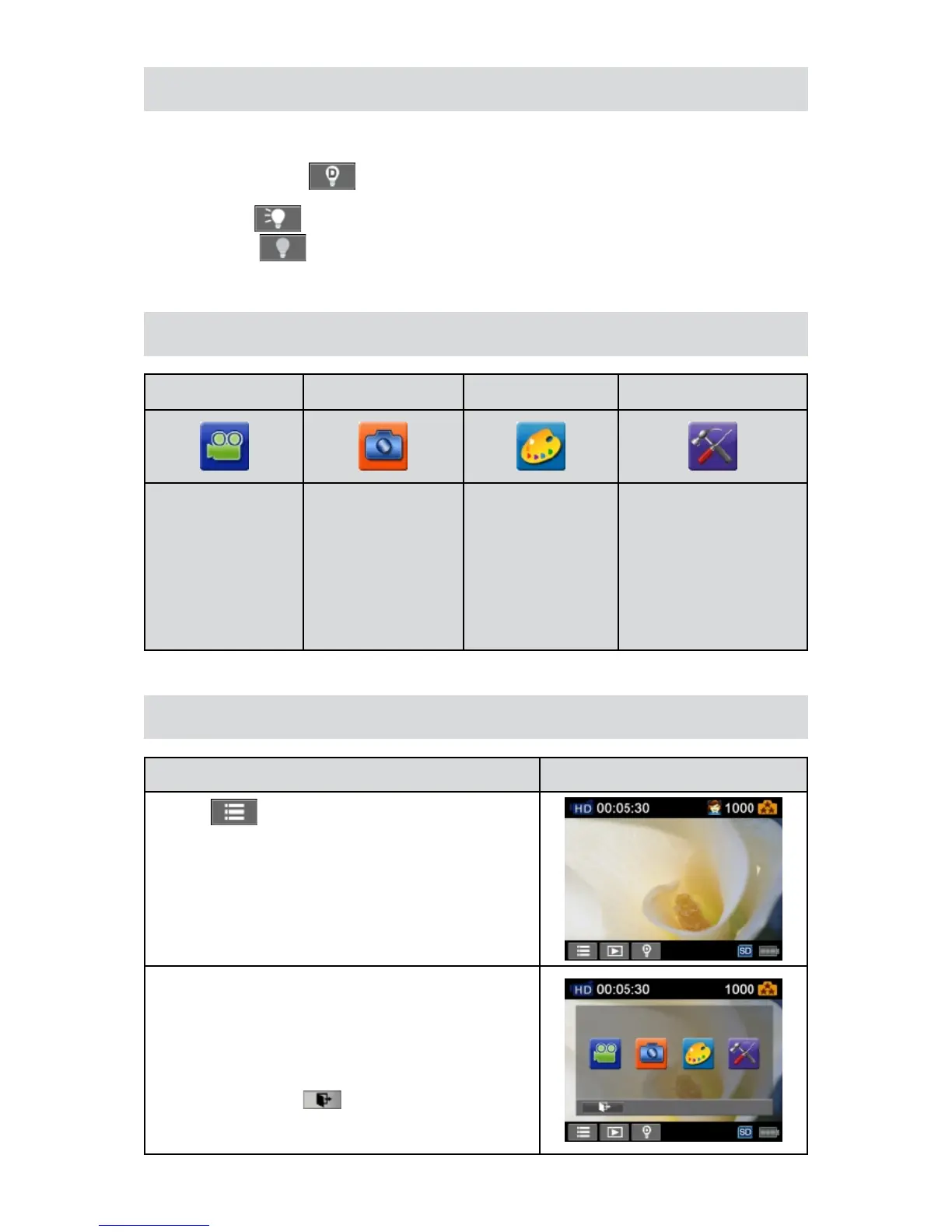
Thesettingallowsyoutoextendthebrightnessoftheobjectsthataredarkorintheshadow.Using•
theon-screenbuttontochangethesettings.
Digital Light On1. (
): Toextendthedynamicrangeforbacklightandhighcontrastsense
sothattheobjectswillbebrighterandclearer.
Light On2. (
):Thelightwillbeturnedonandkeepprovidinglight.
Light Off 3. (
):Thelightisturnedoff.
Press 4. [VideoButton] to start recording or press [PhotoButton]totakephoto.
Options for Record Menu
Video Photo Effect Setting*
Resolution•
Stabilization•
MotionDetect•
SlowMotion•
Time Lapse•
Pre-record•
Resolution•
ISO•
Self-Timer•
Light•
Scene•
WB(WhiteBalance)•
FaceTracking•
Sound•
TV•
Language•
TimeSetting•
Date Printing•
Format•
DefaultSetting•
* Please refer to Section 5 for the detailed information about [Setting].
Operations for Record Mode
Operation Display Screen
T1. ouch
on the screen inRecordMode.Themenu
will show on the screen.
Touch the option icons on the screen lightly with your 2.
nger.TheoptionsareVideo,Photo,Effect,andSetting.
The option menu will pop up on the screen.3.
Touchtoselectthespecicoptionyouwanttoadjust.(4.
Theselectedoptionwillbehighlighted.)
TouchtheExiticon(5.
)toexit.


 To Next Page