Using the Operation Panel
4-24
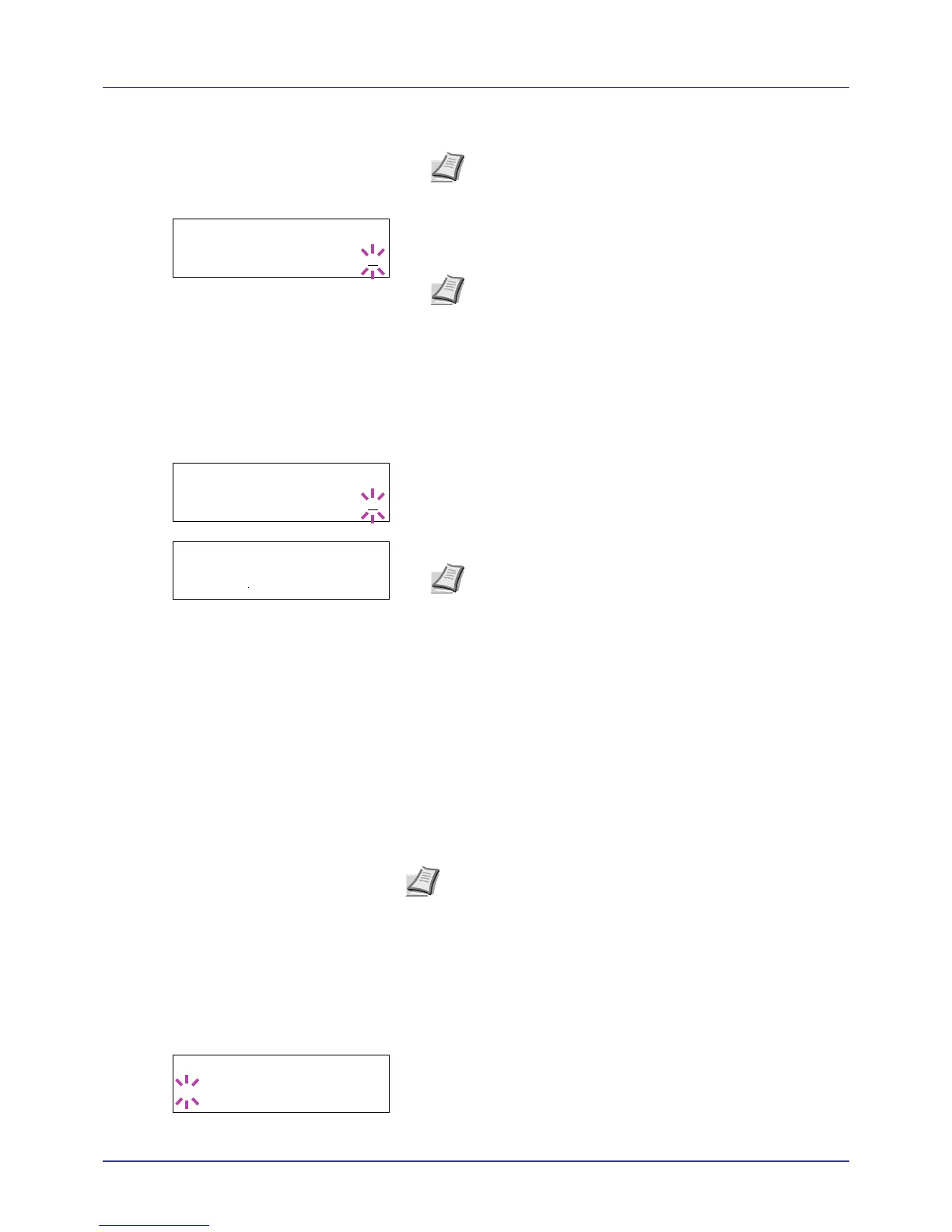
6 Press U or V to scroll to the desired job title.
7 Press [OK]. The number of copies to be printed can be set. To
increase the copy count, press U; to decrease the copy count, press
V.
8 Press [OK] to finalize the copy count. The printer prints the specified
number of copies for the job.
Deleting a Quick Copy Job
1 Follow steps 1 through 6 in the above section to let the title of the job
to be deleted displayed.
2 When the title of the job to be deleted is displayed, e.g. Report,
press [OK]. The cursor (_) below the copy count starts to blink.
3 Press V repeatedly until Delete appears below the title.
4 Press [OK]. The message Processing appears and the stored
quick copy job is deleted.
Using Proof-and-Hold
When you print multiple copies, this mode first prints one copy so that you
can proof it before continuing to print the remaining copies. Since you can
proof the printouts before printing the remaining copies, wastage of paper
can be reduced.
The printer prints one copy and, at the same time, saves the print job on
the hard disk/RAM disk. You can also change the number of copies when
resuming printing from the operation panel.
When the printer is turned off, all stored jobs will be deleted.
Printing Remaining Copies of a Proof-and-Hold Job
1 Press Z while Job Box > is displayed.
2 Press U or V repeatedly until >Quick Copy appears. The name
entered in the printing system driver (Harold, in this example) also
appears.
3 Press [OK]. A blinking question mark (?) appears before the user
name.





 To Next Page