4-25
Using the Operation Panel
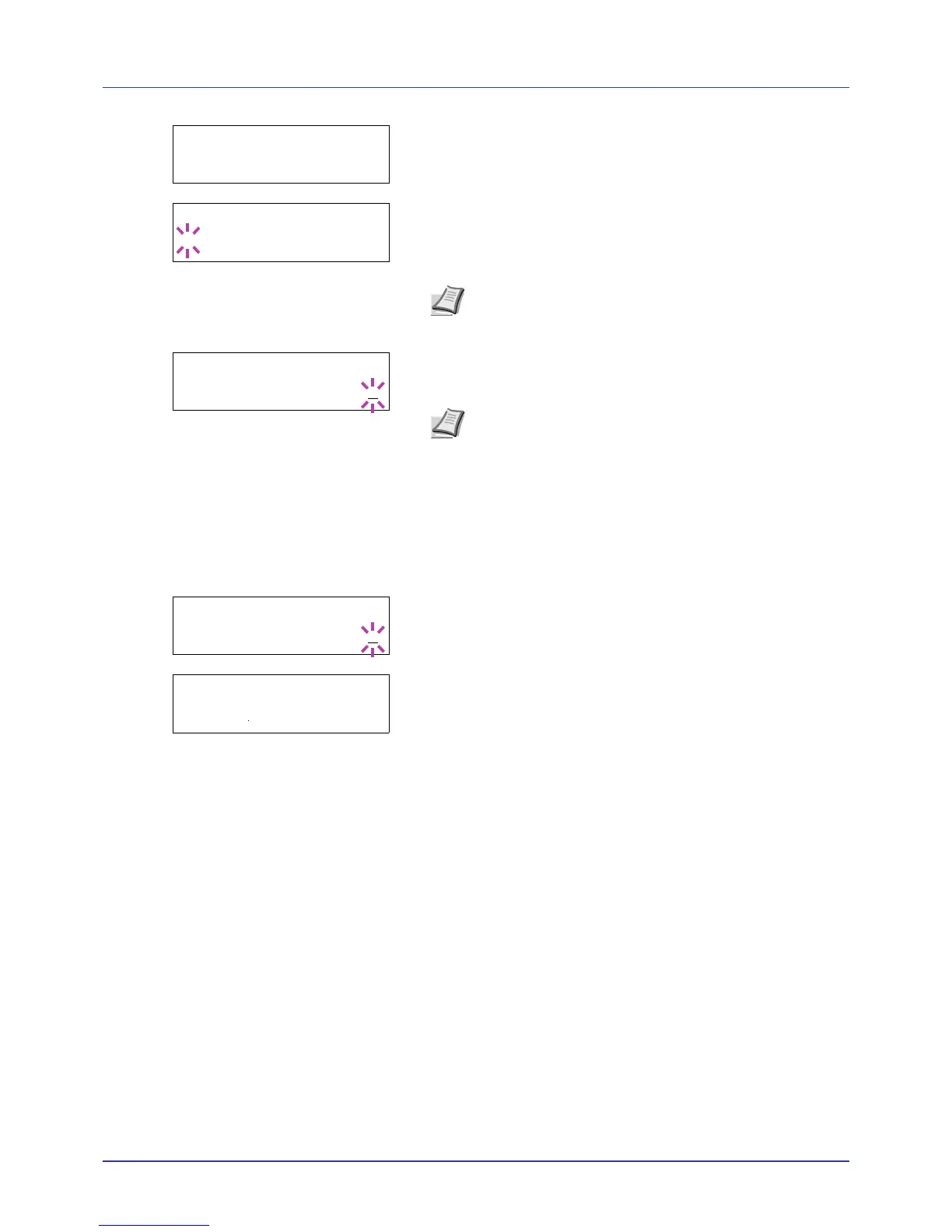
4 Press U or V to display the desired user name, Arlen, in this
example.
5 Press [OK]. The job name entered in the printing system driver
(Report, in this example) appear with a blinking question mark (?)
before the letters.
6 Press U or V to scroll to the desired job title.
7 Press [OK]. The number of copies to be printed can be set. To
increase the copy count, press U to decrease the copy count, press
V.
8 Press [OK] to finalize the copy count. The printer prints the specified
number of copies for the job.
Deleting a Proof-and-Hold Job
1 Follow steps 1 through 6 in the above section to let the title of the job
to be deleted displayed.
2 When the title of the job to be deleted is displayed, e.g. Report,
press [OK]. The cursor (_) below the copy count starts to blink.
3 Press V repeatedly until Delete appears below the title.
4 Press [OK]. The message Processing appears and the stored job
is deleted.
Private/Stored (Printing a private print/stored job)
In private printing, you can specify that a job is not printed until you
release the job from the operation panel. When sending the job from the
application software, specify a 4-digit access code in the printing system
driver. The job is released for printing by entering the access code on the
operation panel ensuring confidentiality of the print job.
In the stored job mode, access codes are not mandatory, but can be set
on the printing system driver if printing with PIN security is required. Then,
the access code must be entered on the operation panel to print a stored
job. Print data will be stored in the hard disk after printing.
Refer to Printing System Driver User Guide for the driver settings.
Releasing a Private/Stored Job
1 Press Z while Job Box > is displayed.
2 Press U or V repeatedly until >Private/Stored appears. The
name entered in the printing system driver (Harold, in this example)
also appears.





 To Next Page