8
Using the thumbnail screen
Using the view screen
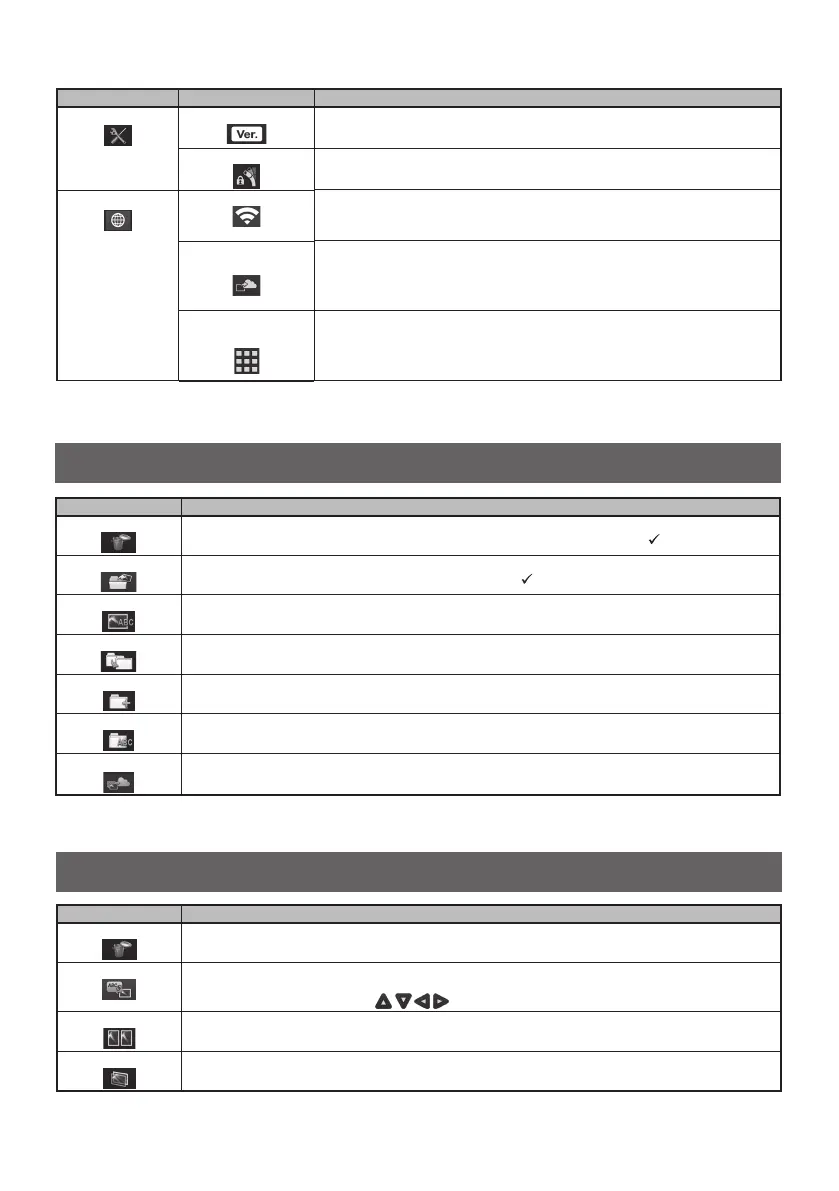
Menu Available settings
<DELETE>
Deletes the recorded image.
On the thumbnail screen, the currently selected image or all images that are check-marked (
) are deleted.
<MOVE FILE>
Moves image files to folders (Thumbnail screen only).
The currently selected image or all images that are check marked (
) on the thumbnail screen are moved.
<RENAME FILE>
Rename file (Thumbnail screen only)
<CHANGE FOLDER>
Switches a folder for image recording and playback (Thumbnail screen only).
The initial setting is set to "DCIM\100IPLEX".
<MAKE FOLDER>
Creates a new folder for image recording and playback.
<RENAME FOLDER>
Renames a folder for image recording and playback.
<BATCH TRANSFER>
Upload the still image files stored in the folder to the cloud server at once.
Menu Available settings
<DELETE>
Deletes the recorded image.
On the view screen, the currently displayed image is deleted.
<NOTE>
Inputs the note information (texts/symbols) to the desired position on the screen.
You can input the note information (texts/symbols) by tapping on the still image that is being played back or by
tapping the up/down/left/right button (
).
<COMPARE>
Displays the comparison screen.
To hide the comparison screen, tap the [MENU] button.
<GHOST>
Displays the ghost screen.
To hide the ghost screen, tap the [MENU] button.
Main menu Sub menu Available settings
<SYSTEM SETUP>
<VERSION>
Displays the software version.
<FINE MODE SPEED>
Specifies the angulation speed for the angulation lock.
The angulation speed can be selected from <SLOW>, <STANDARD> and <FAST> (3levels).
<NETWORK>
<WIRELESS>
Specifies the wireless communication.
・ Enables the wireless communication.
・ Specifies and selects the access point.
<TRANSFER AS
RECORDING>
Specifies the transfer as recording.
・ OFF: Disables the transfer as recording.
・ ON: Enables the transfer as recording.
Enabling this setting allows you to upload the still image to the cloud server in
conjunction with the recording operation.
<DEVICE AUTHEN
AUTHENTICATION>
Specifies the device authentication.
Input the PIN code to process the device authentication.



 To Next Page