42
7.4.3 Remote Control without own IP Address, behind a router
If you need to change the OM2501A connection settings for some reason, use point 7.5.1 above.
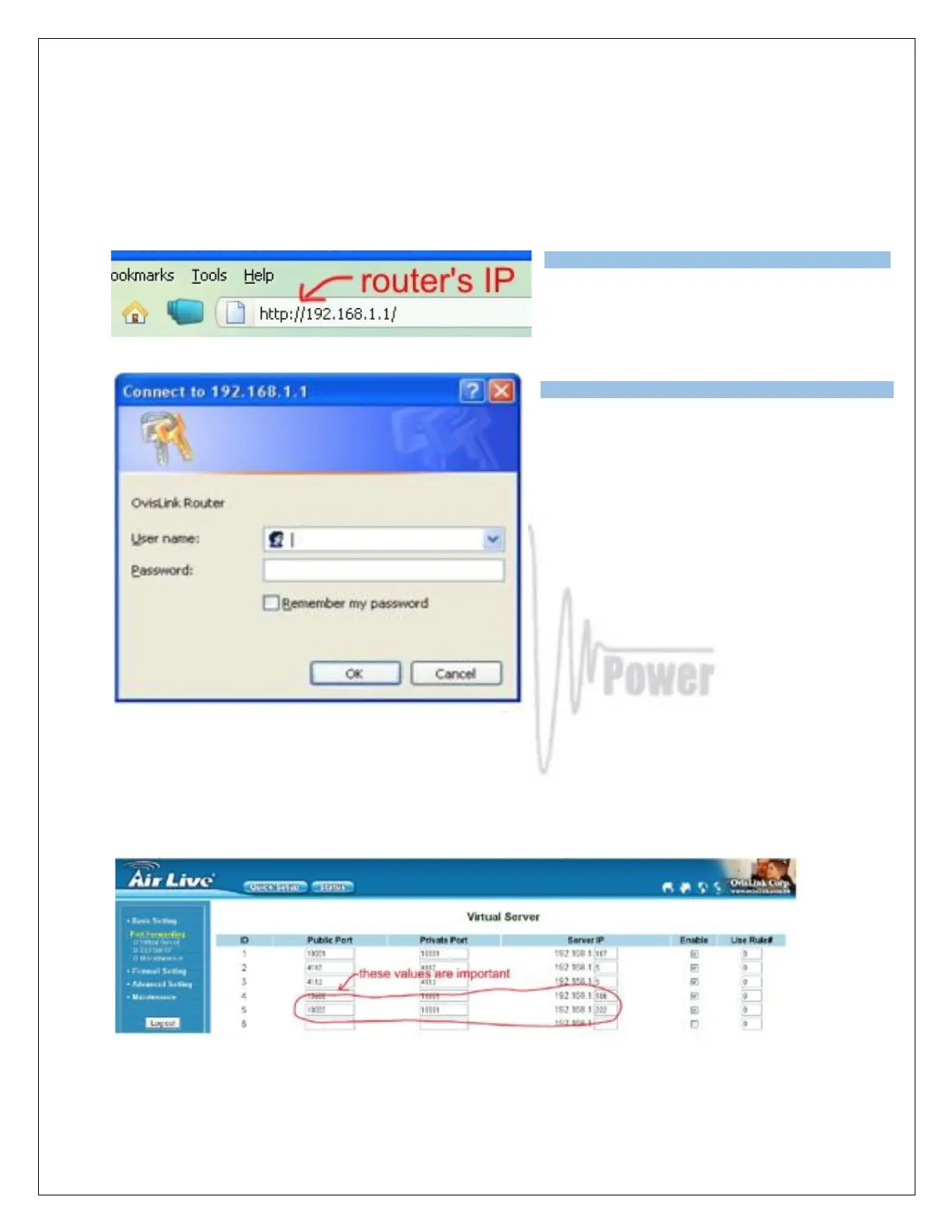
Change router´s settings
Open up a WEB browser and enter the
routers´s internal IP Address ( usually
192.168.1.1)
An authentication window WILL APPEAR.
You need to enter the routers login and
password. Usually a router´s default login is
“admin” or “administrator” and default
password “admin” or an empty field.
Open Firewall Settings (depends on router software, can be called Forwarding, Port Forwarding, or something
similar). As Server IP enter the OM2501A IP Address, 192.168.1.222 if you haven't changed it, or the one you
changed to in point 7.5.1. Private port should be 10001 in default, or the one you changed to in point 7.5.1.
Some routers don't have separate Public Port settings. Enter an available port number (usually the default 10001
is free and usable). Check the Enable box too. When done, click OK (or Save).
Open your Basic Router Setup (or WAN Settings or similar, depending on router) and note the WAN IP
Address value.


 To Next Page