Omnipod DASH™ Insulin Management System 1
6
1 Omnipod DASH™ Insulin Management System
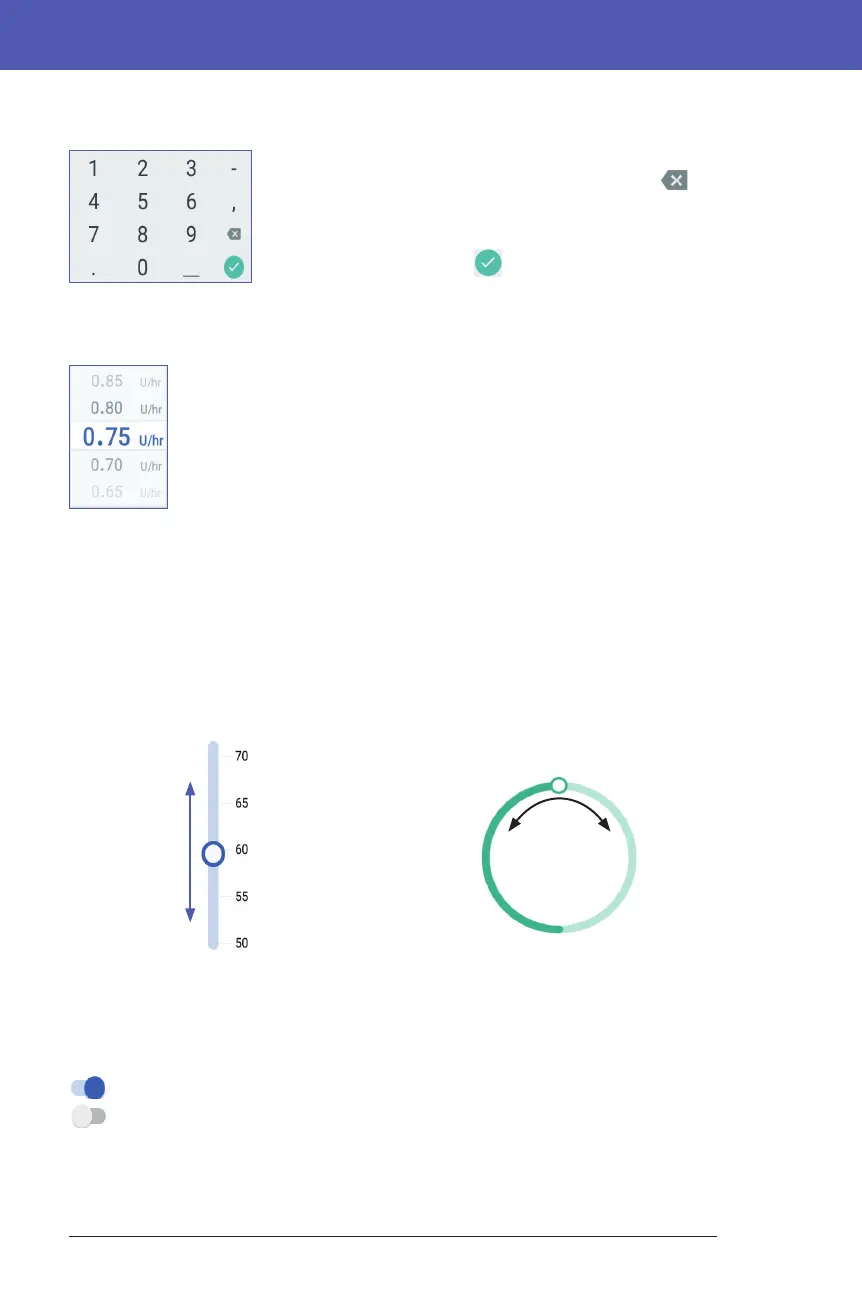
Using a number pad
Tap a number to add it to the entry eld. Tap the period
(.) to add a decimal point. Tap the backspace icon ( )
to delete the most recent entry from the entry eld. e
comma (,), dash (-), and underscore (_) are not used.
Tap the green checkmark ( ) to accept the entered
number. You can also tap outside the number pad to
accept the entered number.
Using a scroll wheel
Place your nger on the scroll wheel. Move your nger up to select
a smaller number and down to select a larger number. e faster
you move your nger, the faster the wheel will scroll.
When your desired selection is shown in the center of the wheel,
select the value by tapping it or by tapping outside the scroll wheel.
Using a slider
Use sliders to select a value from a scale. Place your nger on the small open circle
and move your nger until your desired value is displayed. Depending on the
on-screen graphic, you may move your nger vertically or in a circle to move
the slider. Move your nger up or clockwise for a larger number and down or
counterclockwise for a smaller number. Li your nger when the desired value is
displayed.
Selecting, Adding, and Deleting Items
Toggles
Tap a toggle to change the selection from one side to the other.
Toggles allow you to choose between two options or to turn a feature on or
o. e toggle is on the right side and blue when a feature is on, and on the
le and gray when a feature is o.
Move slider around the circle
Move slider up
or down



 To Next Page