Omnipod DASH™ Insulin Management System 1
12
1 Omnipod DASH™ Insulin Management System
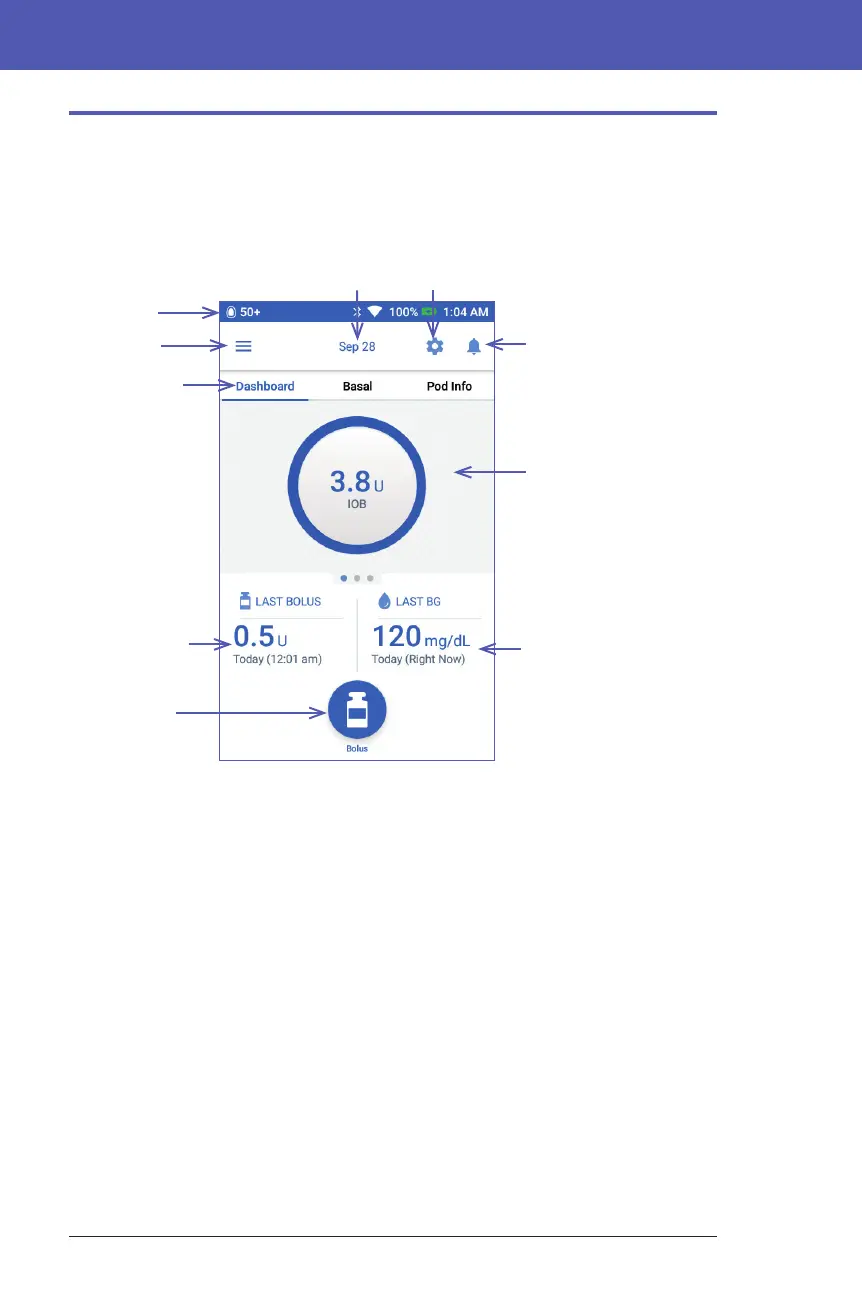
The PDM's Home Screen
e Home screen provides information about recent boluses, blood glucose
values, the active basal rate, and the active Pod. It also provides access to the PDM
functions, alarm information, and settings. e Home screen also has a Bolus
button to give quick access to the bolus screen.
e tab area of the Home screen can display bolus information on the Dashboard,
basal information, or Pod information. To change which information is displayed:
• Tap Dashboard, Basal, or Pod Info to display each tab.
• Swipe right or swipe le in the middle section to move between the tabs.
Note: If an immediate bolus is running, a bolus progress bar is shown on the
Home screen, and the Bolus button and three tabs are not visible (see "Immediate
bolus progress" on page 64). A button to cancel the bolus is visible.
Value and time of most
recent blood glucose
reading
Tab area
The Dashboard tab is
visible in this image.
Notications & Alarms
icon
Bolus button
Amount and time
of most recent
bolus
Tab labels: The
name of the
visible tab is blue
and underlined.
Menu icon
Status bar
Settings icon
Today's date



 To Next Page