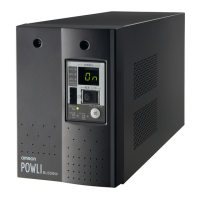
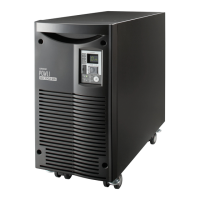
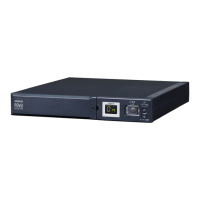
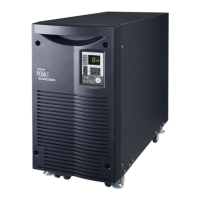
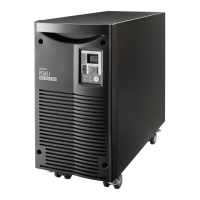
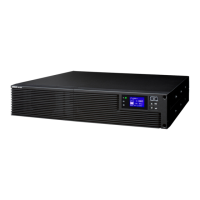
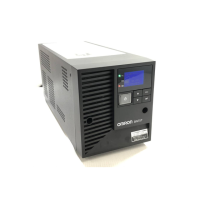
BU75RW/BU100RW/BU200RW/BU300RW
7
77
2.
Procedure for changing settings so that Xserve RAID performs auto startup when UPS starts up
(1) Open RAID Admin.
(2) Select the target Xserve RAID and log in to it.
(3) After login is complete, the Settings button on the RAID Admin screen is enabled. Click this button
to open the Settings screen. (A RAID Admin administrator password is required when changing the
settings. Enter the password when prompted.)
(4) After the Settings screen opens, click the System tab and fi nd the Options section. In the Options
section, place a check mark in the check box next to “Auto restart after power failure.”
(5) Click the OK button when fi nished.
3. Checking operation
(1) Put the UPS into Battery Mode by disconnecting the unit’s AC input plug from the wall outlet (com-
mercial power) or, when using the BU200RW/BU300RW, by turning OFF the INPUT PROTECTION
switch (input overcurrent protection switch) on the back of the unit to stop commercial power.
• For the BU75RW/BU100RW, disconnect the AC input plug from the commercial power to put the
unit into Battery Mode.
• For the BU200RW/BU300RW, put the unit into Battery Mode by disconnecting the UPS AC input
plug from commercial power or by turning OFF the INPUT PROTECTION switch (input overcur-
rent protection switch) on the back of the unit to stop commercial power.
(2) When in Battery Mode, the UPS outputs the power outage signal. When the Xserve RAID receives
the power outage signal, the write cache is closed.
(The write cache section on the operating system’s RAID Admin data screen displays “Not in use.”)
(3) Power to the Xserve RAID can be turned OFF.
(4) After checking the operation, reconnect the UPS to the commercial power source and turn ON the
INPUT PROTECTION switch (input overcurrent protection switch).


 To Next Page
 Loading...