Page 7 of 31
To establish communication between the personal user device and OnCommand® Link, perform the
following steps:
1. If using your phone/tablet, turn on Wi-Fi and scan for devices. When using a laptop, make sure
Wi-Fi is turned on and click Network Settings to view available devices.
2. When a personal user device has completed its scan for available networks, select the network
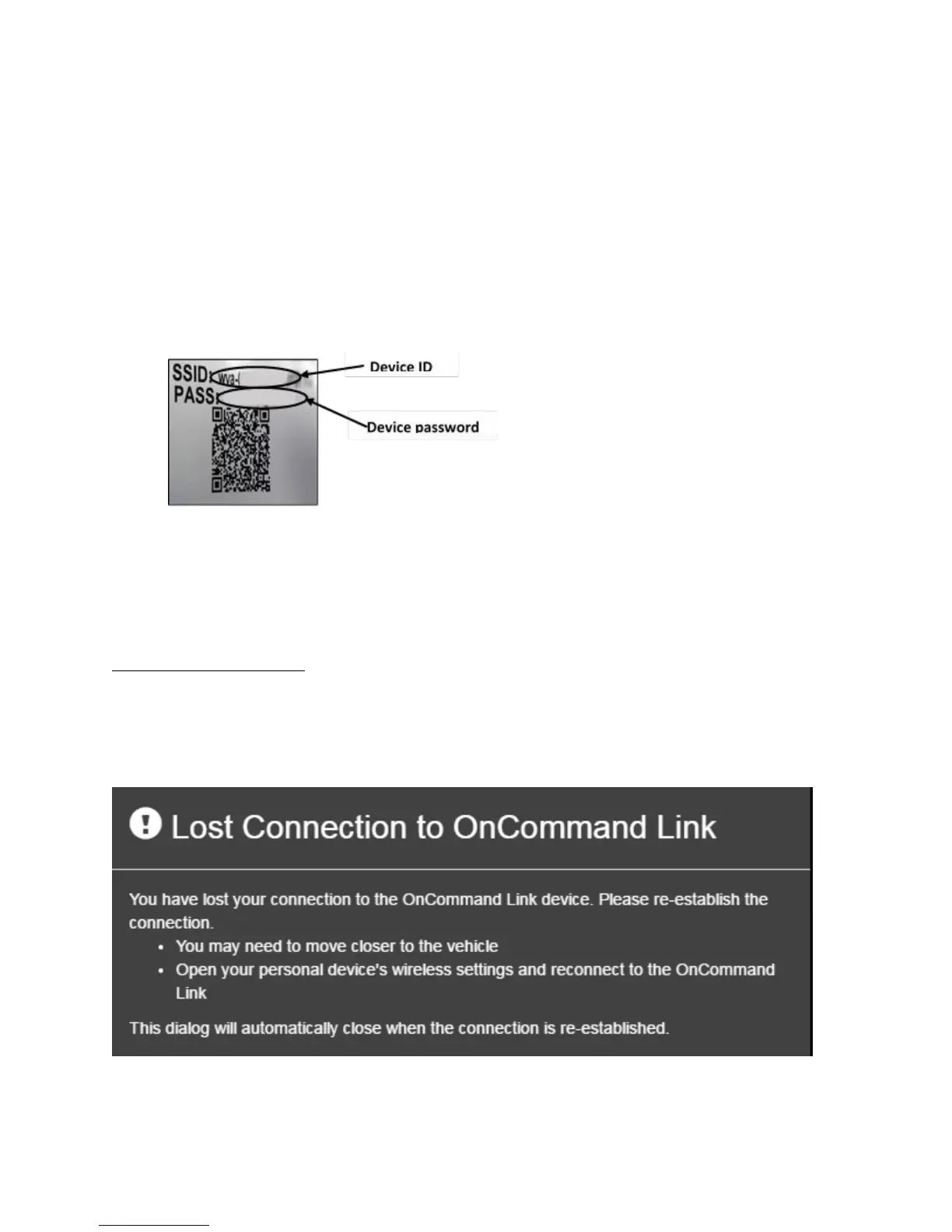
name containing the last 8 digits of device’s Serial Number (S/N) or MAC address (you can use
the last 8 digits (without colons) from the SSID on the OnCommand® Link’s label provided with
device packaging).
3. Enter the entire 14-character, alphanumeric password or PASS located on the OnCommand®
Link’s label. The device password is case sensitive.
Figure 2. OnCommand® Link SSID and Password
The personal user device should now be shown as connected to the OnCommand® Link in network
settings.
Re-establishing Connection
If the personal user device loses the connection to the Link device, a popup message will appear from
the application within 30 seconds. You will then be required to repeat this section to re-establish the
connection to the OnCommand® Link device. Once you have successful re-connected with the device,
this popup will be dismissed automatically.
Figure 3. Lost connection message


 To Next Page