Page 12 of 31
If your network needs proxy settings to connect to Internet, you can enable the checkbox that says ‘Use
a proxy for this network’ and enter proxy server information. Check with your IT department to know
more about your proxy server details.
Connection to OnCommand® Link device management server
When connected to internet, OnCommand® Link communicates with our device management server in
the background that helps Navistar support team to better maintain your device and helps in
troubleshooting. Your Wi-Fi network should allow outgoing traffic on TCP ports 3197 and 3199 for the
device to communicate with device management server.
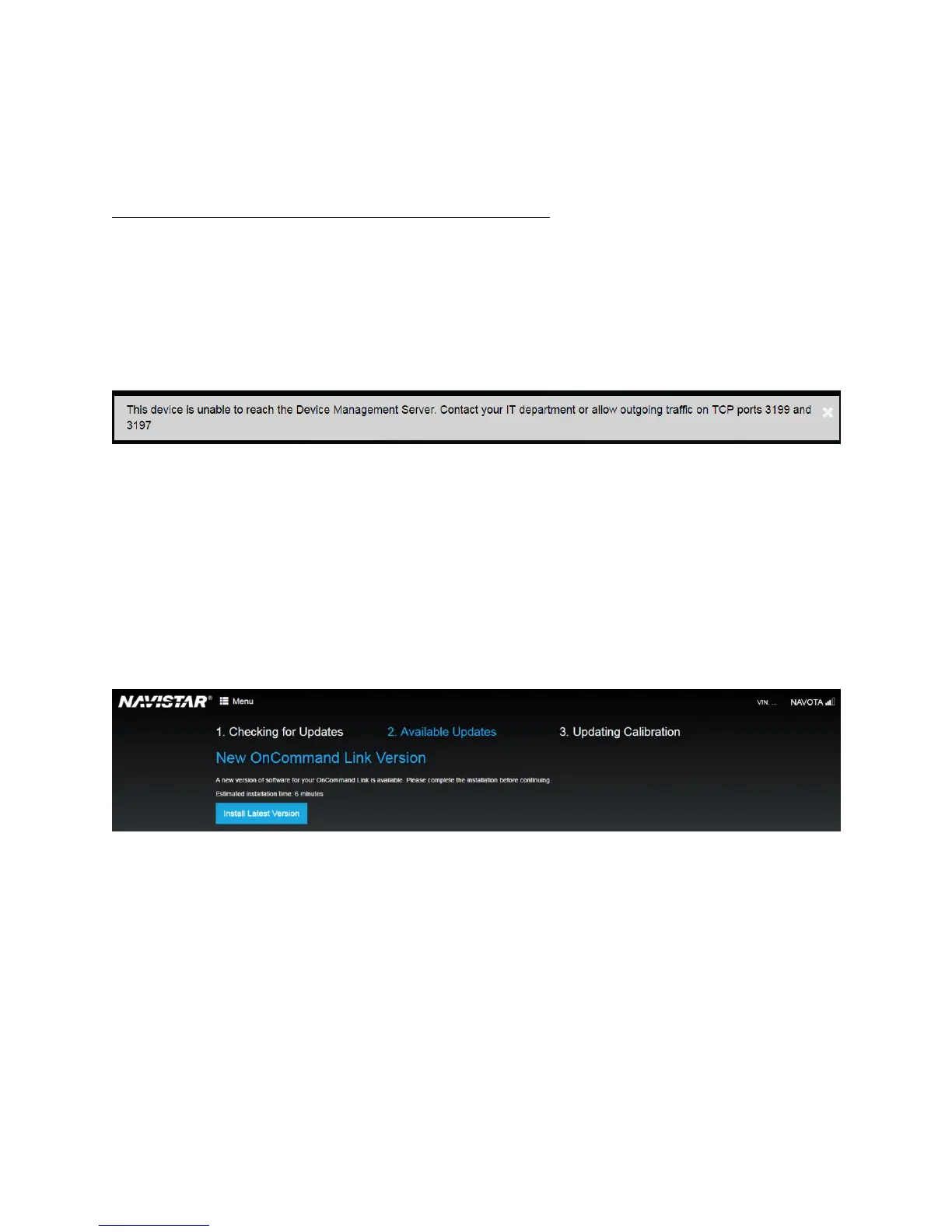
You will notice the below warning message displayed when ports 3197 and 3199 are blocked in your Wi-
Fi network. Please contact your IT department to allow outgoing traffic on these ports.
Updating OnCommand® Link Firmware/Application Software
The OnCommand® Link device will update its firmware and application software automatically if it is
connected to Internet if there is no personal device (Laptop/Phone/Tablet etc) connected to the
OnCommand® Link.
If your personal device is connected to the OnCommand® Link and the Link device receives either a
firmware or application update package from the Navistar backend servers, you will see the below
screen:
Figure 10. New application/firmware available
You need to update the OnCommand® Link before proceeding to use the device for other purposes.
Click ‘Install Latest Version’ to start the installation procedure.
During the installation, the OnCommand® Link will reboot one or more times. When you hear the beep
and amber App light is illuminated, reconnect your personal device to the OnCommand® Link.


 To Next Page