Unclear printouts may be caused by dusty print head,
ribbon stain or label liner glue. Therefore when printing,
it’s necessary to keep the top cover closed. Also,
check and prevent paper/label from being stained or
dusty to ensure print quality and to prolong the print
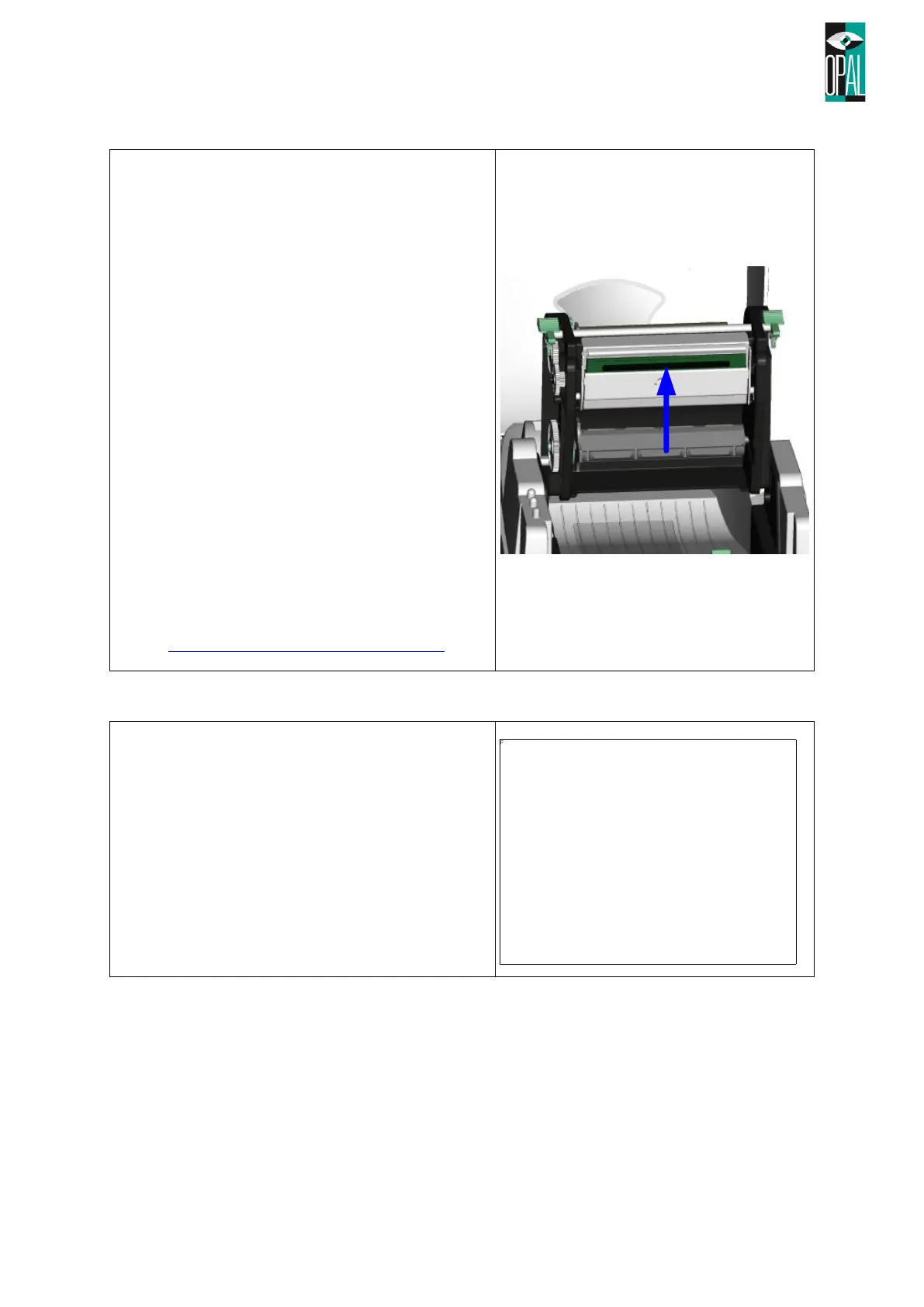
head life. Print head cleaning instructions are as
follows:
1. Power-off the printer.
2. Open the top cover.
3. Take out the ribbon.
4. Open the print head by pressing the locking
tenons.
5. If there are label pieces or other stain on the
print head(see blue arrow), please use a soft
cloth with industrial use alcohol to wipe away
the stain carefuly. Never bring the print head
in contact with hard or metallic things.
Note:
• Weekly cleaning of the print head is
recommended
• When cleaning the print head with soft
cloth, make sure there are no metal or hard
particles attached on it.
• (we recommend to use our Cleaning Set:
https://barcode-shop.com/reinigungs-set
When printing with different label materials or using
different ribbon types, unbalanced print quality may
occur due to the media material differences, thus it’s
necessary to adjust the Thermal Print Head pressure.
1. Open the top cover.
2. Take out the ribbon.
3. Turn the print head adjustment screws slightly
by screwdriver to increase or decrease print
head pressure.



 To Next Page