User Manual v.2.2
OD5+ Serie
OPAL – Your AutoID System Integrator
opal-holding.com
- 28 -
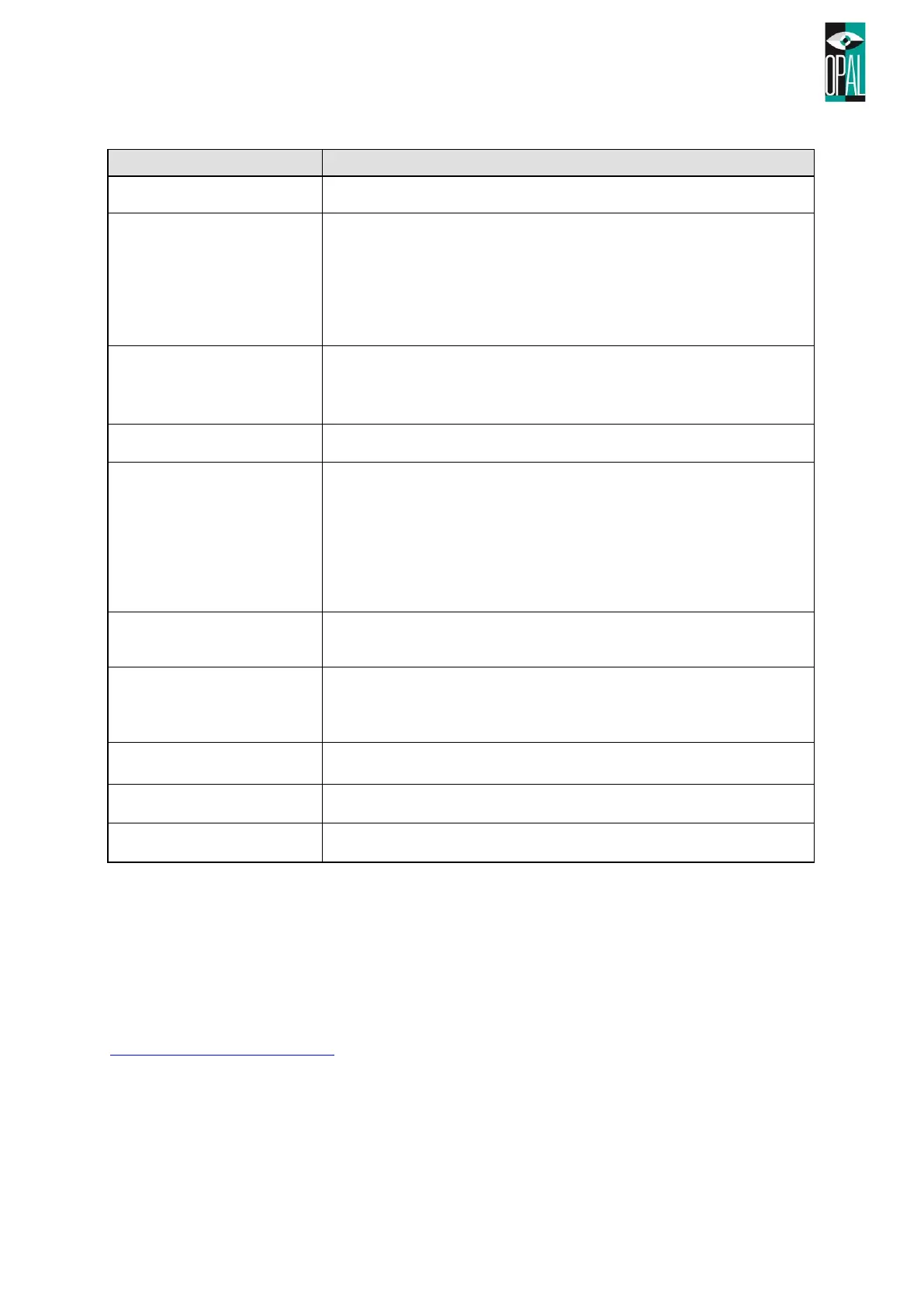
4.4 Troubleshooting
Power on the printer, but the
LED does not light up
Check the power connector
LED light turns red
(power/status) after print stops
Check for software settings or program command errors
Replace with suitable label or ribbon
Check if label or ribbon is all out
Check if label is jammed/tangled up
Check if printing mechanism is not closed (Thermal Print Head
not positioned correctly)
Check if sensor is blocked by paper/label
Printing started, but nothing
was printed on the label
Check if label is placed upside down or if label is not suitable for
the application
Select the correct printer driver
Select the correct label and print type
When printing, label is
jammed/tangled up
Clean the label jam, and if label is stuck on Thermal Print Head,
please remove it by using soft cloth with alcohol.
When printing, only part of the
contents were printed
Check if label or ribbon is stuck on the Thermal Print Head
Check if application software has errors
Check if start position settings has errors
Check if ribbon has wrinkles
Check if ribbon supply shaft is creating friction with the platen
roller. If the platen roller needs to be replaced, please contact
your reseller for more information
Check if power supply is correct
When printing, part of the
label wasn’t printed
completely
Check if Thermal Print Head is stained or dusted
Check the media quality
Printout not in desired position
Check if sensor is covered by paper or dust
Check if liner is suitable for use, please contact reseller for more
information
Check if label roll edge is aligned with Label Width Guide
When printing, page skipping
occurs
Check if error occurs on label height settings
Check if sensor is covered by dust
Check print darkness settings
Check if Thermal Print Head is covered with glue or stain
When using stripper,
abnormal function occurs
Check if stripper sensor is covered with dust
Check if label is installed properly
Note:
• Your dealer is knowledgeable about OD5+ printers, printing software, and your unique system.
Please contact your local dealer for further technical support.
4.5 Firmware Update
Firmware update can help to fix various possible hidden malfunctions.
Software tool, instructions, FW release notes and the latest firmware can be found on
https://www.opal-holding.com/od
You can carry out the FW update locally on the computer with the OPAL Download Tool software, or via
printer's WEB interface under Maintenance you will find the Firmware update function.



 To Next Page