Maintenance 113
Falcon+ Operator Manual
OPEX Corporation
b. Swing open the paper guide to expose the printer assembly.
Note: If you have the optional graphics printer installed, see “To remove/
replace the graphics printer:” on page 113 for directions.
To remove/replace a standard printer cartridge:
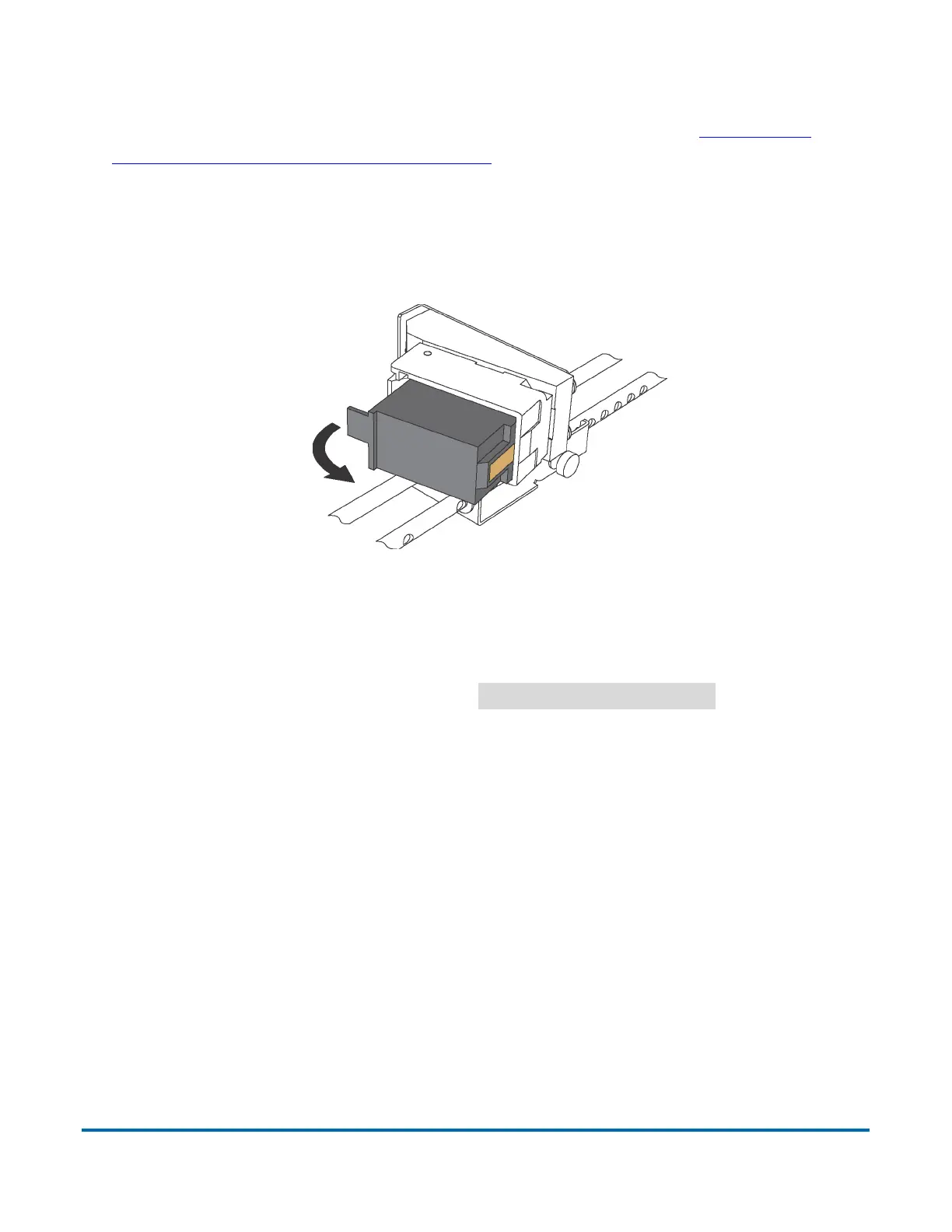
1. Pull the tab on the rear of the printer cartridge and rotate outward (see
Figure 5-4).
Figure 5-4: Printer Cartridge
2. Insert the new cartridge by tipping the front end of the cartridge in first, and
then pushing in the rear of the cartridge until it “clicks” into place.
3. Go to Diagnostics > Printer and click
Replace Ink Cartridge
to reset the ink
drop count to zero.
To remove/replace the graphics printer:
1. Open the stacker door by disengaging the latch handle.
2. Loosen the thumbscrew shown (see Figure 5-5).


 To Next Page