Optelec ClearView
+
English Page 18
5.2 Feature Pack Advanced
The Feature Pack Advanced contains all the features of the
Feature Pack Basic and adds the line marker, window
shade and PC-switch functions. For a description of the
semi-colors and position locator functions, please refer to
section 5.1 Feature Pack Basic.
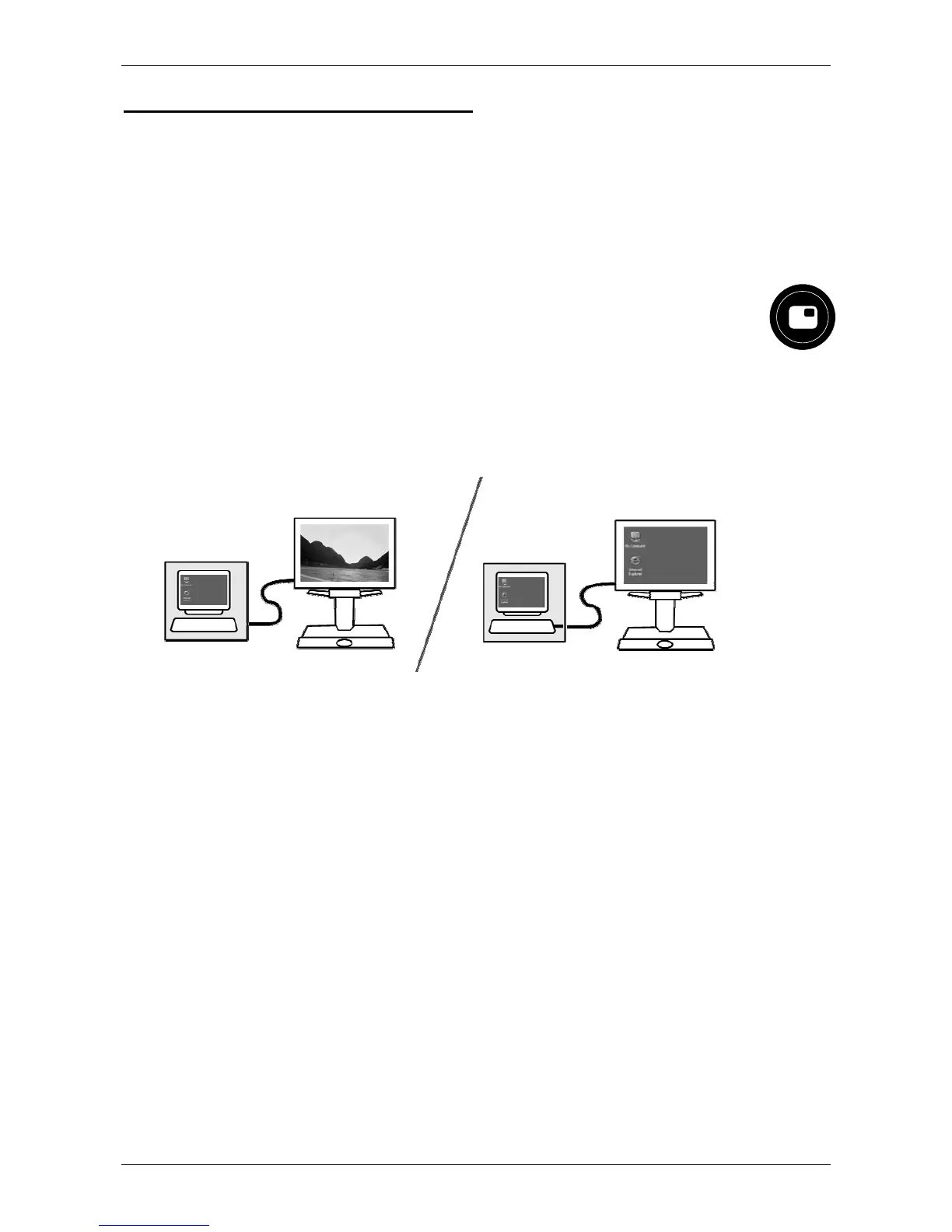
Switching between the ClearView
+
and a
computer / external source image
If a computer or another external source is connected to the
ClearView
+
, press this button or the footswitch if fitted to
toggle between the ClearView
+
image and the full screen
computer image.
To display the computer image on your ClearView
+
monitor
correctly, make sure that your computer’s resolution is set
accordingly:
For the ClearView
+
18” TFT monitor, the resolution
must be set to 1366 x 768.
For the ClearView
+
22” TFT monitor, the resolution
must be set to 1680 x 1050.
For the ClearView
+
24” TFT monitor, the resolution
must be set to 1920 x 1080.
Please note: If your ClearView
+
color unit is equipped
with a 22” TFT monitor, pressing this button will allow
you to toggle between the ClearView
+
image, vertical
split-screen (showing both the ClearView
+
image and
computer image in the ratio 50:50) and full screen






 To Next Page