Optelec ClearView
+
English Page 19
computer image. The split-screen image cannot be
resized or repositioned.
The other ClearView
+
monitors and the ClearView
+
HD
unit do not support the split-screen image function.
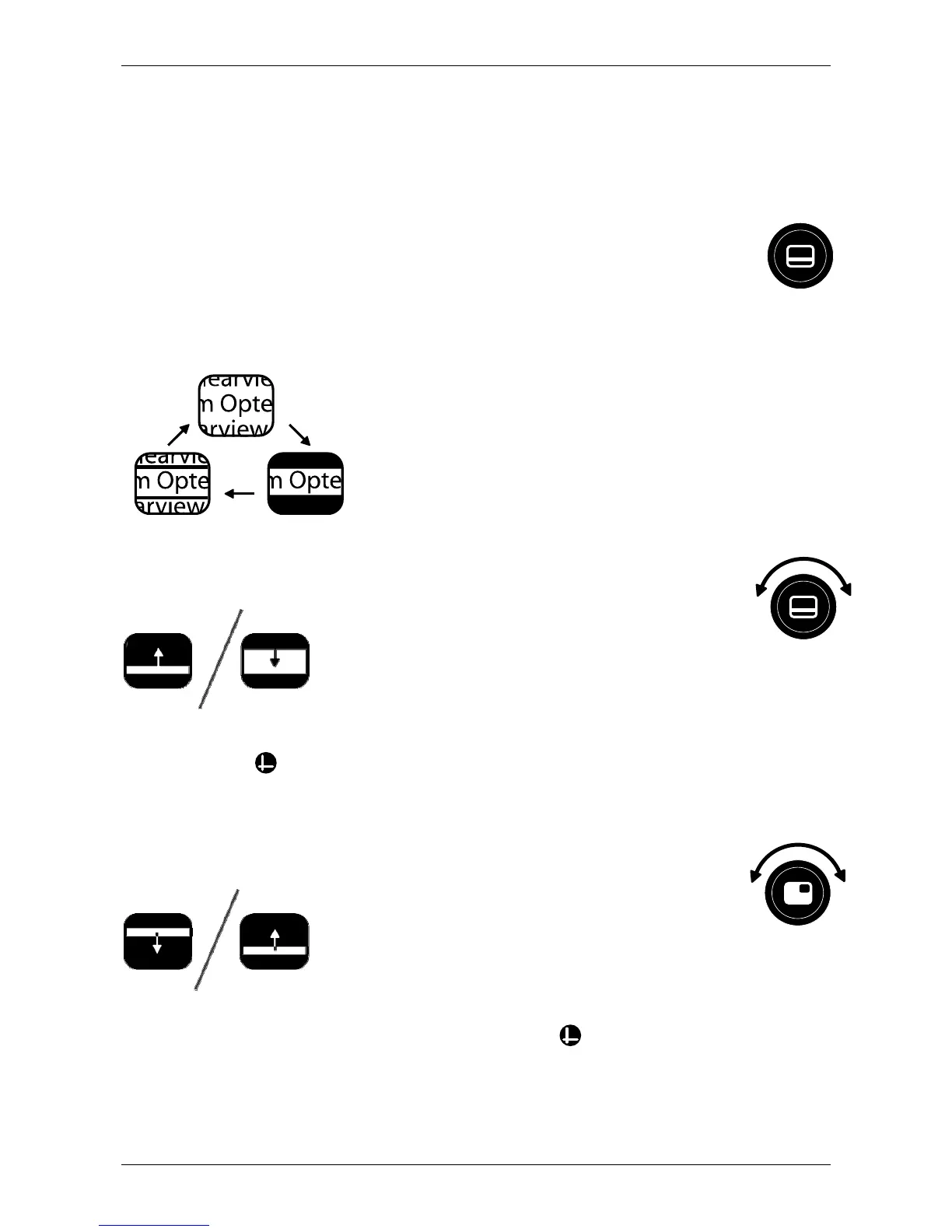
Activating line markers / window shades
Pressing this button cycles you through the line
markers, window shades and full screen camera image
modes. Line markers are used as guides to make reading
text easier. The window shades
function may be used to block a part
of an image when screen brightness
becomes inconvenient or when
needing to concentrate on only one
or two lines of text is preferred.
Sizing the lines markers / windows
When line markers or window
shades are activated, turning this
button will narrow or widen the space
between the line markers / window edges.
This can either be modified horizontally or vertically by using
this button .
Positioning lines markers / windows shades
When line markers or window
shades are activated, turning this
button will change their position on screen.
Line markers and window shades may be
displayed horizontally and vertically depending upon the
status of this button described below .






 To Next Page