26
Manage.
Changed your mind? No sweat. Modify your preferences at any time and edit or cancel a program or series.
Plus, free up your recording space by organizing your library that holds up to 300 hours of SD and 75 hours of HD.
O*d/%+(d)O+"Od(%(O$)<
2d Press or go to $$"d2112 to get the Recorded List.
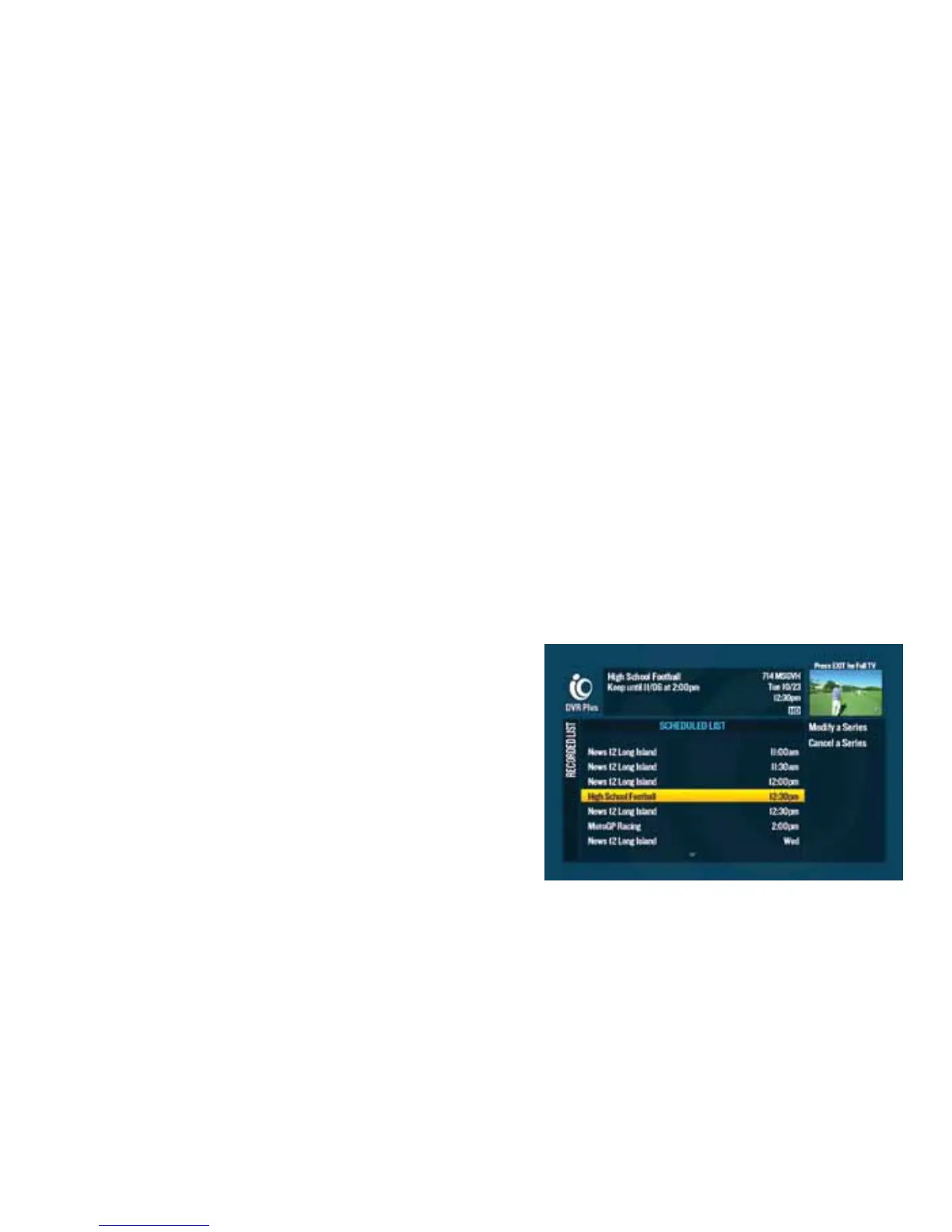
3d Highlight “Scheduled List” on the right-hand menu and pressd.
4d Choose the program from the scheduled list you wish to change.
5d Highlight “Modify Recording” from the right-hand menu and press .
6d Use the to highlight any option you wish to change and press .
7d When the change is made, use the to highlight “Accept Changes” on the right-hand menu and press .
%O/dd)()d(%(O$<
2d When you modify a series, it will only affect future episodes
of the series. It doesn’t affect the episodes you’ve
already recorded.
3d Press dor go to $$"d2112 to get the Recorded List.
4d Highlight “Scheduled List” on the right-hand menu and
press .
5d Select “Modify a Series” from the right-hand menu.
6d Use the dto highlight the series you wish to change and press .
7d When the change is made, use the to highlight “Accept Changes” on the right-hand menu and press .



 To Next Page