9
(*dd<
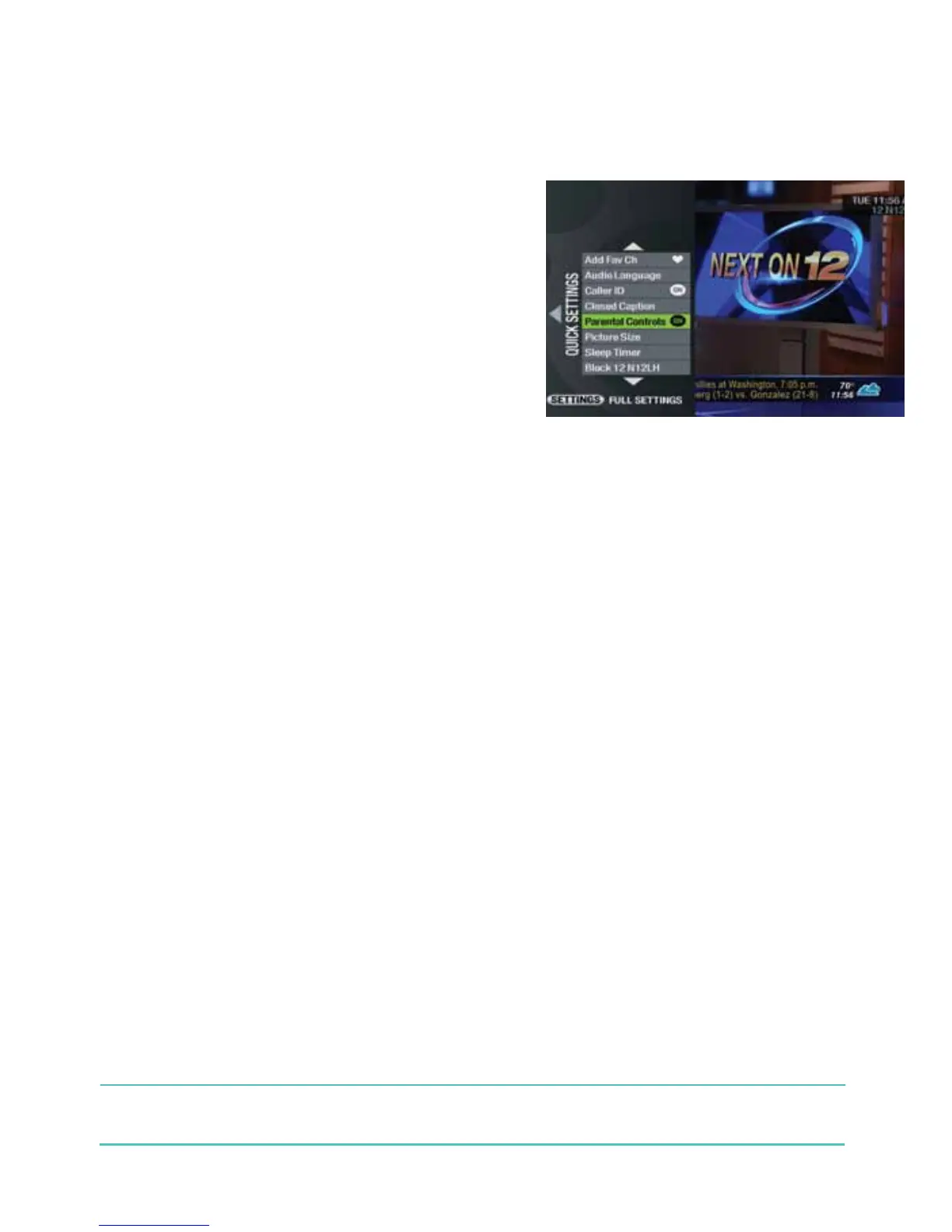
To use Parental Controls, you need to create a personal identification number (PIN). Using your remote:
2d Press dtwice to access Settings.
3d Use the dto highlight “Parental Controls”.
4d From the side menu, use the to highlight “Set PIN”.
5d Enter your new 4-digit PIN and press .
6d Re-enter the same PIN for confirmation and the PIN is set.
&O*d/%+(d<
2d Pressd twice to access Settings.
3d Use thed to highlight “Parental Controls”.
4d From the side menu, use thed to highlight “Modify PIN” and press .
5d Enter your current PIN.
6d Enter your new 4-digit PIN.
7d Re-enter the new PIN for confirmation and your PIN is updated.
($*"d%$*(%")<d
Your kids might not like it, but you will. You easily get to
decide what’s appropriate for them and what isn’t.
Parental Controls are a valuable feature that lets you
manage your kids’ viewing choices. Block certain
channels, titles or programs by their ratings, or hide
adult titles so they won’t appear in the program guide.
Sorry, kids.
&¶dIf you don’t activate Parental Controls, all channels and content with all ratings will be accessible
to all household members.



 To Next Page