28
!d/%+(d(%(O$d)&<
2d Press or go to $$"d2112 to get the Recorded List.
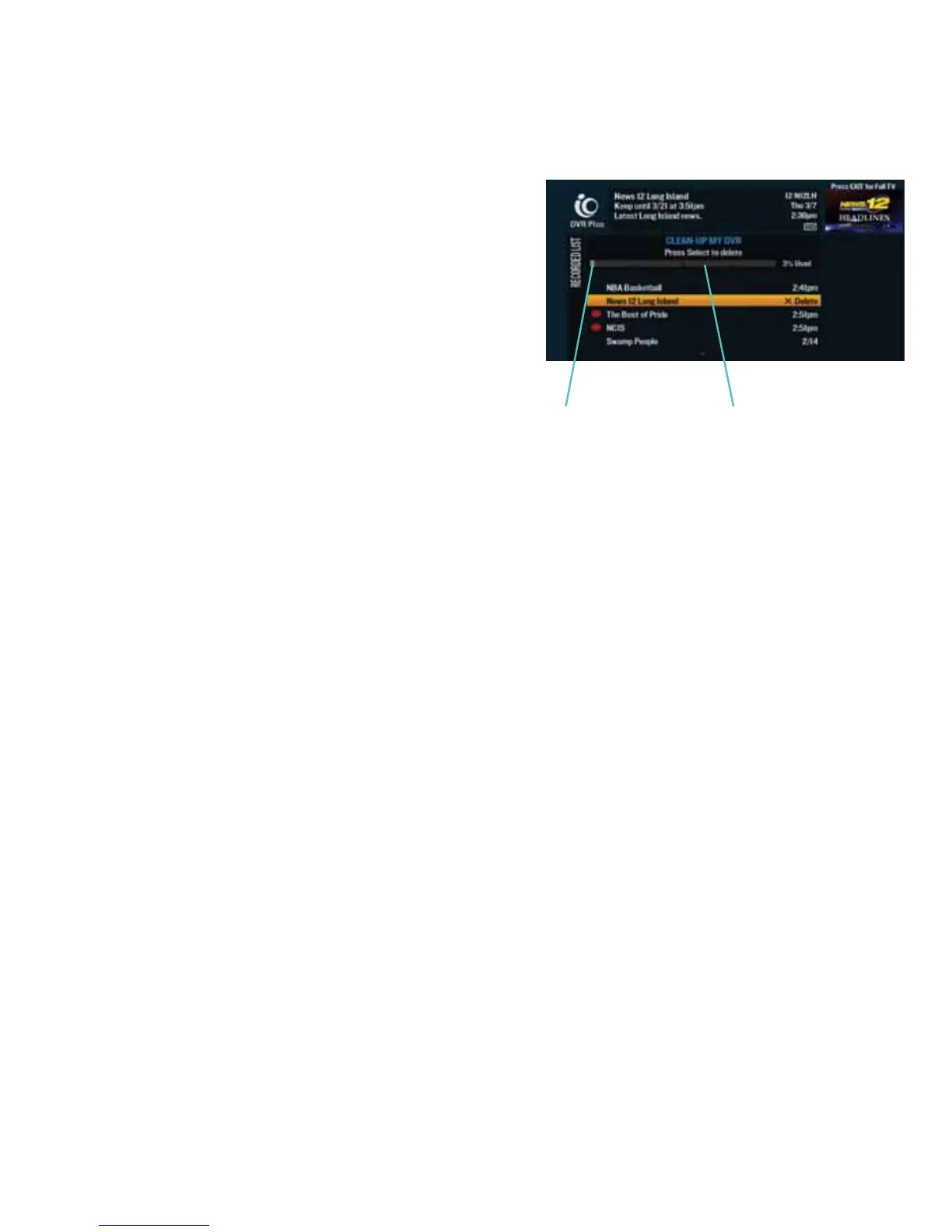
3d Highlight “Clean-up My DVR” from the right-hand menu
and press .
4d At the top of the” Clean-up My DVR” screen, you’ll see the
percentage of space currently being used.
$"dd&(%(#d)O+"Od*%d(%(O<
2d Press dor go to $$"d2112 to get the Recorded List.
3d Highlight “Scheduled List” on the right-hand menu and press .
4d Use thed to select the program you want and press .
5d Highlight “Cancel Recording” on the right-hand menu and press .
6d Highlight “Yes, cancel this recording” and press .
$"dd)()d)O+"Od*%d(%(O<
2d Press dor go to $$"d2112 to get the Recorded List.
3d Highlight “Scheduled List” on the right-hand menu and press .
4d Use the to highlight the series you wish to cancel and press .
5d Select “Cancel a Series” from the right-hand menu and press .
6d Highlight “Yes, cancel this series” and press .
Canceling a series will affect only the future episodes of the series and won’t affect the episodes that have
been recorded already.
The light gray section of
the bar shows how much
space is being used.
The dark gray section
of the bar indicates how
much space is available.



 To Next Page