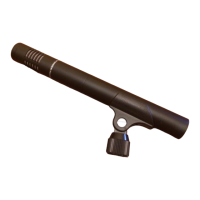
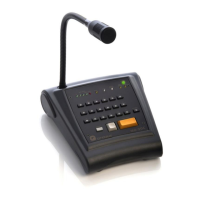
Microphone desk
6. COMMISSIONING THE UNIT
Commissioning the unit requires sending of configurations to the COMPACT audio matrix to whose CAN bus the MD-30C is
connected. To do this, you need a PC equipped with a network card and connected to the COMPACT matrix, either through a
ethernet switch, or directly through a network cable. The PC must have the Call Point software installed.
1. Set the CAN a ddress of the MD-30C and its position in the BUS (end or intermediate element) according to section 4.
CONFIGURATIONS.
2. Make the connections between units.
3. Apply power to the units.
4. Via the Call Point software, configure the parameters of theMD-30C and send the configurations to the COMPACT unit.
7. OPERATIONS
7.1. Sending a live voice announcement to
one or several zones or groups
1 Select the keys corresponding to the zones and groups
where you wish to send the announcement. When
pressed, the indicator light corresponding to each key
must be l i t.
2 Press and hold GONG+TALK (or TALK).
3 You can begin speaking when the blue TALK LED
illuminates.
4 To finish the broadcast, release the GONG+TALK (or
TALK).
7.2. Sending a pre-recorded message to one
or several zones or groups
1. Select the keys corresponding to the zones and groups
where you wish to send the message. When pressed, the
indicator light corresponding to each key must be lit.
2. Press the key assigned to the pre-recorded mess a ge you
want to send. The message s ta rts to play.
While it is playing, the key light stays on.
If you want to stop the message before it ends, press the
key corresponding to the message again. The indicator
l i ght s hould go out.
7.3. Making a general call (ALL CALL)
1. Press the ALL CALL key to select all the zones
simultaneously.
2. Then, press and hold the GONG+TALK (or TALK) to ma ke
a live voice announcement, or press the REPEAT ke y to
send the repeat of the last message, or press the key
assigned to a pre-recorded message.
7.4. Displaying of busy zones
When you press a zone or group selection key, the LED
corresponding to that key displaying the status of the
corresponding zone or group:
- Led Off: Key not configured, no used.
- Led on: Selected zone or group available.
- Led flashing in slow cadence: The selected group zone (or
one of the zones of which the group is composed) is
occupied by another sound source of greater or equal
priority. If we launch the announcement will not be
broadcast in the occupied zones.
- Led flashing in rapid cadence: The selected zone or group
(or one of the zones of which the group is composed) is
occupied by another source of lower priority sound.
Pre s sing TALK (or GONG + TALK or REPEAT) wi l l sound our
a nnouncement, s topping the a udio from the other sound
source in the occupied zones.
7.5. Repeat function
The mi crophone desk incorporates a function that enables to
repeat the last live voice message that was sent.
To turn this function on:
1 Select the keys corresponding to the zones and groups
where you wish to send the repeat message. When
pressed, the indicator light corresponding to each key
must be l i t.
2 Select the REPEAT key. The TALK/REPEAT indicator light
remains illuminated while the message is being repeated.
You ca n s top a repeat message that is being played by press-
ing the REPEAT key again.


 To Next Page