User Controls
20
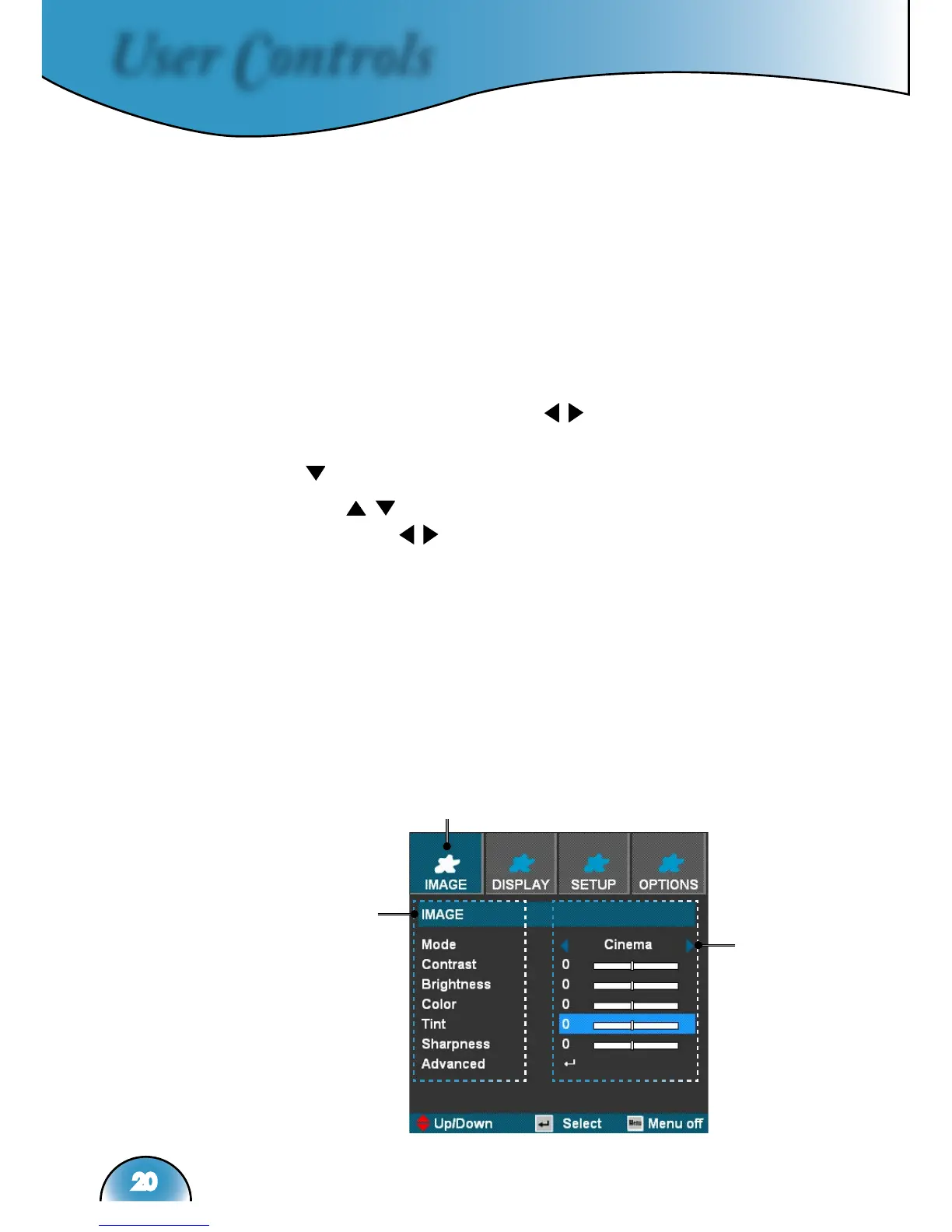
The Projector has multilingual On-screen Display menus that
allow you to make image adjustments and change a variety of
settings. The projector will automatically detect the source.
How to operate
1. To open the OSD menu, press “Menu” on the Remote Control
or Control Panel.
2 When OSD is displayed, use keys to select any item in the
main menu. While making a selection on a particular page, press
or “Select (Enter)” key to enter sub menu.
3. Use keys to select the desired item and adjust the
settings by key.
4. Select the next item to be adjusted in the sub menu and adjust as
described above.
5. Press “Select (Enter)” to confirm, and the screen will return to the
main menu.
6. To exit, press “Menu” again. The OSD menu will close and the
projector will automatically save the new settings.
On-screen Display Menus
Main Menu
Sub Menu
Setting


 To Next Page