7.6.2. Patient folder linking
User can link or unlink patient to/from current folder (not earlier ones). It is possible to link 5 folders to
each patient.
Linking can be done:
1. After erasing image memory, choose ‘yes’ when camera asks to ‘choose patient for the folder’.
2. Choosing Link in image browser, when folders and files are visible. Link key is grey and
unresponsive if current folder is not chosen. After folder is linked to a patient, folder is named by
the patient.
3. After creating new folder by long pressing middle key or from menu, choose ‘yes’ when camera
asks to ‘choose patient for the folder’.
NOTE: Exiting from image browser is done by pressing left key.
7.6.3. Patient list exporting
User can export patient list via WLAN. New file is created containing patient list with 16 kBytes of padding
bytes added to the end of file. File is named pehhmmss.jpg (hh is current hours, mm minutes and ss
seconds). File is written under DCIM folder in SD card. File is exported over WLAN.
Patient list can be exported also via USB. Patient list is written as text file (patexp.txt) to SD card root. If
patient list is modified in camera (new patient created) or SD card is erased, patient list is updated.
7.7. Adjusting focus and automatic focus
Camera has an autofocus function where camera finds correct focus place automatically. For EY4 and FA
square indicator appears when focusing is finished. For ES2 focus window turns green when focusing is
finished. Automatic focusing start when shutter button is pressed half way down. Focus mode can be
changed by pressing right soft key.
Image focus can be adjusted manually by pressing arrow keys up and down. When focus mode is set to
manual a diopter scale is visible on the screen.
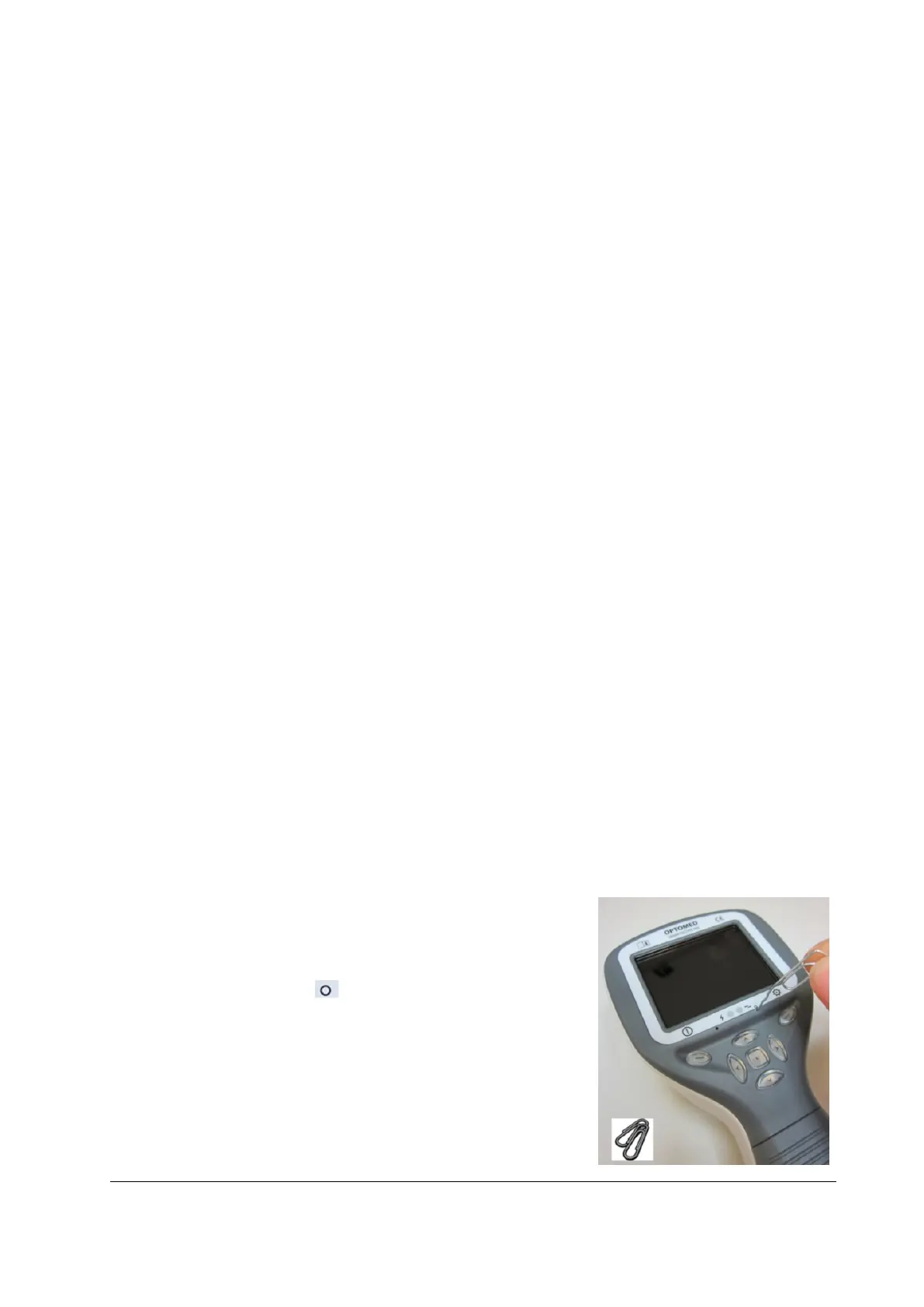
7.8. Reset button
Reset button can be used if device behavior is abnormal.
Reset button is located in a small opening under display.
Button is marked with circle.
Reset button can be pressed with a thin object such as a paper clip.
Button needs to be pressed for over 7 seconds.


 To Next Page