Appendix C - WLAN functionality
Optomed Client is a PC software which enables the wireless connection between the camera and the PC.
Installing / Uninstalling
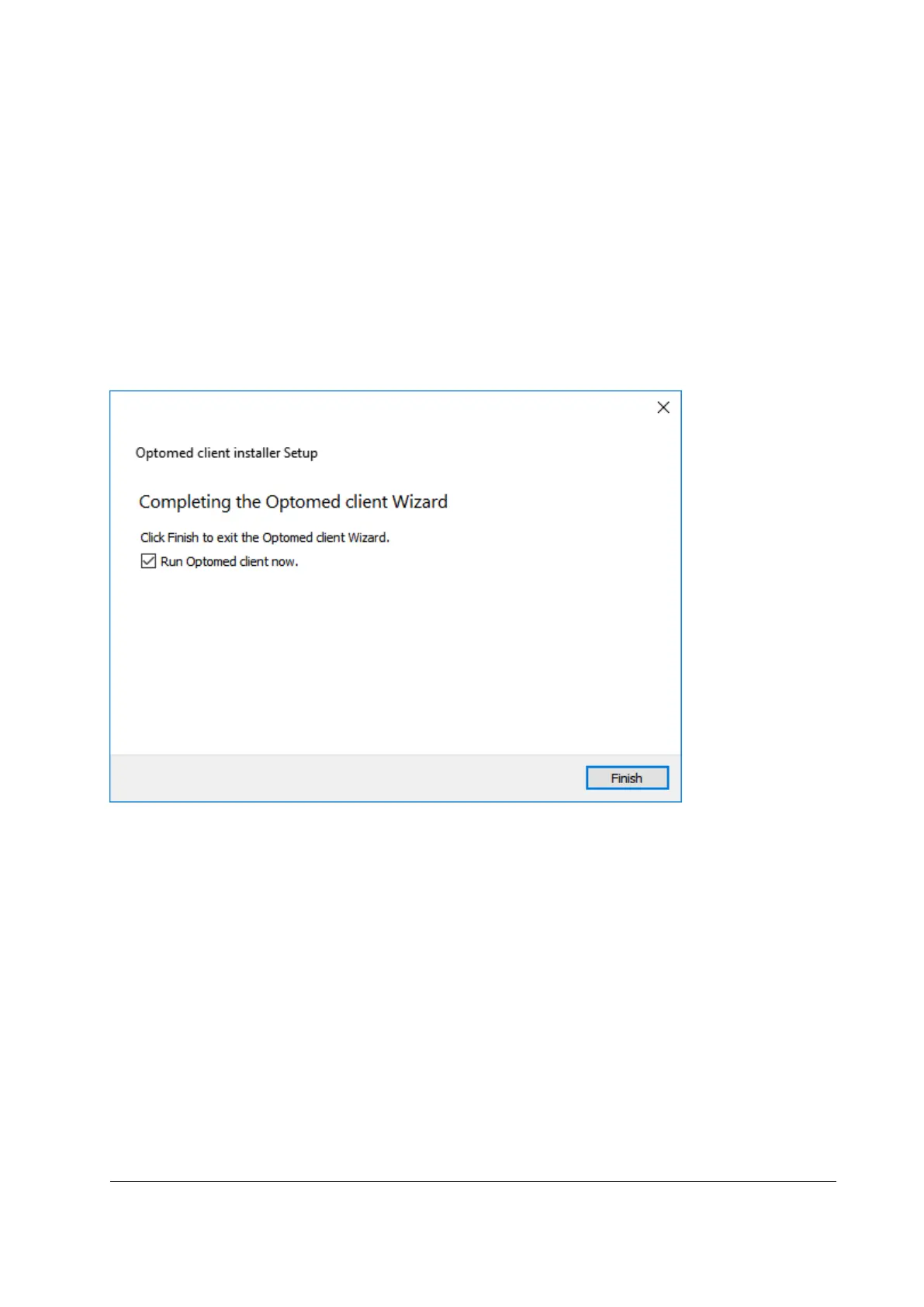
Optomed Client software is installed by executing Optomed Client Smartscope install.exe. Please, follow
the installer instructions to complete installation. First select where the application will be installed and
then select the components you want to install. Before installation, you need to accept the license. You
can also select the start menu in which you would like to create the shortcut or you can enter a name to
create a new directory.
In case you need to uninstall Optomed Client software, it can be uninstalled from Windows Control Panel
by opening Programs and Features, selecting Uninstall for the application and following the uninstaller
instructions.
Operation
First you need to set wireless connection to on from device menu to enable WLAN. When wireless
connection is enabled, the wireless symbol is shown on display next to the battery level indicator. To view
‘WLAN SSID’ and ‘WLAN Password’, select wireless info from device menu.
When WLAN is enabled, the camera-specific access point is set up. Connect PC to the created access point,
that can be found from Windows Network & Internet settings.


 To Next Page