Oracle Field Service
Using Core Application
Chapter 2
Dispatcher Activities
3. Click View.
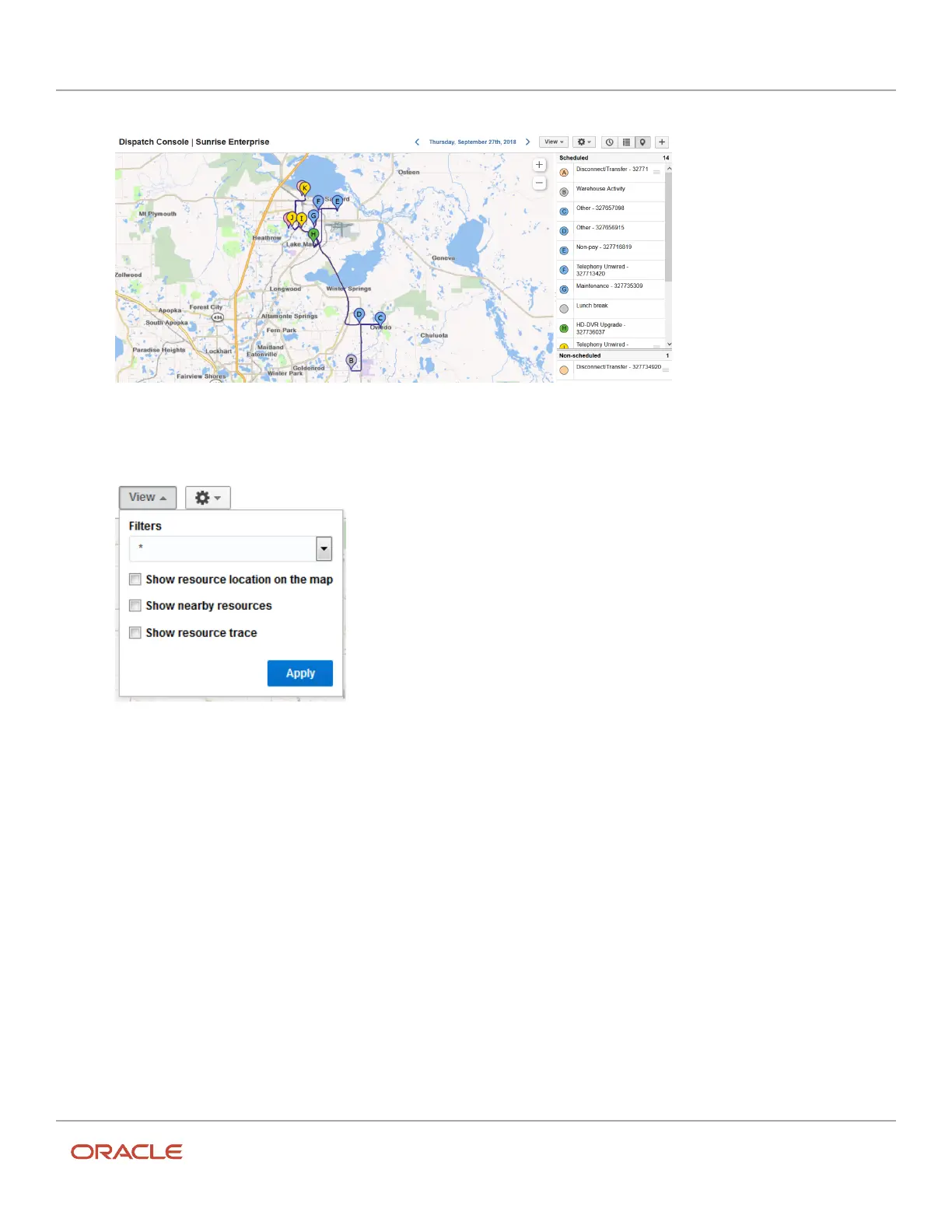
The View menu opens:
4. Click the Show resource trace check box in the View menu.
The page resets and the route is indicated by dots. See the Oracle Field Service Smart Location Cloud Service
user guide for more details.
Find Nearby Resources in Map View
If you want to move an activity, you can view the nearby bucket resources to find someone who can take the job.
1. Select a resource from the resource tree.
2. Click Map View.
The map shows the resource’s route for the day and a list of the scheduled and non-scheduled activities. If you
have enabled the Google maps service at the time of setting up the instance, you can see the satellite view layer
icon.
3. Click View.
The view menu opens.
4. In the View menu, select the Show Nearby Resources check box.
The screenshot shows the other bucket resources in the area.
30













 To Next Page