Oracle Field Service
Using Core Application
Chapter 2
Dispatcher Activities
View a Resource in Map View
When viewing an individual resource in Map View, you can see the resource’s location as well as the location of nearby
resources. You can also se a plotting of the suggested route, driving directions, and the actual route taken by the
resource (Resource Trace).
Note: Driving directions for Oracle map and geocoding are only shown in English (default), French, German, Italian,
and Spanish.
1. Select a resource from the resource tree.
2. Click Map view.
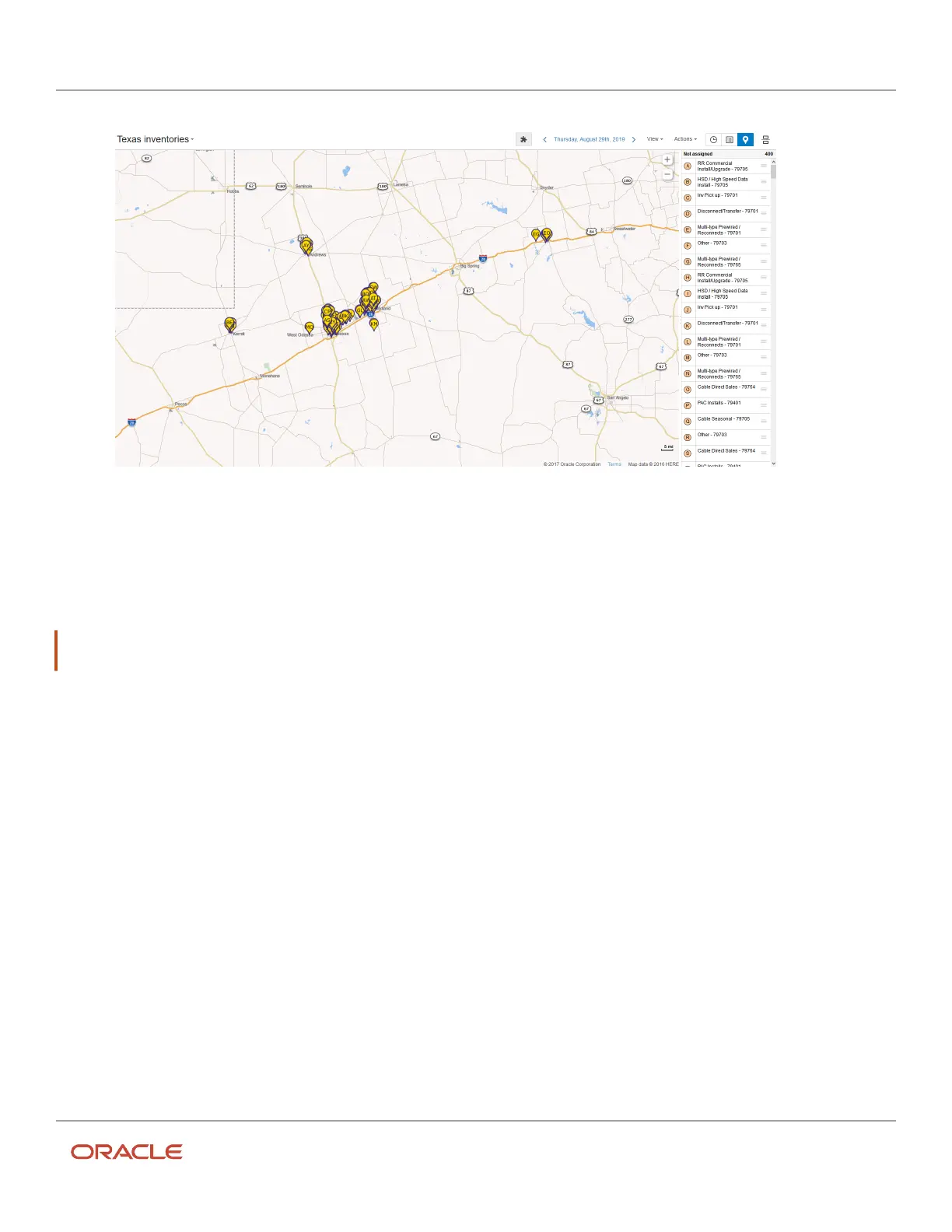
The page shows a map and a list. The map shows the resource’s route pertaining to scheduled activities and
the list includes scheduled and non-scheduled activities for the day. If you have enabled the Google maps
service at the time of setting up the instance, you can see the satellite view layer icon. This screenshot shows
the Map view for a resource and the activities assigned to the resource:
29













 To Next Page