IMPORTANT:
If you are using Ethernet communications, be sure
the GF868 is set up with the default communications
parameters: 9600 baud, no parity, no handshaking,
8 data bits and 1 stop bit. The port number must match
the “Enable raw TCP access using TCP port” assignment
shown under the device discovery “TCP server settings”
menu (configuration>serial ports>port).
C.4 Adding the GF868
To add the GF868 on the IDM-configured communications
port, complete the following steps:
1. Highlight the communication port to which the meter
will be added by clicking on it, and then open the
“edit” menu on the menu bar (if the communication
port is not highlighted first, the “new meter” option
is not active in the “edit” menu).
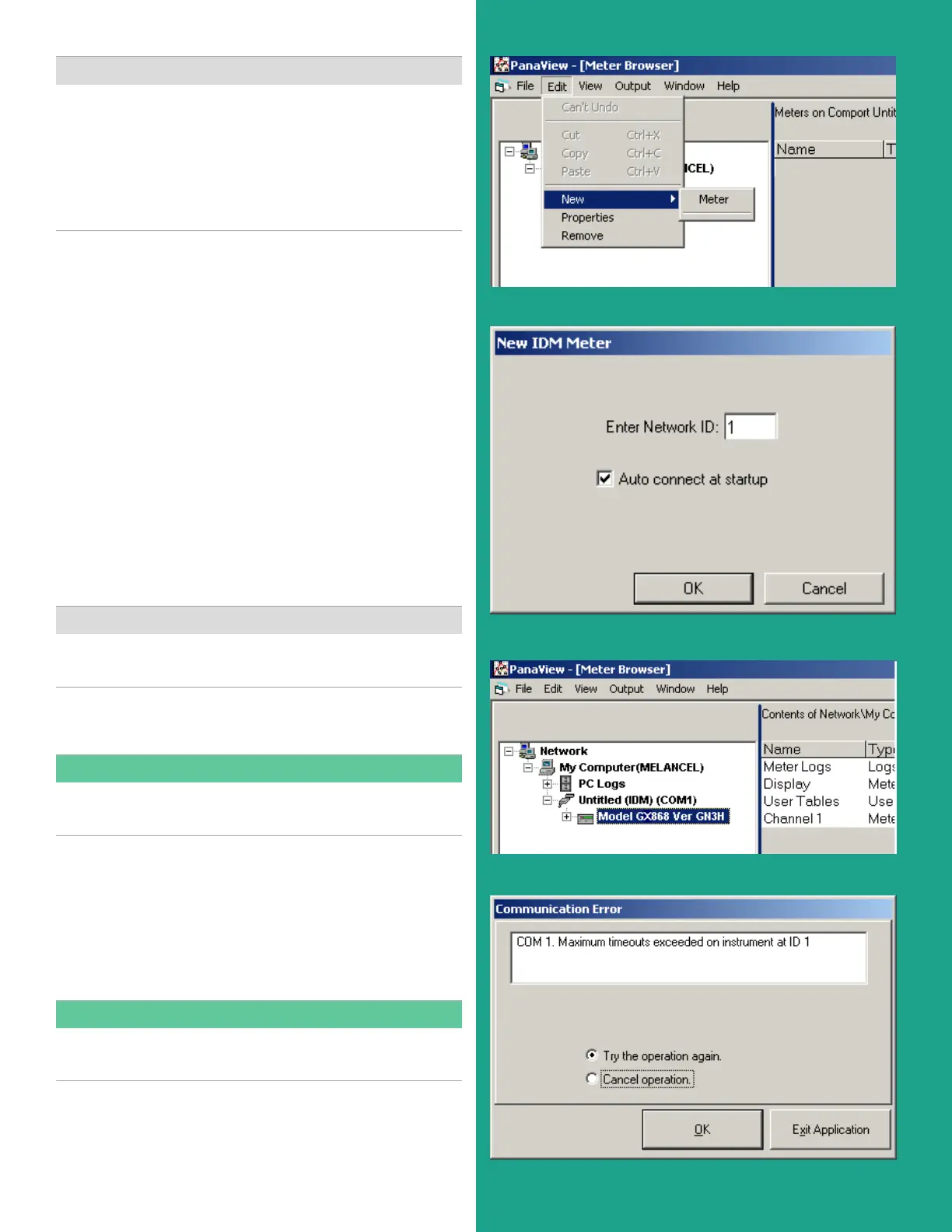
2. Click on the “new” option in the “edit” menu
(see figure 21).
3. After clicking on the “new” option, the “meter” menu
option appears. Click on this option to select it.
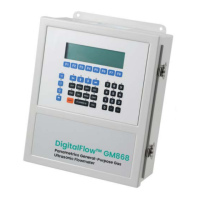
4. The “new IDM meter” screen (shown in figure 22)
opens. Enter the network ID number for the meter,
and click [OK].
IMPORTANT:
The Network ID number must match the Network ID
programmed in the meter’s communications menu.
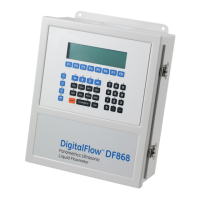
If the initialization is successful, the meter browser shows
a listing similar to figure 23.
NOTE:
The model number and version that appear will vary with
your particular meter and software version.
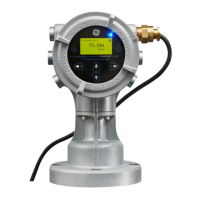
However, if the settings do not match, or there is some
other difficulty, a screen appears similar to figure 24.
The screen offers the options of trying again or of canceling
the operation. Click on the desired choice, and then on
[OK] to confirm the choice or on [exit Application]
to close PanaView.
NOTE:
If you cannot resolve the problem, contact the factory
for help.
Figure 21: “New” option in the “edit” menu
Figure 22: New IDM meter screen
Figure 23: Updated network tree
Figure 24: Communication error screen
79





 To Next Page