C.5 Editing meter properties
Through PanaView, you can edit the properties of your
GF868. You can:
• Set the meter clock, or synchronize it with the PC clock
• Read, plot and save transducer signals
• Clear totalizers
• Save site files to the meter or PC
• Clear sites from the meter
• Print site files to the PC
To edit the properties of your GF868:
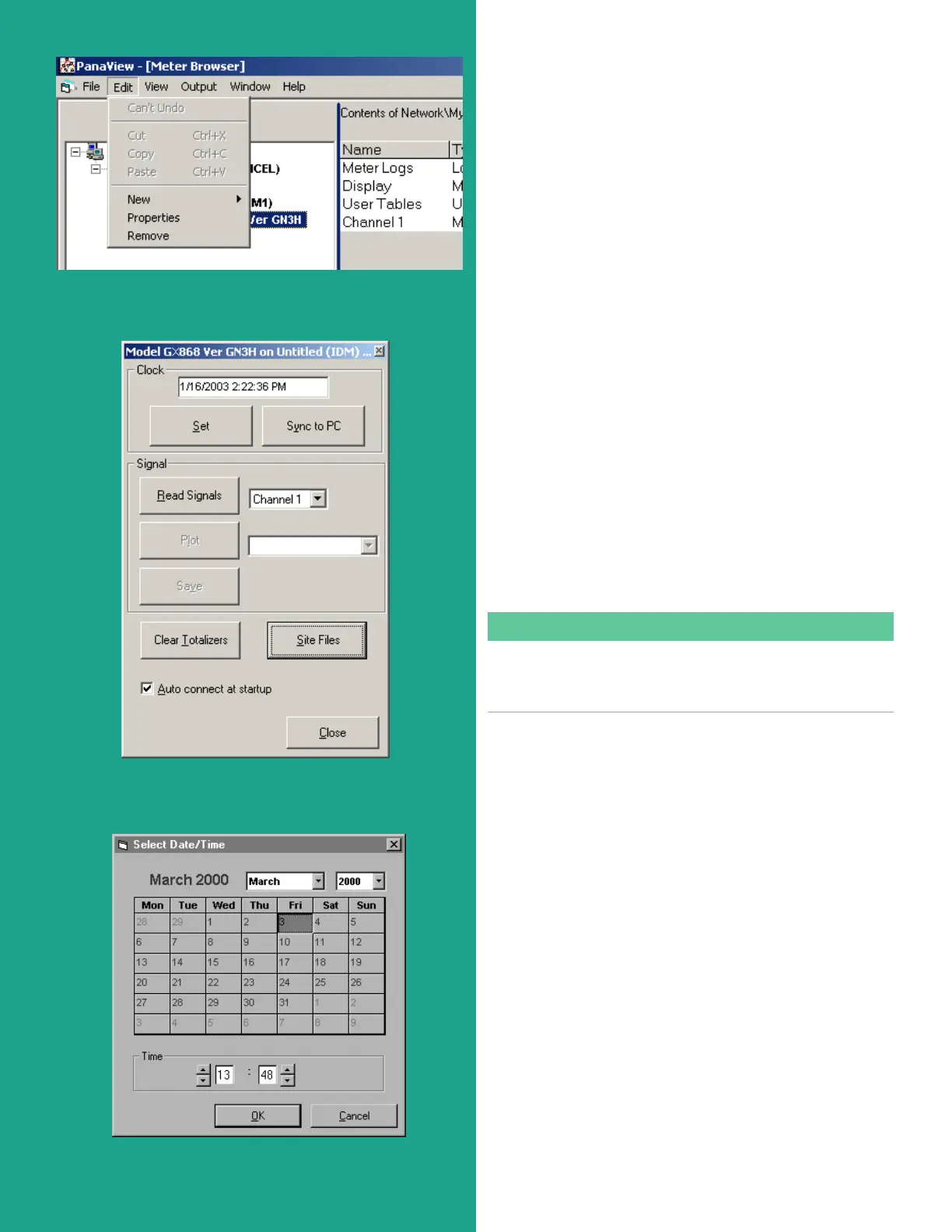
1. Highlight the meter (as shown in figure 23).
2. Open the “edit” menu and select the “properties” option,
as shown in figure 25.
The window appears similar to figure 26. To perform a
specific task, refer to the appropriate section.
• Setting the meter clock
• Reading transducer signals
• Plotting transducer signals
• Saving transducer signals
• Clearing totalizers
• Handling site files
NOTE:
For illustration purposes, the meter shown here is a one-
channel GX868 flowmeter. Specific parameters will vary
with your particular meter.
C.5.1 Setting the meter clock
The meter’s time may be reset in three different ways:
• Manually enter the time and date in the text box, or
• Click on the [sync to PC] option button to have PanaView
set the time and date to the current PC setting, or
• Click on the [set] option button to open the dialog box
shown in figure 27. Set the desired date and time as
indicated, and click on the [OK] option button.
Figure 25: Properties option in the edit menu
Figure 26: Properties window for IDM-based meter
Figure 27: Time and date selection window
80





 To Next Page