EasyManua.ls Logo

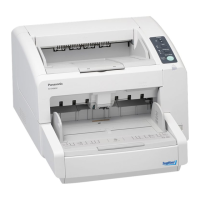
Panasonic KV-S4065CW - User Manual

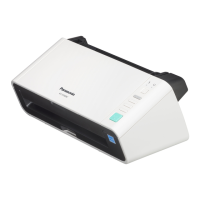
Panasonic KV-S4065CW
87 pages
Print Icon
To Next Page IconTo Next Page
Loading...
These instructions contain information on operating the scanner. Before reading these instructions, please read
the installation manual enclosed with this unit.
Please carefully read these instructions and the enclosed installation manual. Keep all documentation in a safe
place for future reference.
Model No.
KV-S4085CL / KV-S4085CW
KV-S4065CL / KV-S4065CW
Operating Manual
High Speed Color Scanner

Other manuals for Panasonic KV-S4065CW

Questions and Answers

  • J
    Jared SanchezAug 20, 2025
    What to do if my Panasonic Scanner is not recognized by computer?
    • W
      Wesley HayesAug 20, 2025
      If your Panasonic Scanner isn't being recognized by your computer, there are several potential causes: * Ensure the USB cable is correctly connected. * The software might not be installed correctly. In this case, uninstall the software and then reinstall it. * The USB interface of your computer may not be installed correctly. Verify this using the device manager’s property. * If you are using a USB hub, try connecting the scanner directly to the computer instead. * The USB cable itself might be faulty. Try using the included USB cable or a certified Hi-speed USB 2.0 cable. * The scanner may have entered Standby mode. Restart it by pressing any button for more than 1 second.
  • C
    carpenterrichardAug 22, 2025
    Why the ready indicator does not light on my Panasonic Scanner?
    • B
      Brooke MatthewsAug 22, 2025
      If the ready indicator on your Panasonic Scanner doesn't light up when you turn on the power switch: * Make sure the power cord is firmly plugged in. * There may be a problem with the power supply. Disconnect the unit from the electric outlet and call for service.
  • J
    John GallowayAug 25, 2025
    How to open the front door of Panasonic KV-S4065CW Scanner?
    • R
      racheldixonAug 25, 2025
      If the front door of your Panasonic Scanner cannot be opened, the screw is not loosened. Open the pre-imprinter door and loosen the screw.
  • M
    Miss Tracy OrtegaAug 26, 2025
    What to do if my Panasonic KV-S4065CW is not recognized or not functioning correctly?
    • K
      Kimberly HughesAug 26, 2025
      If your Panasonic Scanner is not being recognized by your computer or isn't functioning as expected, there are several potential causes: * Ensure the USB cable is correctly connected. * If connected via a USB hub, connect the scanner directly to the computer. * Try using the included USB cable or a certified Hi-speed USB 2.0 cable. * Verify that the USB interface of your computer is correctly installed using the device manager’s property. * If the scanner has entered Standby mode, restart it by pressing any button for more than 1 second. * If the software isn't installed correctly, uninstall it and then reinstall it.
  • J
    Jared MorganAug 27, 2025
    Why does my Panasonic Scanner have frequent paper jams?
    • C
      changjohnAug 28, 2025
      If your Panasonic Scanner frequently experiences paper jams, consider the following: * Ensure the paper thickness mode is appropriate for the documents you're scanning. Change the paper thickness mode if needed. * Smooth out any wrinkles on the document. * Realign the document correctly. * Clean the rollers. * Make sure that the document set on the hopper does not exceed the limit mark on the document guides.
  • M
    Matthew HamptonAug 31, 2025
    Why are there vertical lines on my scanned documents from my Panasonic KV-S4065CW?
    • M
      Maria NguyenAug 31, 2025
      If vertical lines appear on the scanned documents from your Panasonic Scanner, it is likely that the image sensor covers are dirty. Clean the image sensor covers (F and B).
  • K
    Kristen NelsonSep 2, 2025
    Why is the scanned image from my Panasonic KV-S4065CW Scanner skewed?
    • J
      Jennifer CollinsSep 2, 2025
      If the scanned image from your Panasonic Scanner is skewed, ensure that the document guides are properly adjusted to the size of the document. It is also important to make sure that the document to be scanned is not set slanted on the hopper. If right and left sides of the document to be scanned are not the same in height, because of curling or folding, flatten the document and load it again after reducing the pages.
  • T
    Timothy GreenSep 4, 2025
    Why do dark spots or noise appear on the scanned documents from my Panasonic KV-S4065CW Scanner?
    • H
      hooperscottSep 4, 2025
      If dark spots or noise appear on the scanned documents from your Panasonic Scanner, the image sensor covers are likely dirty. Clean the image sensor covers (F and B).
  • N
    nsmithSep 6, 2025
    Why is the scanning density uneven on my Panasonic Scanner?
    • D
      Dawn BishopSep 6, 2025
      If the scanning density is uneven on your Panasonic Scanner, it could be due to dirty image sensor covers. Clean the image sensor covers (F and B). Another possible cause is the quantity distribution of light varies, in this case adjust shading.
  • E
    Ethan VaughnSep 8, 2025
    Why is the scanned document from my Panasonic KV-S4065CW Scanner blank?
    • K
      Karina BowmanSep 8, 2025
      If the scanned document from your Panasonic Scanner is completely blank, it's possible that the document was loaded upside down. Load the document correctly.

Summary

Before You Start: Safety

Safety Warnings and Symbols

Crucial safety warnings and symbol explanations for safe operation.

Before You Start: Safeguards

Operating Safeguards

Important operational safeguards to prevent hazards.

Location of Controls: Control Panel

Control Panel Buttons

Details on the buttons and functions of the scanner's control panel.

Location of Controls: Status Indicators

Understanding Scanner Status Lights

Explains the meaning of the scanner's ready and error indicator lights.

Operation: Getting Started

Turning on the Scanner Power

Step-by-step instructions for powering on the scanner unit.

Operation: Document Preparation

Acceptable Documents and Paper Load

Information on acceptable document sizes, paper thickness, and load limits.

Operation: Paper Feed Settings

Adjusting the Hopper Position

How to adjust the hopper height for optimal paper feeding.

Operation: Paper Feed Settings: Thickness Mode

Operation: Scanning Documents

Operation: Scanning Documents: Same Size

Operation: Scanning Documents: Different Sizes

Care and Maintenance: Paper Jams

Clearing Paper Jams

Steps to safely remove jammed paper from the scanner.

Care and Maintenance: Cleaning Exterior

Care and Maintenance: Cleaning Interior

Cleaning Inside the Scanner

Guidelines for cleaning internal components like rollers and sensors.

Care and Maintenance: Cleaning Rollers

Cleaning the Rollers

Detailed procedure for cleaning the scanner's rollers.

Care and Maintenance: Cleaning Sensors

Cleaning Sensors and Covers

Instructions for cleaning image sensors and related components.

Replacement Parts: Replacing Rollers

Replacing Paper Feed and Separation Rollers

Step-by-step guide for replacing paper feed and separation rollers.

Replacement Parts: Double Feed Roller

Replacing the Double Feed Prevention Roller

Instructions for replacing the double feed prevention roller.

Optional Units: Imprinter Installation

Appendix: Troubleshooting

Troubleshooting Common Issues

Solutions for common scanner problems and symptoms.

Appendix: Maintenance Procedures

Specifications: Scanner Performance

Panasonic KV-S4065CW Specifications

General IconGeneral
Film scanningNo
Color scanningYes
Input color depth24 bit
Maximum scan size297 x 432 mm
Optical scanning resolution- DPI
Scanner typeSheet-fed scanner
Sensor typeCIS
Daily duty cycle (max)30000 pages
Auto document feeder (ADF) input capacity300 sheets
Minimum scan area (ADF)48 x 70 mm
Auto Document Feeder (ADF) media weight20 - 157 g/m²
USB version2.0
Standard interfacesUSB 2.0
Input voltage100-240 V
AC input frequency50 - 60 Hz
Storage temperature (T-T)0 - 40 °C
Operating temperature (T-T)15 - 30 °C
Storage relative humidity (H-H)10 - 80 %
Operating relative humidity (H-H)20 - 80 %
Scan speed (ADF, A4)80 ppm
Media thickness (imperial)0.001 \
Weight and Dimensions IconWeight and Dimensions
Depth585 mm
Width474 mm
Height329 mm
Weight25000 g

Related product manuals