EasyManua.ls Logo

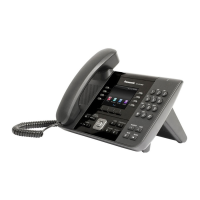
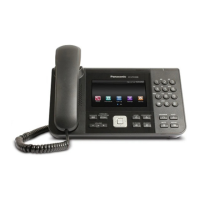
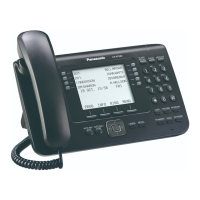
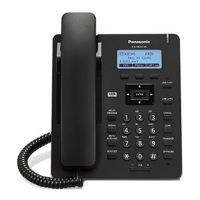
Panasonic KX-UT136 - User Manual

Panasonic KX-UT136
100 pages
Print Icon
To Next Page IconTo Next Page
Loading...
Document Version 2013-03
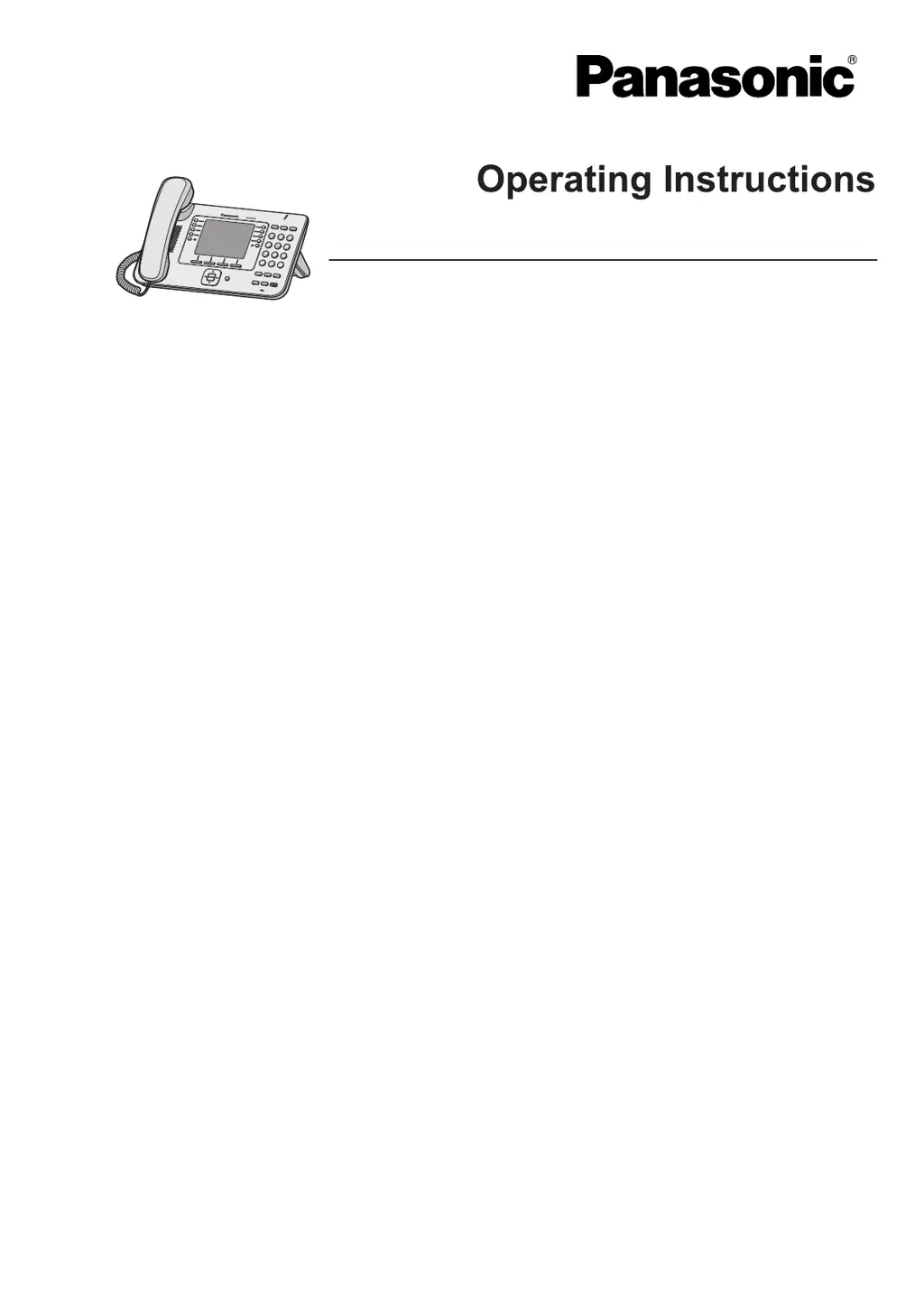
Model No. KX-UT113/KX-UT123
KX-UT133/KX-UT136
SIP Phone
KX-UT248
<KX-UT248>
Thank you for purchasing this Panasonic product.
Please read this manual carefully before using this product and save this manual for future use.
KX-UT113/KX-UT123/KX
-UT133/KX-UT136/KX-UT248: Software File Version 01.250 or later
In this manual, the suffix of each model number (e.g., KX-UT113NE) is omitted unless necessary.

Table of Contents

Other manuals for Panasonic KX-UT136

Questions and Answers

  • M
    Maurice SantiagoAug 30, 2025
    What to do if Panasonic Telephone unit is not performing properly?
    • O
      ofosterAug 30, 2025
      If your Panasonic Telephone unit isn't working as expected, there are a few things you can check. First, make sure all cables and cords are properly connected. If connections are correct, verify your connection settings with your administrator. Finally, if an error occurred, try restarting the unit.
  • S
    Stephanie MontgomerySep 7, 2025
    What to do if I cannot add or edit entries to the phonebook list on my Panasonic KX-UT136 IP Phone?
    • S
      Steve SmithSep 7, 2025
      If you cannot add or edit entries, the phonebook list may be full. Delete any unnecessary entries. The maximum number of entries in the phonebook list is 500 for the KX-UT123/ KX-UT133/KX-UT136 and 100 for the KX-UT113.
  • S
    Sharon DelacruzAug 29, 2025
    What to do if I lost the login password of the Web user interface for the Administrator or User account on my Panasonic KX-UT136 IP Phone?
    • P
      pliuAug 29, 2025
      If you have lost the login password for the Administrator or User account on your Panasonic IP Phone's Web user interface, reset the password from the unit. For security reasons, it is recommended that the passwords are set again immediately.
  • G
    Gina ParkerSep 18, 2025
    What does 'No Entries' mean on my Panasonic KX-UT136 IP Phone?
    • A
      Alexander BrownSep 18, 2025
      This message indicates that the phonebook or call block list contains no entries. Store entries in the phonebook or call block list.
  • A
    amy35Sep 8, 2025
    Why can't I hear a dial tone on my Panasonic KX-UT136 IP Phone?
    • M
      Misty HuntSep 8, 2025
      A missing dial tone on your Panasonic IP Phone can often be traced back to incorrect network settings. Try resetting all your equipment: modem, router, hub, unit, and PC. Power them back on in that specific order, one at a time.
  • A
    Adam BrownSep 12, 2025
    What does error code 10001 mean on a Panasonic KX-UT136?
    • J
      Jennifer HenrySep 12, 2025
      Error code 10001 on a Panasonic IP Phone indicates a MAC address error. No solution.
  • B
    Brittany FoxSep 16, 2025
    What does 'Memory Full' mean on my Panasonic KX-UT136?
    • L
      lramseySep 16, 2025
      This message indicates that a new entry for the phonebook or call block list cannot be stored because the phonebook or call block list is full. Erase unneeded entries.
  • J
    Jessica PeckSep 23, 2025
    What does it mean when the Message/Ringer lamp is lit on my Panasonic KX-UT136 IP Phone?
    • T
      Timothy MedinaSep 23, 2025
      If the Message/Ringer lamp is lit, you likely received a voice message while you were on the phone or away from your desk. Check the voice message.
  • J
    Jason PetersonAug 26, 2025
    What to do if I cannot hear a dial tone on my Panasonic Telephone?
    • L
      Linda BellAug 26, 2025
      If you cannot hear a dial tone on your Panasonic Telephone, verify that the LAN cable is properly connected.
  • S
    Savannah MorrisAug 25, 2025
    Why is the display blank on my Panasonic Telephone?
    • R
      Russell HaynesAug 26, 2025
      If the display on your Panasonic Telephone is blank, ensure that the device supplying PoE is receiving power and that the Ethernet cable is properly connected. If you're using an AC adapter, check that it's correctly connected and powered.

Summary

Important Information

General Safety Precautions

Safety guidelines to reduce risk of injury, electric shock, fire, and damage.

Unit Malfunction and Data Security

Troubleshooting steps for unit malfunction and recommendations for preventing data loss.

Important Information

Installation and Placement Safety

Precautions for power connections, placement, and wall mounting.

Important Information

Network Security and Additional Safety

Measures for network security and important safety instructions.

Before Operating the Telephone

Before Operating the Telephone

Location of Controls - Front View (KX-UT113;123 X;NE)

Diagrams and numbering of controls for KX-UT113X/KX-UT123X and KX-UT113NE/KX-UT123NE models.

Location of Controls - Front View (KX-UT133 X;RU)

Diagrams and numbering of controls for KX-UT133X and KX-UT113RU/KX-UT123RU models.

Location of Controls - Front View (KX-UT133 NE;RU)

Diagrams and numbering of controls for KX-UT133NE and KX-UT133RU models.

Location of Controls - Front View (KX-UT136 X;NE)

Diagrams and numbering of controls for KX-UT136X and KX-UT136NE models.

Location of Controls - Front View (KX-UT136 RU;KX-UT248 X)

Diagrams and numbering of controls for KX-UT136RU and KX-UT248X models.

Location of Controls - Front View (KX-UT248 NE;RU)

Diagrams, numbering of controls, and LCD details for KX-UT248NE/RU models.

Before Operating the Telephone

Soft Buttons and Message;Ringer Lamp

Explanation of soft buttons (S1-S4) and their indicator lamps.

Key Controls Overview

Description of Navigator, ENTER, Handset Hook, and function buttons.

Screens

Screens

Soft Button Icons and Scroll Indicator

Explains soft button icons, scroll indicator, and flexible button display.

Status Icon Details

Table of icons like FWD/DND, AUTO ANS, ECO, etc., and their meanings.

Soft Buttons and Soft Button Icons

Soft Button Functions and Icon Descriptions

Explains accessing functions via soft buttons and lists icons with their descriptions.

Icon Descriptions Continued

Table listing more icons and their descriptions (Answer, End, Reject, etc.).

Basic Operations

Going Off-hook;On-hook and Hands-free Mode

Methods for picking up/hanging up the handset and enabling hands-free conversations.

Basic Operations

Adjusting Volume Levels

How to adjust ringer, handset, headset, and speaker volume.

Feature Operations

Making Calls

Basic methods for initiating calls and using the phonebook.

Receiving and Rejecting Calls

Basic methods for handling incoming calls and call rejection.

Feature Operations

Call Log Dialing, Redialing, and One-touch Dialing

Methods for calling from logs, redialing last number, and one-touch operations.

Feature Operations

Feature Operations

Call Forwarding;Do Not Disturb Settings

Configuring call forwarding and Do Not Disturb settings.

Transferring a Call

How to transfer calls to another party, including one-touch.

Feature Operations

Conference Call Operations

Making, removing parties from, and ending conference calls.

Feature Operations

Flexible Buttons (KX-UT133;136;248 only)

Flexible Button Types Overview

Explains DN, BLF, ACD, Wrap Up, One-Touch, and Headset buttons.

Customising the Telephone

Customising the Telephone

Customising the Telephone

Available Settings List

Overview of configurable settings like Ringer, Network, FWD/DND.

Settings Details

Settings Details

Settings Details

Settings Details

Information Display and Network Settings

Viewing unit information and configuring network parameters.

Call Block

Bluetooth Headset (KX-UT248 only)

Entering Characters

Web User Interface Programming

Web UI Configuration Overview

How to use the Web-based interface for configuring settings and features.

Installation and Setup

Installation and Setup

Installation and Setup

Wall Mounting Preparations and Unit Mounting

Steps before and during wall mounting the unit.

Installation and Setup

Installation and Setup

Appendix

Appendix

Troubleshooting Common Issues

Solutions for general unit problems.

Error Messages and Solutions

Lists error messages and their possible causes and solutions.

Appendix

Troubleshooting Call and Sound Quality Issues

Solutions for making/receiving calls and sound quality problems.

Panasonic KX-UT136 Specifications

General IconGeneral
Ethernet Ports2
Power over EthernetYes
Lines6
SIP Accounts6
SpeakerphoneYes
Headset Port2.5 mm
Operating Temperature0 °C to 40 °C
Humidity10% to 90% (non-condensing)
Audio CodecG.711, G.722, G.726, G.729a
Network Interface10/100 Mbps Ethernet
ProtocolsSIP

Related product manuals