EasyManua.ls Logo

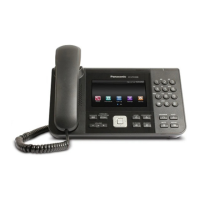
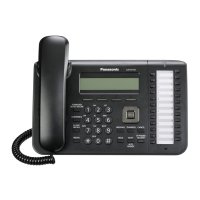
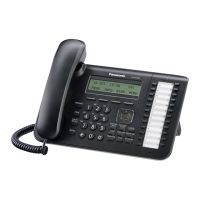
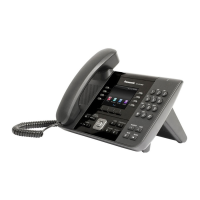
Panasonic KX-UTG200 - User Manual

Panasonic KX-UTG200
100 pages
Print Icon
To Next Page IconTo Next Page
Loading...
KX-UTG200
<KX-UTG200>
SIP Phone
Thank you for purchasing this Panasonic product.
Please read this manual carefully before using this product and save this manual for future use.
KX-UTG200: Software File Version 03.111 or later
Document Version: 2014-11
Operating Instructions
Model No.

Table of Contents

Other manuals for Panasonic KX-UTG200

Questions and Answers

  • C
    Chelsey BaileySep 23, 2025
    What does maximum save count limit reached mean on Panasonic IP Phone?
    • S
      Susan AndersonSep 23, 2025
      If the maximum save count limit is reached, it means a new entry for the phonebook or call block list cannot be stored because the phonebook or call block list is full. Erase unneeded entries.
  • Z
    zcoleAug 23, 2025
    How to reset the administrator password on my Panasonic IP Phone?
    • J
      Joshua FowlerAug 23, 2025
      If you've lost the login password for the Web user interface of your Panasonic IP Phone, you can reset it from the unit. This will reset the passwords for both the Administrator and User accounts. For security, it's recommended to set new passwords immediately afterward.
  • S
    stephaniebenderAug 25, 2025
    How to correct the time on Panasonic IP Phone?
    • D
      Denise MoralesAug 26, 2025
      To correct the time on your Panasonic IP Phone, use the Web user interface to set NTP synchronization and DST (Summer Time) control for automatic time adjustment. If the time is still incorrect after setting NTP synchronization, check the firewall and port forwarding settings on the router.
  • A
    Amber CordovaAug 27, 2025
    Why can't I hear a dial tone on my Panasonic IP Phone?
    • M
      Marcus WattsAug 27, 2025
      If you cannot hear a dial tone on your Panasonic IP Phone, it may be due to incorrect network settings. A good first step is to reset all equipment: modem, router, hub, unit, and PC. Power them back on in that order, one at a time. Also, check the VoIP status in the Web user interface to ensure each line is registered properly. Verify that the SIP server address, URLs of the configuration files, encryption key, and other required settings are correct. Finally, examine the firewall and port forwarding settings on your router.
  • Z
    Zachary ElliottAug 27, 2025
    What to do if my Panasonic KX-UTG200 IP Phone does not ring?
    • F
      Felicia GreenAug 27, 2025
      If your Panasonic IP Phone isn't ringing, several factors could be at play. First, check the VoIP status in the Web user interface to ensure each line is registered properly. Also, verify that the SIP server address, URLs of the configuration files, and encryption key are correct. Review the firewall and port forwarding settings on your router. In the Web user interface, under the [Telephone] tab, check [Call Control] for each line. Ensure that [Do Not Disturb] and [Unconditional (Enable Call Forward)] are not set to [Yes]. Also, confirm that [Block Anonymous Call] is not enabled. Finally, check that your phone system isn't controlling these settings.
  • K
    Kelsey MurphySep 18, 2025
    What to do if I cannot hear a dial tone on my Panasonic IP Phone?
    • L
      Leslie JonesSep 18, 2025
      Confirm that the LAN cable is properly connected.
  • M
    Michael SingletonSep 15, 2025
    What to do if I cannot cancel the display lock on Panasonic IP Phone?
    • L
      Logan BarnesSep 16, 2025
      If you cannot cancel the display lock, consult your administrator or dealer.
  • E
    Edward DunnSep 17, 2025
    What to do if while talking to an outside party, the line is disconnected on Panasonic IP Phone?
    • J
      Jared BarnesSep 18, 2025
      If, while talking to an outside party, the line is disconnected, consult your dealer to extend the time limit, if necessary, since your phone system/service may impose a time limit on outside calls.
  • V
    Vincent ThompsonSep 6, 2025
    Why the other party cannot hear my voice on Panasonic IP Phone?
    • P
      palmerkyleSep 6, 2025
      The other party might not be able to hear you because the unit is muted. Press [MUTE] to turn off the mute feature. Also, if you are using the speakerphone, make sure that objects are not obstructing the microphone. Keep your hands, as well as common objects such as folders, cups, and coffee pots away from the unit during calls.
  • L
    Leslie ReyesSep 3, 2025
    Why I cannot make calls on my Panasonic IP Phone?
    • J
      jessica80Sep 3, 2025
      You might not be able to make calls because your phone system/service has disabled service for your unit. On the Information Display screen, if 'Not registered' is displayed for the lines registered to your phone, consult your administrator or dealer. Also, confirm that you have entered the phone number of the other party correctly. You also cannot make calls while the unit is downloading updates. Wait for the update to finish, and then try making a call. If the phonebook list is being imported or exported, wait a few minutes for the operation to complete. Confirm with your administrator or dealer.

Summary

Introduction

Feature Highlights

Key capabilities and benefits of the SIP phone, including easy operation and high-quality voice communication.

Outline

Describes the manual's content structure and purpose, covering installation and operation of the unit.

Related Documentation

Lists other manuals and resources available for the SIP phone, including web resources.

Important Information

Data Security

Guidelines for protecting user information and preventing data loss, disclosure, falsification, or theft.

Additional Information

FCC and Other Information

Compliance details with FCC regulations for digital devices and other relevant technical information.

Before Operating the Telephone

Accessory Information

Details on included and optional accessories for the SIP phone, including part numbers.

Location of Controls

Front View

Identifies and explains the buttons, lamps, and display on the phone's front panel.

Bottom View

Identifies the ports located on the bottom of the SIP phone unit.

Screens

Home Screen

Describes the main screen, status bar, and icons for navigating functions.

Phone Screen

Details the phone screen layout, including line buttons and call buttons.

Icons

Status Icons

Displays and explains icons indicating the unit's status in the status bar.

Line Icons

Displays and explains icons indicating the status of lines in the Phone screen.

Soft Buttons and Soft Button Icons

Commonly Used Soft Buttons

Lists and describes common soft buttons and their functions for interacting with the display.

Basic Operations

Going off- and on-hook

Explains the methods to answer or end a call using the handset or buttons.

Hands-free Mode

Details on enabling and canceling hands-free operation for calls.

Adjusting the Volume

Instructions for adjusting ringer, handset, headset, and speaker volumes.

Making Calls

Making a Call

Step-by-step guide to initiating a standard phone call.

Dialing by Using Call Logs

How to redial or call contacts from the unit's call history logs.

Making a Call from the Phonebook List

Guide to initiating calls using entries stored in the phonebook.

Receiving Calls

Receiving a Call

Basic steps to answer an incoming call.

Rejecting Calls

Options for rejecting incoming calls, including specific and anonymous numbers.

Holding a Call

To hold the current call

Procedure to place an active call on hold.

Receiving a Second Call (Answering Call Waiting)

To hold the current call and then talk to the new party

Procedure to hold the current call to answer a new incoming call.

Transferring a Call (Call Transfer)

To transfer

How to transfer an active call to another extension or external number.

Conference Call

Making a Conference Call

Steps to initiate a three-way conference call.

Checking Messages

Checking New Messages

How to access and listen to new voice messages.

Call Forwarding;Do Not Disturb

To access the FWD;DND settings

Guide to configuring call forwarding and Do Not Disturb settings.

Flexible Buttons

Flexible Button Screen

Description of the screen displaying programmable flexible buttons.

IM&P (Instant Messaging & Presence)

Logging in to IM&P

Instructions for logging into the Instant Messaging and Presence service.

Presence

Setting your Presence

Steps to change your own presence status (Available, Busy, Away, Offline).

Phonebook List

Adding a New Phonebook Entry

Guide to adding new contacts with names, numbers, and ringtones.

Editing a Phonebook Entry

Steps to modify existing contact information in the phonebook.

Local Phonebook

Accessing Local Phonebook

Details on accessing and managing the phone's local contact list.

User Settings

Accessing the Settings

How to navigate to and enter the unit's configuration settings menu.

Basic Phone Settings

Detailed configuration for basic phone settings like date, time, and language.

Network Settings

Network

Configuration of IP address mode, IPv4, and IPv6 network parameters.

Reset

Resetting the Unit

Instructions for resetting private or network settings to their defaults.

Call Block

Call Block

How to register, edit, or delete numbers to block incoming calls.

ECO Mode

ECO Mode

Feature to reduce electricity consumption by altering port settings.

Web User Interface Programming

Web User Interface Programming

Overview of the web-based interface for configuring unit settings and features.

Attaching;Removing the Stand

Attaching the Stand

Steps to attach the stand to the unit for desk placement.

Connections

Connections for AC Adaptor;LAN;PC

Details on connecting the AC adaptor, Ethernet cables to hubs/PCs, and EHS devices.

Connections for Handset

Instructions for connecting the handset to the unit.

Wall Mounting

Mounting the Unit

Step-by-step guide for attaching the unit to a wall using the mounting kit.

Hooking the Handset

To Lock the Handset Hook when the Unit is Wall Mounted

Procedure to secure the handset hook when the unit is wall-mounted.

Maintaining the Unit

Resetting the Unit

Instructions for resetting private or network settings to their defaults.

Restarting the Unit

How to restart the unit to apply configuration changes.

Cleaning the Unit

Cleaning the display

Guidelines for cleaning the display of the SIP phone using appropriate materials.

Specifications

Specifications

Technical specifications of the SIP phone, including display, audio, network, and power details.

Troubleshooting

Common Issues and Solutions

A table listing common problems and their suggested resolutions.

Making and Receiving Calls

Troubleshooting common issues related to initiating and receiving calls.

Error Messages

Error Messages

Lists potential error messages and their causes/solutions.

Revision History

Revision History

Tracks changes made to the software file versions and their content.

Panasonic KX-UTG200 Specifications

General IconGeneral
BrandPanasonic
ModelKX-UTG200
CategoryIP Phone
LanguageEnglish

Related product manuals