12 Shape object
Related topics
Create a circle (page 136)
Create an arc (page 137)
Add or delete shapes in an existing shape object (page 139)
Position or rotate a shape object (page 139)
General object/object group parameters (page 90)
Set laser correction parameters for a marking object
12.2 Create a circle
You can create different shapes such as a line, circle or an arc.
1. Select the “Graphic” tool in the ribbon.
2. Select “Shapes”.
The setting dialog appears.
3. Select “Circle” for “Shape type”.
4. To specify the position of the circle, enter values for “X-position of center [mm] ” and “Y-
position of center [mm] ”.
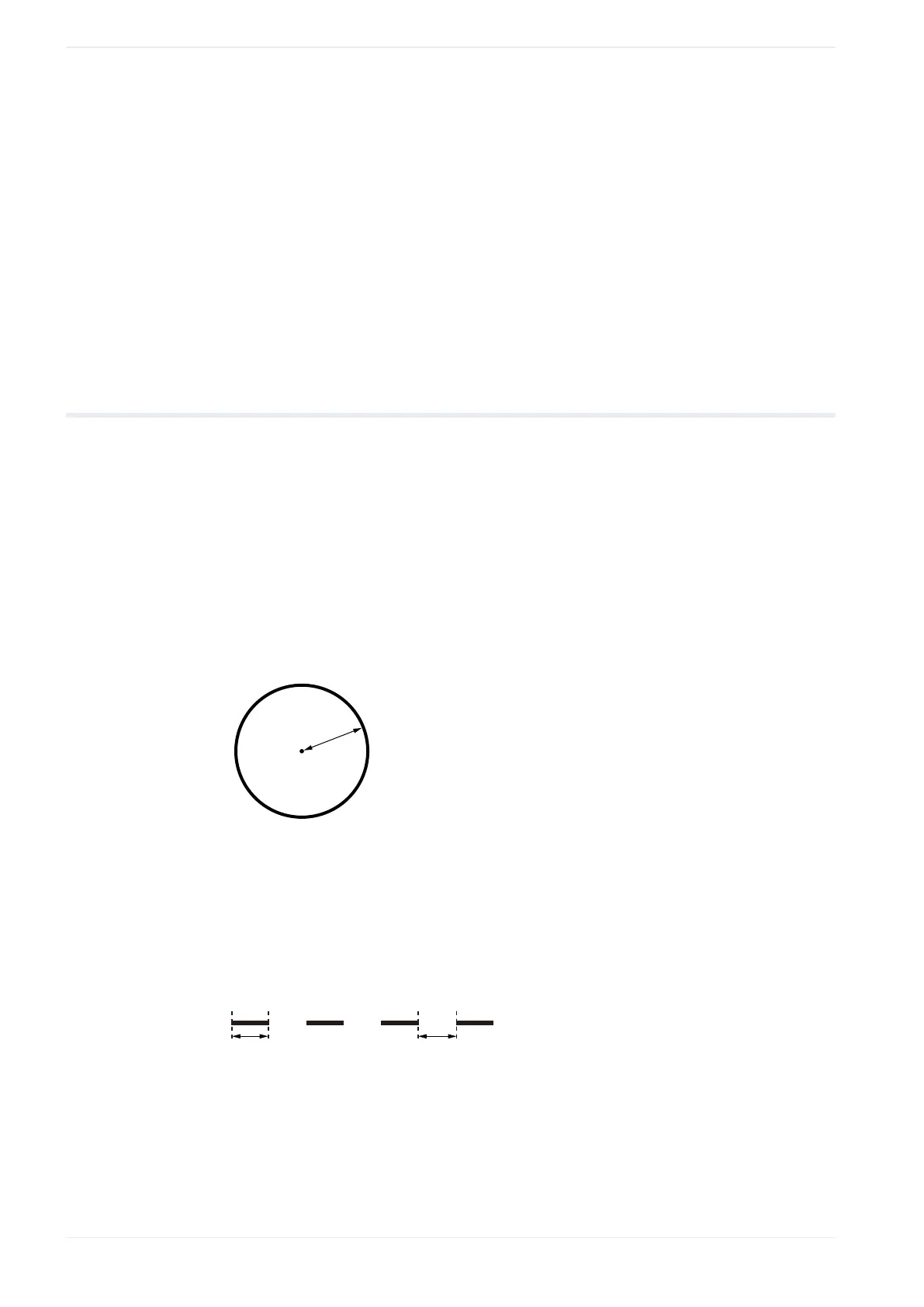
5. Specify the radius of the circle under “Radius [mm]”.
(1)
(X, Y)
(2)
(1)
Center of the circle (“X-position of center [mm] ”, “Y-position of center [mm] ”)
(2)
“Radius [mm]”
The marking of a circle begins at 0 degree on the circle's right side. The circle is marked
in a counterclockwise direction.
6. Select “Dash line” to apply dash settings to the circle's stroke.
Specify values for “Dash length [mm] ” and “Gap length [mm] ”.
(2)(1)
(1)
“Dash length [mm] ”
(2)
“Gap length [mm] ”
7. Select “OK”.
The shape object is displayed in the marking image editor and is highlighted in the
object list.
136 ME-NAVIS2-OP-1



 To Next Page