15 2D code object
Related topics
Set parameters for code elements (page 177)
About font files (page 68)
Add font files (page 70)
15.14 Code element parameters for QR Code and Data Matrix
15.14.1 Invert a QR Code or Data Matrix code
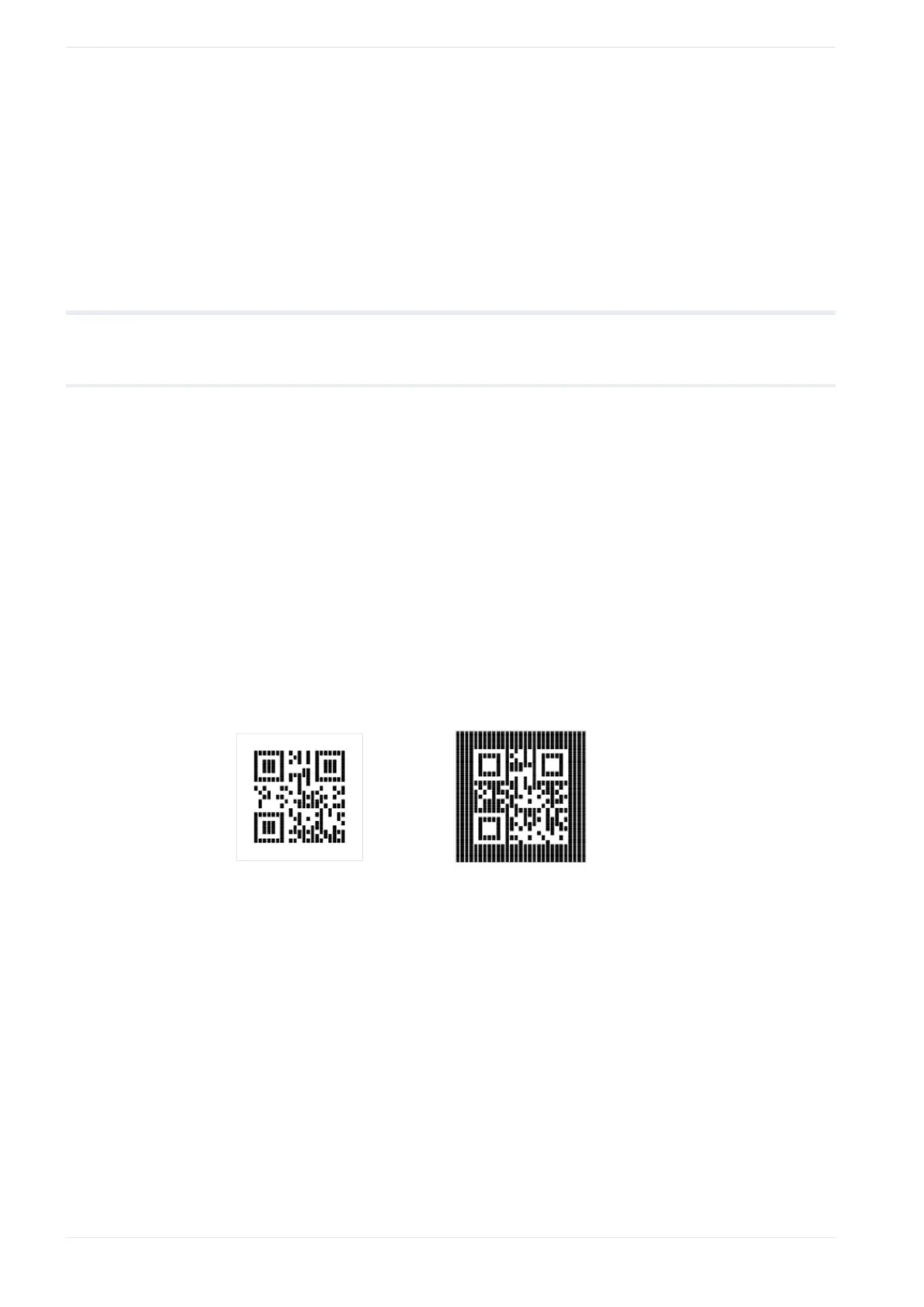
Use the “Marking ON/OFF” setting for the dark and light modules to invert the colors of a QR
Code or Data Matrix code (white modules become black, and black modules become white).
1. To edit the parameters of a 2D code object, select the object in the object list or in the
marking image editor.
The parameters are displayed in the category below the object list.
2. To invert a QR Code or Data Matrix, make the following settings for “Marking ON/OFF”
under “Dark module” and “Light module”:
• “Marking ON/OFF” > “OFF” for “Dark module”
• “Marking ON/OFF” > “ON” for “Light module”
As a result, the QR Code or Data Matrix code is inverted. The light modules and quiet
zone are filled, and the dark modules are not filled during marking.
(1) (2)
(1)
Example of a normal QR Code
(2)
Example of an inverted QR Code
Related topics
Structure of a QR Code (page 158)
Structure of a Data Matrix code (page 159)
Set parameters for code elements (page 177)
176 ME-NAVIS2-OP-1



 To Next Page