EasyManua.ls Logo

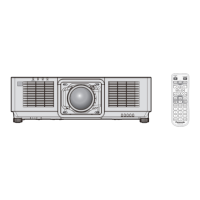
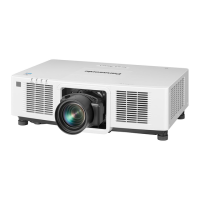
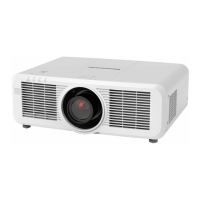
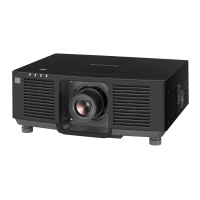
Panasonic PT-MZ10K - User Manual

Panasonic PT-MZ10K
247 pages
Print Icon
To Next Page IconTo Next Page
Loading...
Thank you for purchasing this Panasonic product.
The Operating Instructions correspond to the rmware’s main version 1.10 and higher.
This manual is common to all the models regardless of sufxes of the Model No.
z
for USA, Canada, EU countries, Korea, Taiwan
LB: Black model LW: White model
z
for India
LBD: Black model
z
for other countries or regions with power cord for 100 V - 120 V
LBX: Black model
LWX: White model
z
for other countries or regions with power cord for 200 V - 240 V
LBE: Black model LWE: White model
Before operating this product, please read the instructions carefully and save this manual
for future use.
Before using this product, be sure to read “Read this rst!” (
x
pages 5 to 16).
DPQP1299ZC/X1
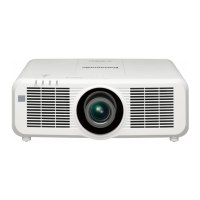
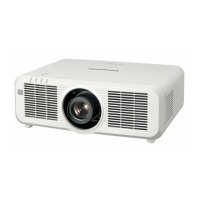
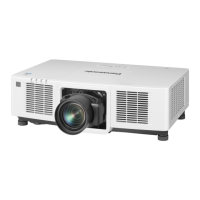
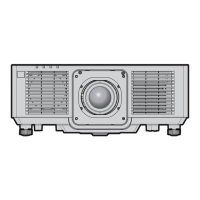
LCD Projector
Commercial Use
Operating Instructions
Functional Manual
ENGLISH
Model No.
PT-MZ16K
PT-MZ13K
PT-MZ10K
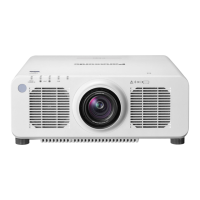
The projection lens is sold separately.

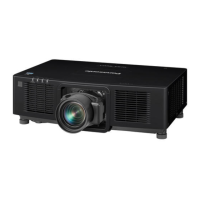
Table of Contents

Questions and Answers

  • T
    Teresa CervantesSep 8, 2025
    Why is the color pale on my Panasonic Projector?
    • K
      Karen JensenSep 9, 2025
      If the color on your Panasonic projector appears pale or grayish, check if the [COLOR] and [TINT] settings are adjusted correctly. Ensure the external device connected to the projector is also adjusted correctly. Finally, inspect the computer cable for any damage.
  • B
    Bobby DavisAug 23, 2025
    What to do if no image appears on Panasonic Projector?
    • C
      Connie SmithAug 23, 2025
      If no image appears on your Panasonic projector, first ensure that all connections to external devices are correctly performed and that the input selection setting is correct. Check that the [BRIGHTNESS] adjustment is not set to a minimum. Verify the external device connected to the projector is working properly. Also, make sure the shutter function is not in use, the projection lens is attached correctly, and the lens cover is removed.
  • W
    William GilesAug 25, 2025
    Why image from a computer does not appear on Panasonic PT-MZ10K?
    • H
      hamiltonjustinAug 25, 2025
      If the image from a computer does not appear on your Panasonic projector, check if the cable is too long. For D-Sub cables, the length should be 10 m (32'10") or shorter. Also, verify that the external video output on the laptop computer is set correctly, possibly by pressing the “Fn” + “F3” keys or the “Fn” + “F10” keys simultaneously, depending on the computer model.
  • L
    Larry LeeAug 27, 2025
    What to do if my Panasonic Projector shows no image?
    • J
      Julia WilsonAug 27, 2025
      If no image is appearing on your Panasonic Projector, consider the following: * Ensure all connections to external devices are correctly connected. * Verify the input selection setting is correct. * Check that the [BRIGHTNESS] adjustment is not at its minimum setting. * Confirm the external device connected to the projector is working properly. * Make sure the shutter function is not in use. * Verify the projection lens is correctly attached. * Check if the lens cover is still attached to the lens.
  • B
    Brittany LopezAug 27, 2025
    Why is my Panasonic PT-MZ10K Projector remote control not responding?
    • C
      Christopher WatsonAug 28, 2025
      If the remote control isn't responding with your Panasonic projector, check if the batteries are depleted and ensure their polarity is correct. Make sure there are no obstructions between the remote and the projector's signal receiver and that you're within the remote's effective range. Also, verify if other light sources are affecting the projection. Check if the [REMOTE CONTROL] setting in [CONTROL DEVICE SETUP] is set to [DISABLE], and if the terminal is used for contact control. Finally, confirm the ID number setting operation is correct.
  • M
    Michelle LynchSep 22, 2025
    Why is there no image from the DVI-D output on my Panasonic PT-MZ10K?
    • R
      Rebecca DavidsonSep 22, 2025
      If the image output from the DVI-D connection on your computer is not appearing on the Panasonic Projector: * Check if [EDID SELECT] in [DVI-D IN] is set to [EDID3] or [EDID2:PC]. * Consider updating the graphics accelerator driver of your computer to the latest version. * Try performing the [EDID SELECT] setting in [DVI-D IN] and then rebooting the computer.
  • J
    Joseph JohnsonSep 16, 2025
    Why does my Panasonic PT-MZ10K image look washed out?
    • J
      Joseph ReedSep 16, 2025
      If the color on your Panasonic Projector appears pale or grayish, consider these solutions: * Check if the [COLOR] and [TINT] settings are adjusted correctly. * Verify the external device connected to the projector is adjusted correctly. * Inspect the computer cable for any damage.
  • D
    Daniel CastroSep 18, 2025
    What causes incorrect image display on a Panasonic Projector?
    • M
      michelle79Sep 18, 2025
      If the image on your Panasonic Projector is not displaying correctly, consider the following: * Ensure that the [SYSTEM SELECTOR] is set properly. * Check for any problems with the video tape or other image sources. * Verify that the input signal is compatible with the projector.
  • T
    timothymurraySep 7, 2025
    Why is my Panasonic PT-MZ10K operation noise so loud?
    • M
      Michelle LeeSep 7, 2025
      If the operation noise of your Panasonic projector becomes loud, it may be due to a high internal temperature, causing the cooling fan to speed up. Ensure the ambient temperature is not high. Also, check if the air filter unit is dirty or if the intake/exhaust vents are blocked.
  • H
    hollymartinSep 4, 2025
    Why is my Panasonic PT-MZ10K remote not working?
    • S
      sherry78Sep 4, 2025
      If the remote control for your Panasonic Projector isn't responding, please check the following: 1. Ensure the batteries aren't depleted. 2. Verify the batteries are inserted with the correct polarity. 3. Make sure there are no obstructions between the remote and the projector's signal receiver. 4. Confirm the remote is within its effective operation range. 5. Check whether other light sources, like fluorescent lights, are affecting the projection. 6. See if the [REMOTE CONTROL] setting in [CONTROL DEVICE SETUP] is set to [DISABLE]. 7. Verify if the terminal is being used for contact control. 8. Confirm the ID number setting operation is correct.

Summary

Read this first!

General Safety and Electrical Precautions

Covers warnings related to product usage, power, and potential hazards.

Laser Safety Information

Details regarding laser classification, warnings, and safe viewing practices.

Regulatory and Compliance Information

Includes FCC notices, California regulations, and compliance statements for various regions.

Hazard Distance and Risk Group Classification

Information on safety distances and risk group categorization based on projection lens.

Installation and Environmental Considerations

Guidelines on projector setup, operating environment, and placement to avoid damage or malfunction.

Handling Accessories and Maintenance Warnings

Precautions for handling batteries, projector installation, and basic maintenance warnings.

Chapter 1 Preparation

Precautions for use

Essential safety guidelines and warnings before operating the projector.

About your projector

Overview of the projector body, remote control, and their components.

Preparing the remote control

Instructions for inserting batteries and connecting the remote control.

Chapter 2 Getting Started

Setting up

Guidance on usable outlets and projector installation modes.

Projected image and throw distance

Information on image size, projection distance, and related figures.

Attaching;removing the projection lens (optional)

Step-by-step instructions for mounting and dismounting projection lenses.

Connecting

Details on connecting external devices and terminal pin assignments.

Chapter 3 Basic Operations

Switching on;off the projector

Procedures for connecting power, turning the projector on and off, and understanding power indicators.

Projecting

Selecting input signals and basic projection procedures.

Adjusting the focus, zoom, and lens shift

Step-by-step guides for adjusting image focus, zoom, and lens position.

Operating with the remote control

Usage instructions for remote control functions like shutter and on-screen display.

Chapter 4 Settings

Menu navigation

Overview of how to navigate and use the projector's on-screen menu system.

Main menu

Lists the primary categories available within the projector's on-screen menu.

[PICTURE] menu

Settings for image quality adjustments like picture mode, contrast, and brightness.

[POSITION] menu

Adjustments for image position, aspect ratio, zoom, and geometry correction.

[ADVANCED MENU] menu

Advanced settings for digital cinema reality, blanking, input resolution, and edge blending.

[DISPLAY OPTION] menu

Options for display settings including color adjustment, screen settings, and input options.

[PROJECTOR SETUP] menu

Configuration settings for projector ID, projection method, lens, and operation settings.

[NETWORK] menu

Settings for network connection, digital link mode, and Art-Net function.

Chapter 5 Operations

Network connection

Instructions for connecting the projector to a network via LAN.

Web control function

How to access and control the projector using a web browser.

Using the information monitor function

Checking projector status and network information via the control panel.

Using the data cloning function

Copying projector settings to other projectors via LAN.

Updating the firmware

Procedures for updating the projector's firmware via a network connection.

Chapter 6 Maintenance

Light source;temperature;filter indicators

Explains indicator lights and their meanings for troubleshooting.

Maintenance;replacement

Procedures for cleaning the outer case, lens, and air filter unit.

Troubleshooting

A guide to common problems and their solutions, with corresponding page references.

Chapter 7 Appendix

Technical information

Details on PJLink protocol, Art-Net function, and control commands.

Specifications

Technical specifications of the projector including power, dimensions, and noise levels.

Dimensions

Visual representation and measurements of the projector's physical size.

Precautions for attaching the Ceiling Mount Bracket

Specific safety guidelines and procedures for ceiling mounting the projector.

Panasonic PT-MZ10K Specifications

General IconGeneral
BrandPanasonic
ModelPT-MZ10K
CategoryProjector
LanguageEnglish

Related product manuals