Screen
ENGLISH -
45
Settings
Screen
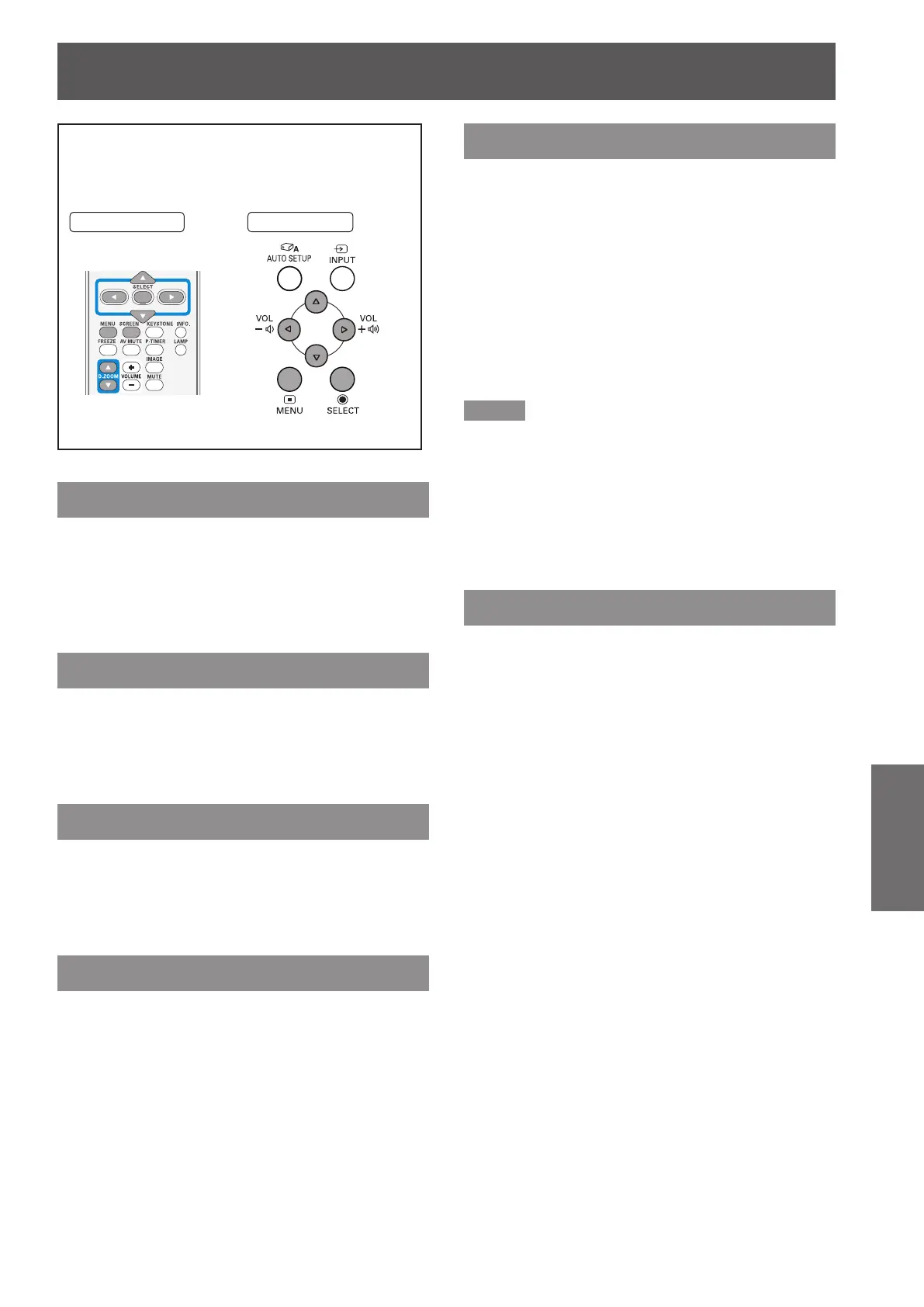
Select [Screen] from the Main Menu (see
“Navigating through the menu” on page 33),
then select the item from the sub-menu.
Remote Control
Control Panel
Normal
Provide the image to t the screen size while
maintaining the aspect ratio of the input signal.
Press ▲▼ to select [Normal] and then
press the <SELECT> button.
Full
Provide the full screen image.
Press ▲▼ to select [Full] and then press
the <SELECT> button.
Wide(16:9)
Provide the image at the 16:9 wide screen ratio.
Press ▲▼ to select [Wide(16:9)] and then
press the <SELECT> button.
Zoom
Scale the image proportionally to t the entire screen.
Either side of image may go over the screen.
Press ▲▼ to select [Zoom] and then
press the <SELECT> button.
True
Provide the image in its original size. When the
original image size is larger than the panel size (1
024 x 768), the projector enters to the panning mode
automatically.
Press ▲▼ to select [True] and then 1 )
press the <SELECT> button.
Press ▲▼◄► to pan the image.2 )
When adjusted, the arrows will turn red. When
z
reached to the correction limits, the arrows will
disappear.
Note
When input computer signal to the projector, [True] will
z
be available.
[True] is disabled and cannot be displayed when [480i],
z
[576i], [480p], [576p], [720p], [1 035i] or [1 080i] is
selected in the PC System Menu.
When [True] is selected in the Screen menu, [Digital
z
zoom +/-] can not be selected
.
Custom
Provide the last stored aspect screen image.
Press ▲▼ to select [Custom] and press
the <SELECT> button.



 To Next Page