EasyManua.ls Logo

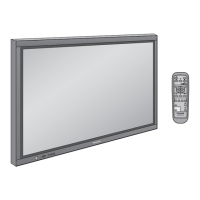
Panasonic TH-65SF2U - User Manual

Panasonic TH-65SF2U
127 pages
Print Icon
To Next Page IconTo Next Page
Loading...
Operating Instructions
Functional Manual
FULL HD LCD Display For business use
Model No. TH-65SF2U
65-inch model
TH-65SF2E
65-inch model
TH-55SF2U
55-inch model
TH-55SF2E
55-inch model
TH-49SF2U
49-inch model
TH-49SF2E
49-inch model
TH-43SF2U
43-inch model
TH-43SF2E
43-inch model
English
Please read these instructions before operating your set
and retain them for future reference.
*
This manual is common to all the models regardless of suffixes of the
model number.
U : for US, Canada and Mexico
E : for EU and CIS
DPQP1157ZA
EU

Table of Contents

Other manuals for Panasonic TH-65SF2U

Questions and Answers

  • S
    Stacey StephensAug 19, 2025
    What to do if my Panasonic TH-65SF2U Monitor has no picture and no sound?
    • J
      Joshua ScottAug 19, 2025
      If your Panasonic Monitor shows no picture and has no sound, ensure it is plugged into the AC outlet and switched on. Also, check the Picture and Brightness/Volume settings by pressing the or the .
  • V
    Valerie WhiteAug 21, 2025
    Why is my Panasonic Monitor remote control not working?
    • J
      Jeffrey BellAug 21, 2025
      If your Panasonic Monitor remote control isn't working, check the following: * Ensure the batteries aren't discharged and are inserted correctly. * Verify the remote control sensor isn't exposed to outdoor light or strong fluorescent light. * Confirm there are no obstacles between the sensor and the remote. * If normal, try pulling out the remote control sensor from the edge of the main unit. * Make sure you're using the remote specifically designed for the unit. * Check that the option other than [Off] is selected in [Controller user level] in the [Options] menu. * Verify whether [Controller ID function] in [Options] menu is set to [On]. * Check whether switch is set to (when using ID remote controller).
  • G
    Garrett HughesAug 25, 2025
    Why does my Panasonic TH-65SF2U Monitor power off automatically?
    • N
      Nancy GomezAug 25, 2025
      If your Panasonic Monitor unexpectedly turns off, check the settings for [No signal power off], [HDMI1 power management], [HDMI2 power management], [DIGITAL LINK power management], [DVI-D power management], [PC power management] and [No activity power off]. Ensure none of these are set to [On (Enable)].
  • A
    alisha85Aug 26, 2025
    How to fix a Panasonic TH-65SF2U Monitor with picture but no sound?
    • C
      crystal39Aug 26, 2025
      If your Panasonic Monitor has a normal picture but no sound, check the volume and ensure the mute function hasn't been activated on the remote control.
  • M
    Mr. Curtis SandersAug 27, 2025
    What to do if my Panasonic Monitor sometimes has no picture or sound?
    • A
      Audrey JacksonAug 27, 2025
      If your Panasonic Monitor sometimes shows no picture or sound when using a selector or distributor with HDMI or DVI signals, the issue might be with the selector or distributor. Try turning the power off and on again, or replacing the selector or distributor.
  • J
    Jennifer PorterAug 30, 2025
    Why does my Panasonic Monitor have no picture but normal sound?
    • G
      Gregory BrownAug 30, 2025
      If your Panasonic Monitor displays no picture but has normal sound, it might be receiving a signal with a non-applicable color system format or frequency. In this case, only the input terminal indication will be displayed.
  • S
    samantha52Sep 1, 2025
    What to do if Panasonic TH-65SF2U Monitor displays 'no picture' or remote is disabled?
    • A
      Angel WilliamsSep 1, 2025
      If your Panasonic Monitor displays an error like “no picture” or the remote control stops working, remove the power plug from the socket, wait for at least 5 seconds, and then reinsert it to turn the power back on.
  • J
    jacksonjessicaSep 3, 2025
    Why does my Panasonic TH-65SF2U have no color but normal sound?
    • J
      Jeffery WestSep 3, 2025
      If your Panasonic Monitor has no color but normal sound, the color controls might be set at the minimum level.
  • V
    Virginia SmithSep 5, 2025
    How to fix a Panasonic Monitor when the picture is cut off?
    • M
      Mary RowlandSep 5, 2025
      If the top or bottom of the picture is cut off on your Panasonic Monitor, the image position may have been adjusted in the [Position] menu. Adjust the position of the picture on the screen within this menu.
  • E
    Erica WongSep 7, 2025
    Why is the LAN uncontrollable on my Panasonic TH-65SF2U Monitor?
    • Y
      Yolanda JohnsSep 7, 2025
      If the LAN is uncontrollable on your Panasonic Monitor (TH-65SF2U, TH-55SF2U, TH-49SF2U, TH-43SF2U, TH-55SF2E, TH-49SF2E, TH-43SF2E), check the connection. For WEB browser or command control, ensure [Network settings] - [Network control] is set to [On]. Also, verify that [LAN setup] is configured correctly. When connecting to AMX, Extron, or Crestron Electronics, Inc. devices, set [AMX D. D.], [Extron XTP], or [Crestron Connected™] according to the device you are using.

Summary

Accessories

Connections

AC cord connection and fixing; Cable fixing

Instructions for connecting and securing the AC power cord.

Setup menu

Signal

Settings for signal input, including YUV/RGB, noise reduction, etc.

Using Network Function

Necessary environment for computers to be connected

Requirements for connecting computers to the network.

Using Web Browser Control

Before Using Web Browser Control

Prerequisites and setup for using the web browser.

USB media player

About HDMI-CEC function

Data Cloning

Copying data to other display via LAN

Process for copying display data over a network.

ID Remote Control Function

Troubleshooting

Panasonic TH-65SF2U Specifications

General IconGeneral
Screen Size65 inches
Panel TypeIPS
Brightness350 cd/m²
Contrast Ratio1200:1
Response Time8 ms
Refresh Rate60 Hz
HDMI Ports3
USB Ports2
Output TerminalsAudio Out
VESA Mounting400 x 400 mm
Operating Temperature0°C to 40°C
Resolution3840 x 2160
Viewing Angle178°
Input TerminalsHDMI, USB
Built-in SpeakersYes
Operating SystemNone (Commercial Display)

Related product manuals