User Manual For Cyclone LC Programmers 57
6.1.8.1.1 Creating an ImageKey
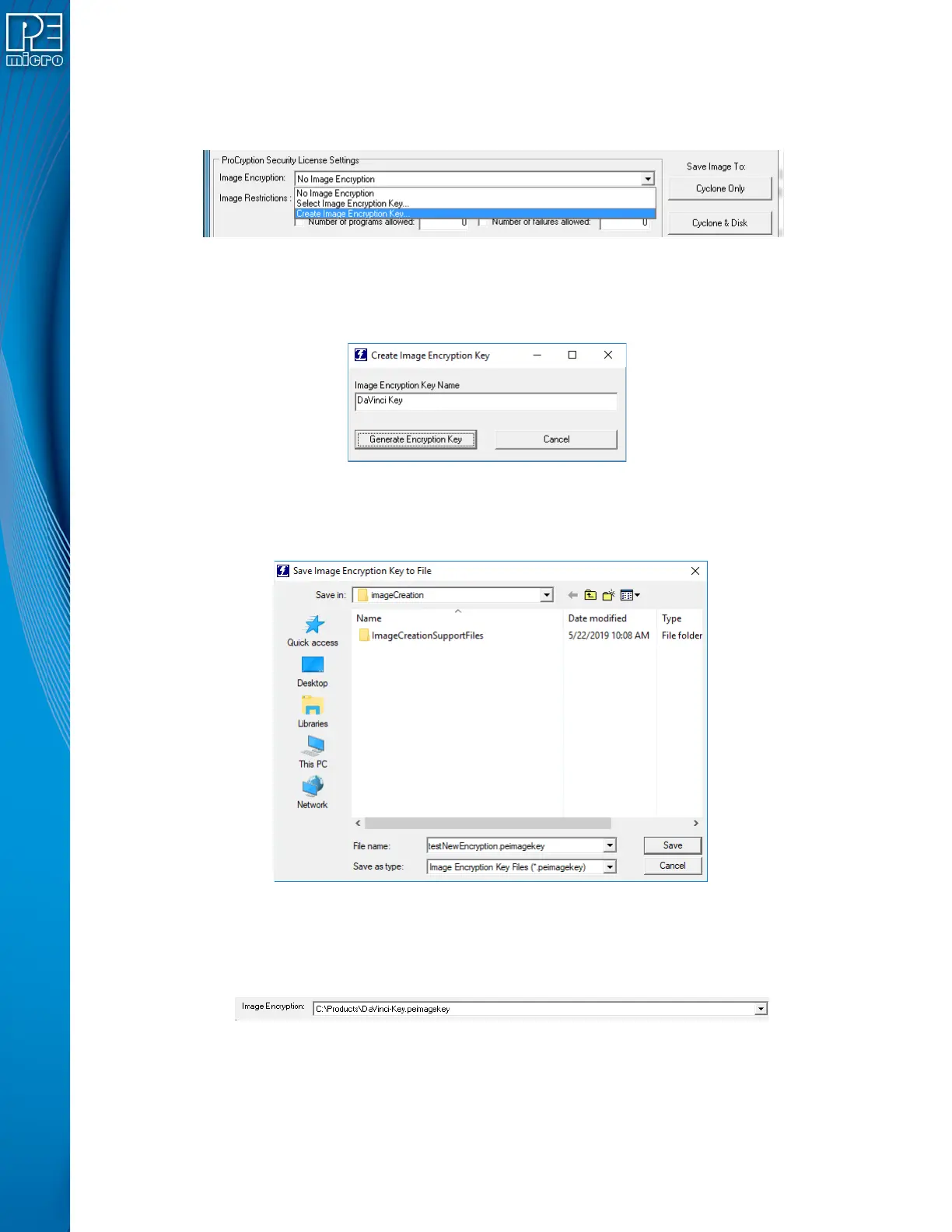
If an ImageKey has not been created or a new ImageKey is required, the user should select the
“Image Encryption” combo-box in the Cyclone Image Creation Utility and choose the “Create
Image Encryption Key...” option.
Figure 6-17: Create Image Encryption Key - Drop Box
This will pop up a box asking for a descriptive ImageKey Name (this name will be used for display
in many dialogs):
Figure 6-18: Create ImageKey
After entering the name, the user should click Generate Encryption Key. This will bring up a dialog
which allows the user to choose the save location:
Figure 6-19: Save Image Encryption Key To File Dialog
The user should navigate to the desired location and then click "Save". The ImageKey will be
generated and automatically selected in the Cyclone Image Creation Utility, such that generating
an image will use this ImageKey for encrypting.
Figure 6-20: ImageKey Selected After Creation
Note: Every ImageKey created is unique and may not be recreated. This means that once generated,
the user should keep the ImageKey in a secure place. Users may also wish to keep track of which
SAP images have been encrypted with each ImageKey, as the current software does not track this
information.



 To Next Page