User Manual For Cyclone LC Programmers 16
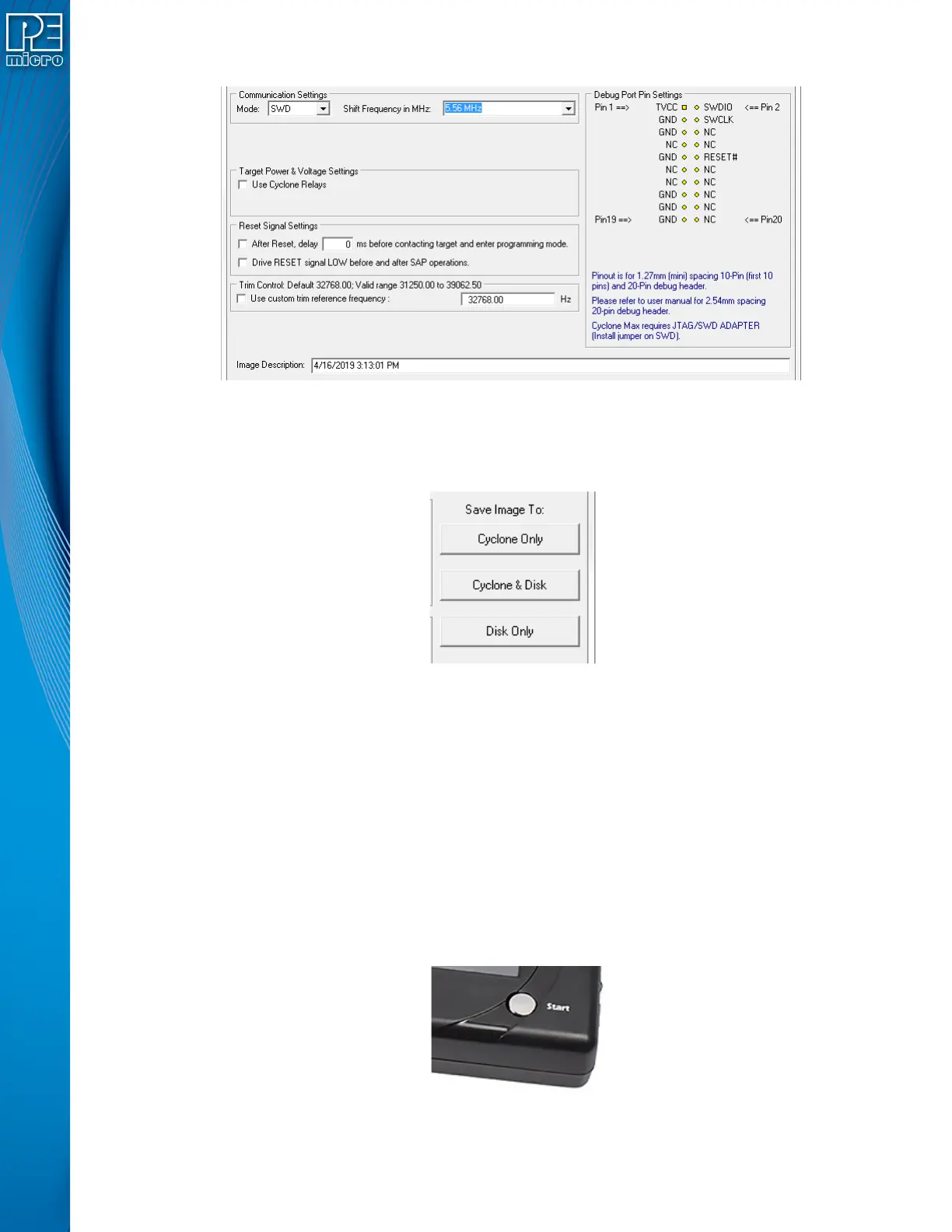
These settings can be made using the corresponding areas of the Cyclone Image Creation Utility.
Step 6. Save SAP image to Cyclone
The user should then save the SAP image onto the Cyclone by clicking the button to save to “Cyclone
Only” or “Cyclone & Disk.” The image will be automatically selected as the current SAP image on the
Cyclone.
2.3.1 Advanced Features
Cyclone programmers can take advantage of several advanced features that are beyond the scope of
this Getting Started guide, such as RSA/AES encrypted programming images, programming
restrictions on images (see Section 6.1.8 - ProCryption Security License Features), and use of a
barcode scanner to launch programming (see CHAPTER 12 - USING A BARCODE SCANNER TO
SELECT AN IMAGE & INITIATE PROGRAMMING). CYCLONE FX programmers include all of these
features, and CYCLONE programmers can use many of these features with the appropriate activation
license.
2.4 Launching Cyclone Programming
There are three ways to launch programming.
1. Cyclone Start Button Press - The user simply presses the Start button located on top of
the Cyclone programmer.
2. Cyclone Control Console (command-line utility) - The user writes a script that specifies
parameters and initiates programming using the command line. More information is avail-


 To Next Page