STANDARD MODE l MENU FUNCTION
144
Deleting a city
1 Tap Apps from the Home Screen and tap Clocks.
2 Tap World time.
3 In order to delete cities:
x To delete one or more than one cities, tap
B
and tap Delete, and
tap the city to delete.
x To delete all cities at once, tap
B
and tap Delete, tap
B
and tap
Select All.
4 Tap Done.
Adding clock widget
1 Tap and hold an the empty space on the Home Screen, or tap
B
and
tap Widget.
2 Select the panel of the Home Screen where you would like to place
the widget.
3 Tap Clock widgets and select a style.
Clocks
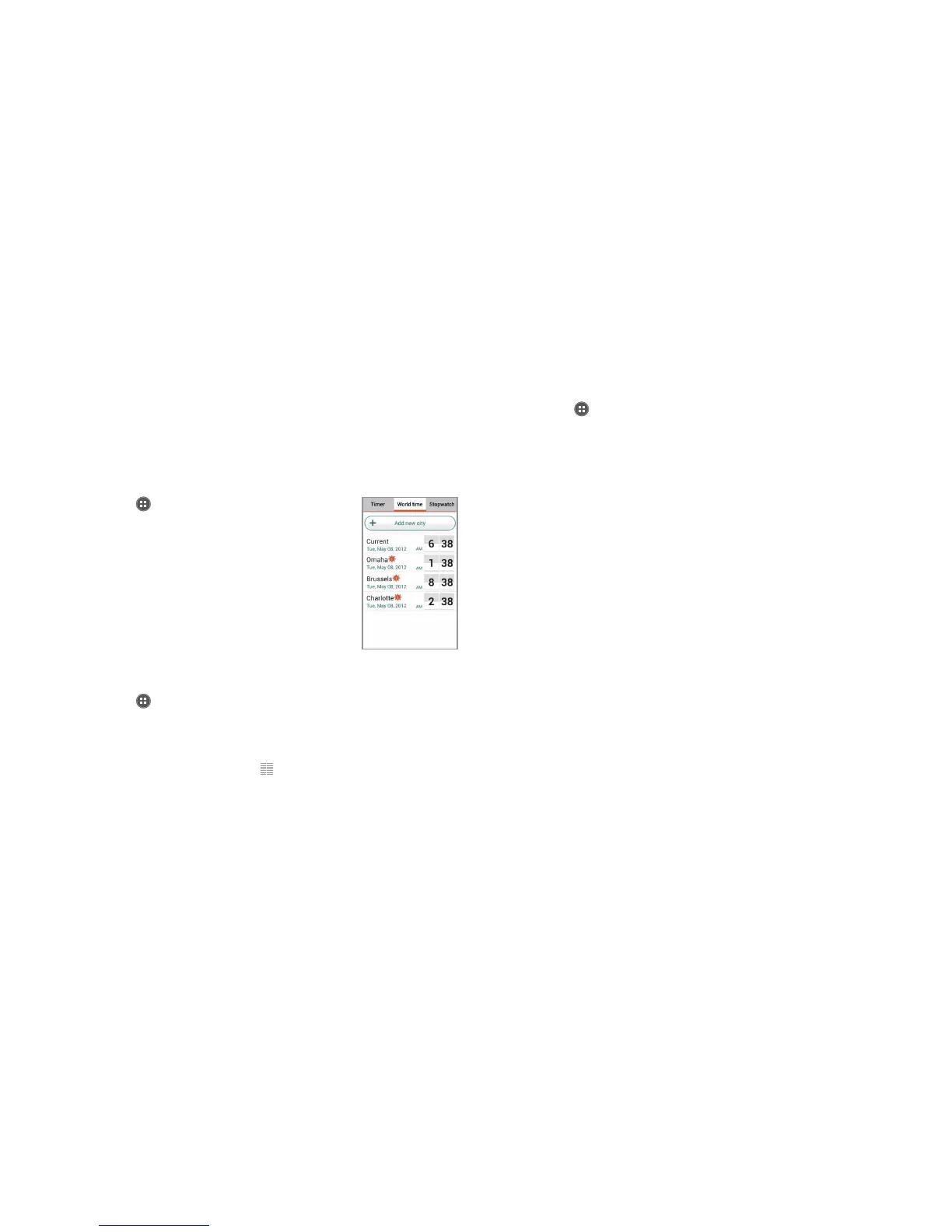
Clocks offers the current time in major cities and time zones around the
world. Timer is displayed first by default. You can also use the World time
and Stopwatch applications.
Viewing the world time
1 Tap Apps from the Home Screen and tap
Clocks.
2 Tap World time > Add new city and enter the
name of a city. Type the first letter and you can
find the city easily.
3 Select and tap the city. The time for the newly
added city appears below the current time.
Rearranging the order of cities
1 Tap Apps from the Home Screen and tap Clocks.
2 Tap World time.
3 Tap
B
and tap Rearrange.
4 Select a city to relocate and drag
up or down to rearrange the
order. You cannot move the location of the current city.
5 Tap Done.


 To Next Page