STANDARD MODE l BASIC OPERATION
96
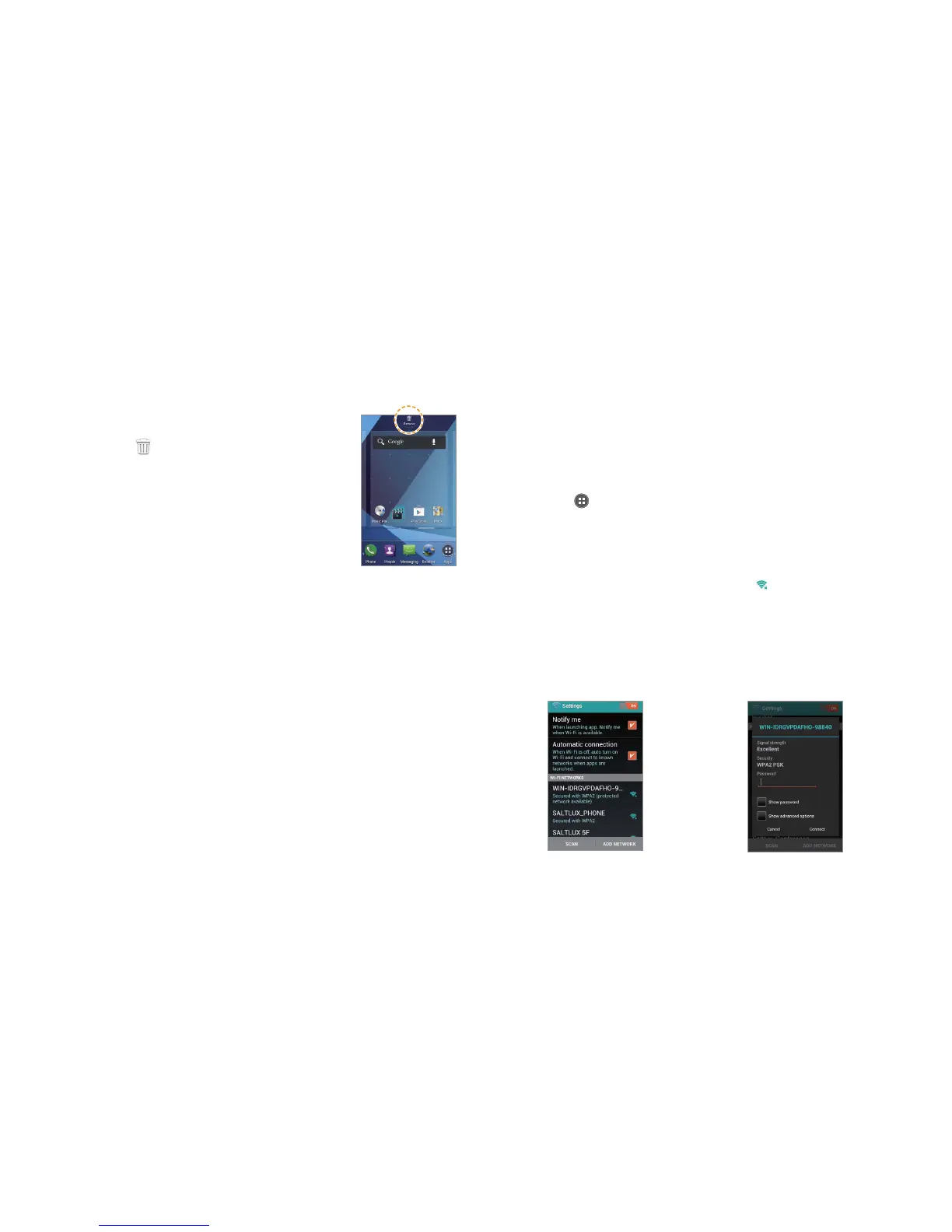
Deleting items from Home Screen
1 Tap and hold a shortcut, widget or folder you
want to delete.
2 Drag it to
on the top of the Home Screen.
Managing Apps screen
The Apps screen is the screen where all applications of the Marauder
TM
are displayed. Change application icons and download applications from
Play Store.
Changing application icons
1 Tap
B
in the Apps screen.
2 Tap Change Icons.
3 Tap Classic icons or Stylish icons.
4 Tap Save. The Home Screen restarts in a second with a new set of icons.
Using Wi-Fi network
Connect the Marauder
TM
to a Wi-Fi network and enjoy the wireless Internet
connection. Depending on your data plan or the area where you stay, you
may incur charges for connection to the Wi-Fi network.
Connecting to a Wi-Fi network
1 Tap Apps from the Home Screen and tap Settings.
2 Tap OFF next to Wi-Fi to activate. The icon turns orange when the
function is on.
3 Tap Wi-Fi.
4 Tap a network that you want to connect to. indicates a secured
network.
5 Enter the password if the network is secured. Tap Show password for
the password to be displayed.
6 Tap Connect. Once the network is remembered, the Marauder
TM
will
automatically connect to it when in range.
Activating Wi-Fi Connecting to a Wi-Fi Network


 To Next Page