95
STANDARD MODE l BASIC OPERATION
Adding a widget
1 Tap and hold an the empty space of the screen, or tap
B
and tap
Widget.
2 Select the panel of the Home Screen where you would like to place
the widget.
3 Tap a widget. Default widget types may vary depending on the
application. Widget types may increase as you install applications on
the Marauder
TM
. Refer to the relevant chapter for more information
about widgets.
Creating a folder in the Home option menu
Tap and hold a shortcut on the Home Screen and place it to another
shortcut in the Home option menu. If you want to add a shortcut to the
existing folder, tap the folder Home option menu, tap Add shortcut and
follow the necessary steps.
Managing a folder in the Home option menu
1 Tap a folder in the Home option menu that you want to manage.
2 Tap and enter the name of the folder. You can also change the
color of the folder.
3 Tap OK.
Creating wallpaper for Home Screen
1 Tap B, and tap Wallpaper in the Home option menu.
2 Tap Live Wallpapers, Wallpapers, Gallery, or Download Wallpapers.
x If you have tapped Live Wallpapers, select and tap a live
wallpaper and tap Set wallpaper.
x If you have tapped Wallpapers, select and tap a wallpaper and tap
Set wallpaper.
x If you have tapped Gallery, select and tap a picture from Gallery,
adjust the size and tap CROP.
x If you have tapped Download Wallpapers, select and tap a
wallpaper and tap Set wallpaper.
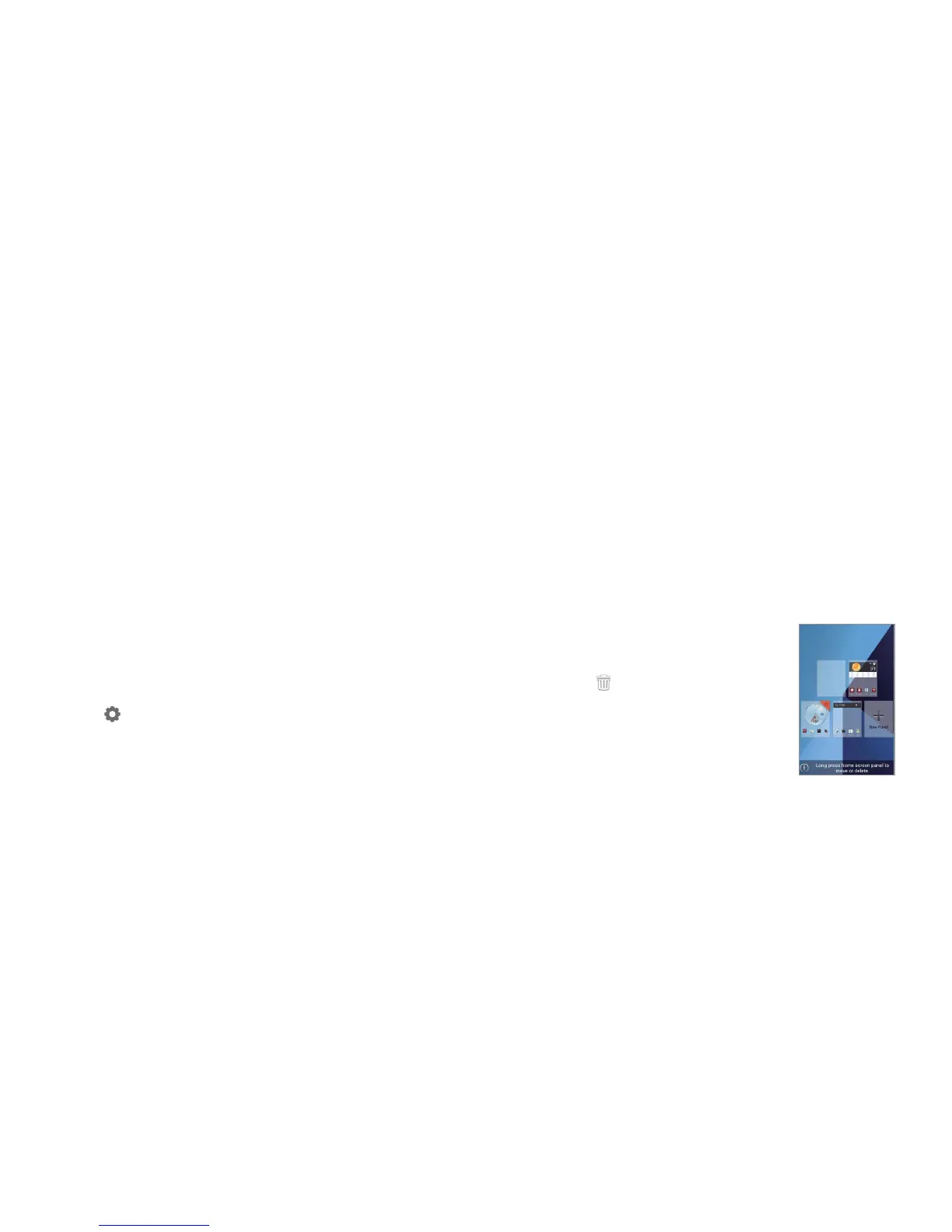
Adding or removing panels of the Home Screen
1 Tap on the Home Screen and pinch your fingers
together.
2 Tap and hold a panel that you want to remove
and drag it to
on the top of the Home
Screen.
3 Tap New Panel to add a new panel. Maximum
seven panels can be placed on the Home
Screen.


 To Next Page