93
STANDARD MODE l BASIC OPERATION
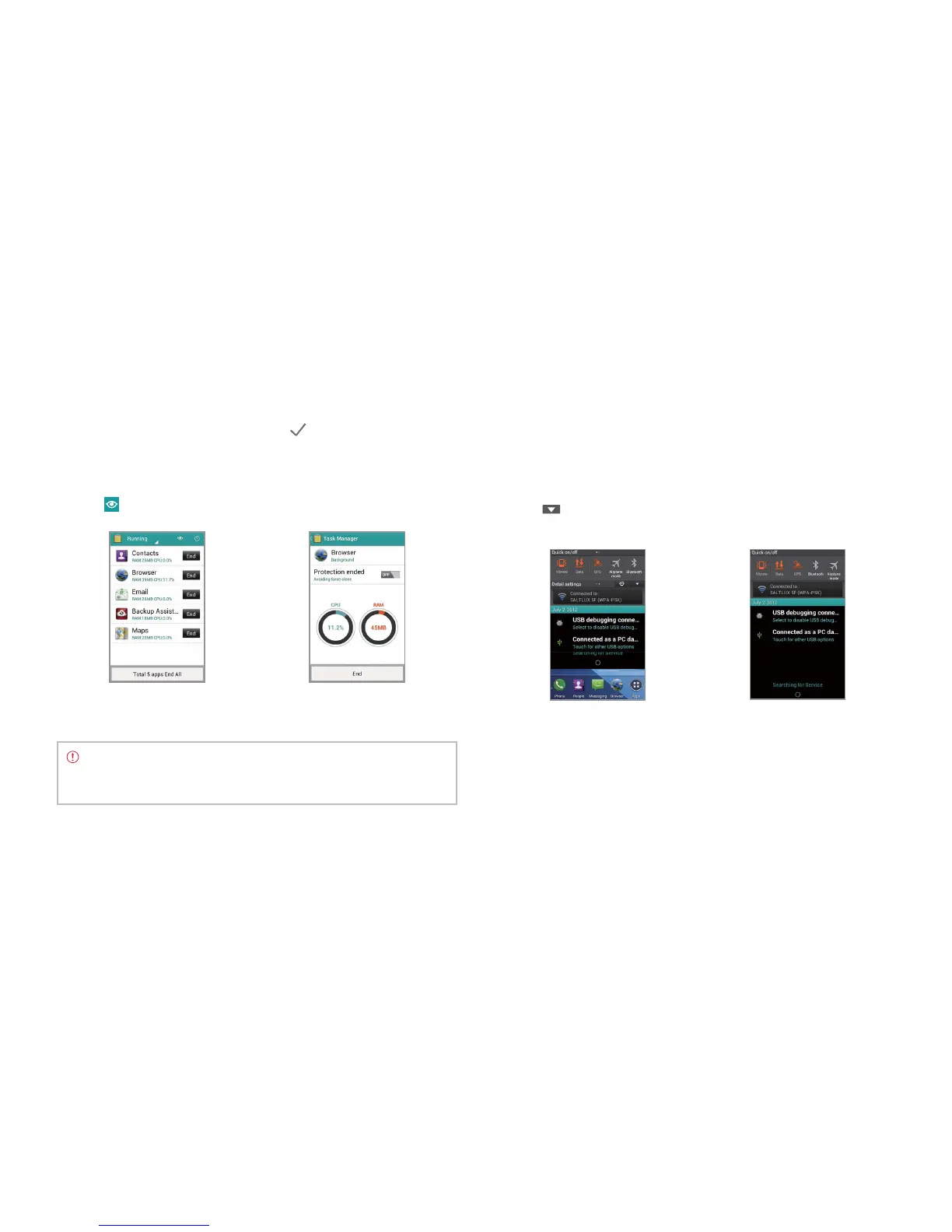
4 Tap Running on the top of the screen and tap Protection. You can
see protected applications that are not closed at the same time. If you
do not want to protect them, tap Protection expired on the bottom
of the screen, tap applications and tap
.
5 Tap Running on the top of the screen and tap Systems. You can see
information on CPU, RAM, Install Memory, Internal Memory, SD Card,
and Network.
6 Tap
and select a view type to change the default view type.
Running Task Manger Checking System Information
Note Make sure to tap
C
and move to the Home Screen to finish
using an application. Otherwise, the application continues to run
and will use memory and battery.
Checking status bar and Quick on/off
The status bar offers quick access to Quick on/off and ongoing events.
1 Tap the top of the Home Screen and drag the status bar down.
2 Tap an icon in Quick on/off that you want to run. The icon turns
orange when the function is on. Swipe the screen to the right for
more functions.
3 Tap
on the top right of the screen to check settings in detail. Flick
the screen to the right for more settings.
Opening the status bar Checking the status bar



 To Next Page