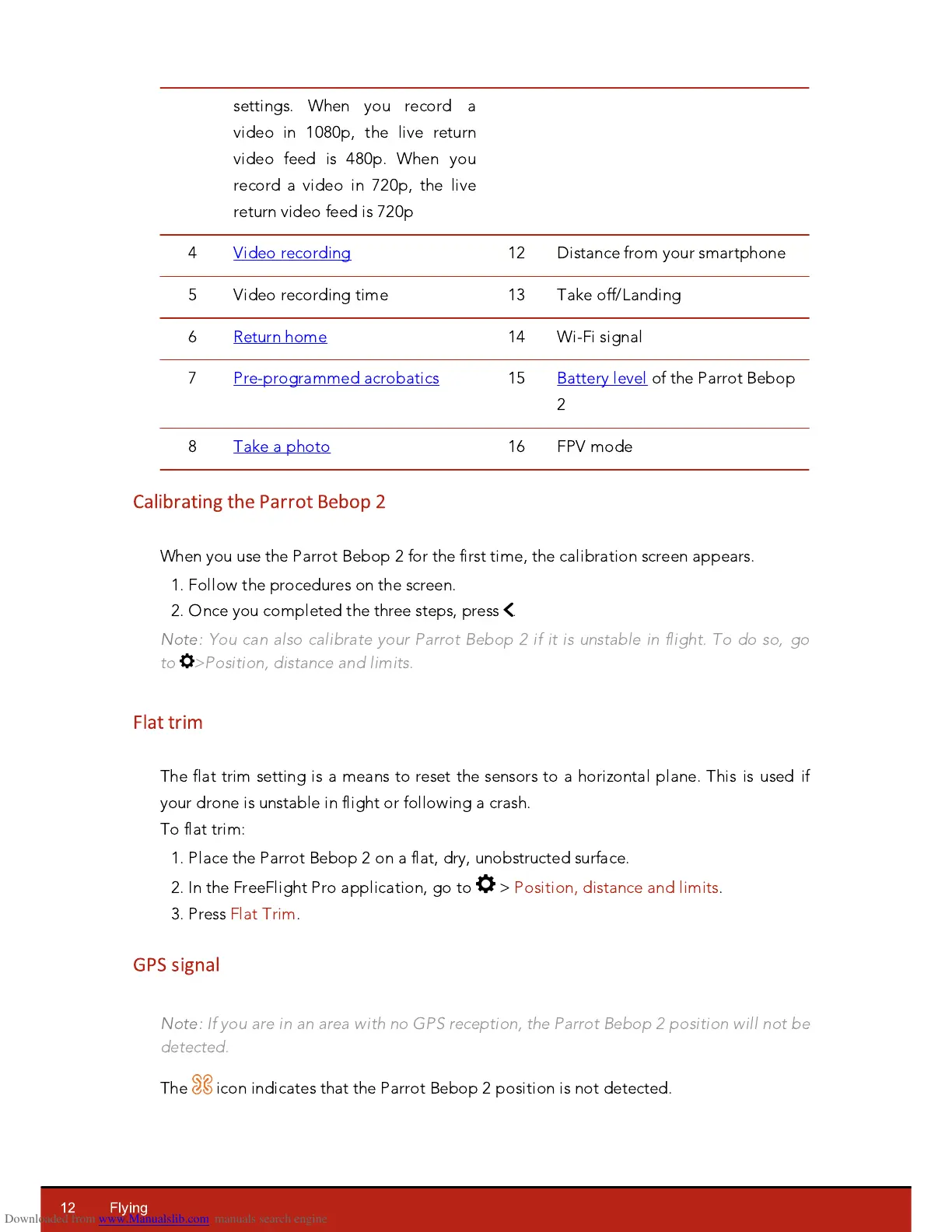
settings. When you record a
video in 1080p, the live return
video feed is 480p. When you
record a video in 720p, the live
return video feed is 720p
Calibrating the Parrot Bebop 2
When you use the Parrot Bebop 2 for the first time, the calibration screen appears.
1. Follow the procedures on the screen.
2. Once you completed the three steps, press
.
Note:
You can also calibrate your Parrot Bebop 2 if it is unstable in flight. To do so, go
to >Position, distance and limits.
Flat trim
The flat trim setting is a means to reset the sensors to a hori
z
ontal plane. This is used if
your drone is unstable in flight or following a crash.
To flat trim:
1. Place the Parrot Bebop 2 on a flat, dry, unobstructed surface.
2. In the FreeFlight Pro application, go to > Position, distance and limits.
3. Press Flat Trim.
GPS signal
Note:
If you are in an area with no GPS reception, the Parrot Bebop 2 position will not be
detected.
The icon indicates that the Parrot Bebop 2 position is not detected.




 To Next Page