number of photos stored in the internal memory depends on the selected
format. To choose a photo format, see Recording settings. Once the
memory is full, it is no longer possible to take a photo.
Note:
To obtain high quality photos, make sure that the Parrot Bebop 2
is set in photo mode. To do so, refer to the Recording settings section.
The video recording starts automatically when you press Take off. The
button blinks during recording.
To stop the video record, press . To start a new video, press again.
The video recording stops after 2
9
minutes of recording.
Note:
It is not possible to record a video when the Parrot Bebop 2 is set
in timelapse mode. To deactivate timelapse mode, refer to the
Recording settings section.
Retrieving photos and videos
Y
ou can retrieve photos and/or videos taken with the Parrot Bebop 2:
·
on your smartphone, using the FreeFlight Pro application,
·
on your computer, using a USB/micro USB cable (supplied).
Retrieving photos and videos on your smartphone
1. On your smartphone or tablet, launch the FreeFlight Pro application.
2. Go to Internal memory. The list of photos and videos stored in the Parrot Bebop 2
internal memory opens.
3. Select one or several photos and/or videos.
4. Tap Transfer to retrieve the photos and/or videos on your smartphone.
5. Tap Delete if you want to delete the photos and/or videos from the internal memory of
the Parrot Bebop 2.
Retrieving photos and videos on your computer
·
Windows :
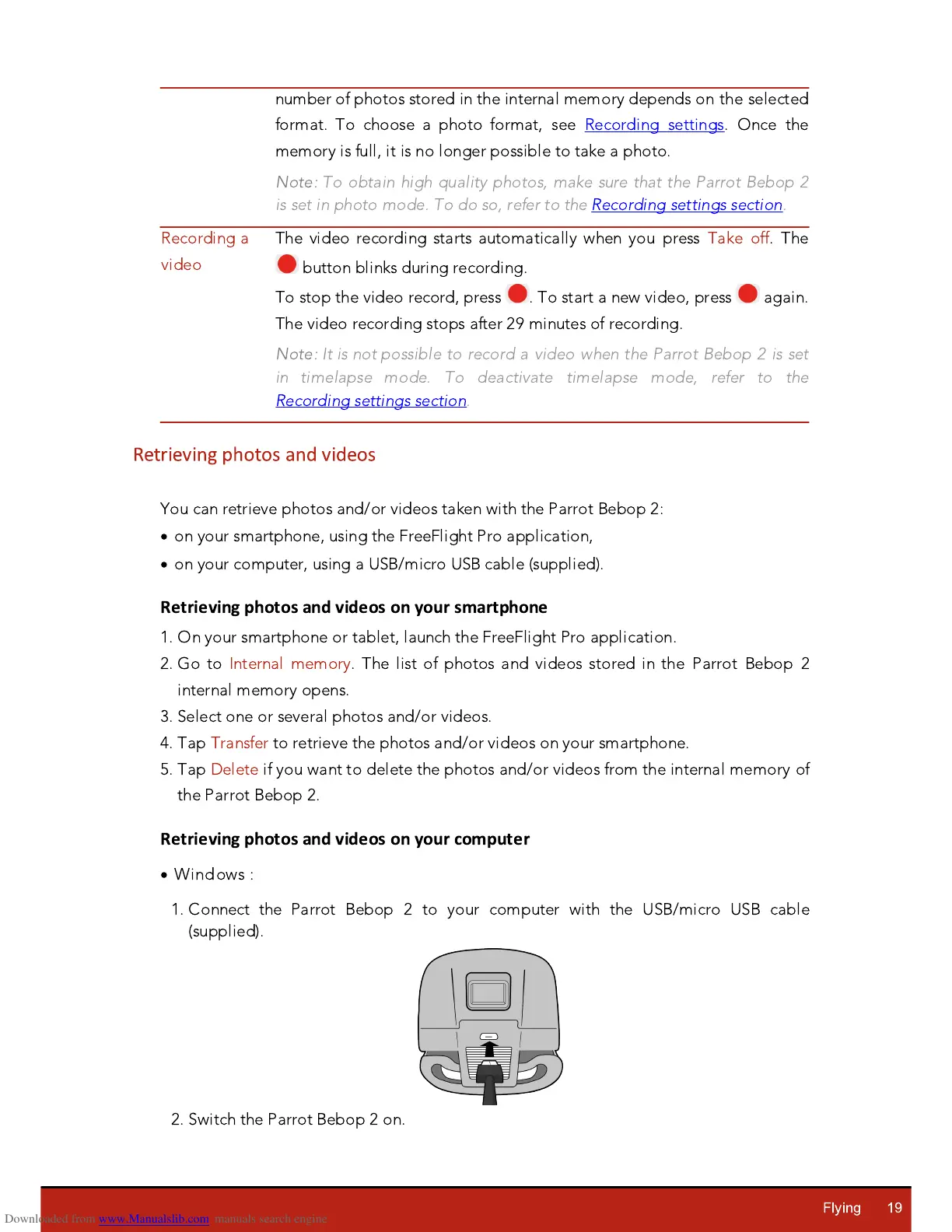
1. Connect the Parrot Bebop 2 to your computer with the USB/micro USB cable
(supplied).
2. Switch the Parrot Bebop 2 on.




 To Next Page