P a g e 1 | 49
KE 2P
AC1300 Dual Band Gigabit Wireless Router
User Guide
P a g e 1 | 49
Inhaltsverzeichnis
1
About this guide ................................................................................................................................. 9
1.1
Structure of this guide ........................................................................................................................................... 9
1.2
Symbols and conventions ..................................................................................................................................... 9
2
Introduction ..................................................................................................................................... 11
3
Hardware connections .................................................................................................................... 12
3.1
Package contents .................................................................................................................................................. 12
3.2
Connect your devices .......................................................................................................................................... 12
4
Get started........................................................................................................................................ 14
4.1
TCP/IP settings ....................................................................................................................................................... 14
4.2
Configuring router via web browser ............................................................................................................. 15
4.3
Log into Web Management .............................................................................................................................. 18
4.4
Configuring router via Phicomm app ........................................................................................................... 19
5
General configurations ................................................................................................................... 20
5.1
Manage devices ..................................................................................................................................................... 20
5.2
Wireless settings .................................................................................................................................................... 20
5.3
WAN settings .......................................................................................................................................................... 22
5.4
LAN settings ............................................................................................................................................................ 23
6
Advanced settings ........................................................................................................................... 24
6.1
DHCP service ........................................................................................................................................................... 24
6.2
Guest WiFi ................................................................................................................................................................ 24
6.3
Parental Control ..................................................................................................................................................... 25
6.4
UPnP ........................................................................................................................................................................... 26
6.5
Port forwarding ...................................................................................................................................................... 27
6.6
DMZ Host ................................................................................................................................................................. 28
6.7
Dynamic DNS .......................................................................................................................................................... 29
6.8
Remote access ........................................................................................................................................................ 30
6.9
Wireless Extension ................................................................................................................................................ 31
6.10
IPTV........................................................................................................................................................................ 33
6.11
IPv6 ........................................................................................................................................................................ 34
7
Administration ................................................................................................................................. 40
7.1
Router status ........................................................................................................................................................... 40
7.2
Time zone ................................................................................................................................................................. 40
7.3
Firmware update ................................................................................................................................................... 41
7.4
Diagnostics .............................................................................................................................................................. 43
7.5
Restore ....................................................................................................................................................................... 44
7.6
LED .............................................................................................................................................................................. 45
8
Appendix .......................................................................................................................................... 47
8.1
Troubleshooting ..................................................................................................................................................... 47
8.2
Technical support – contact us ........................................................................................................................ 48

 Need help?
 General
 Weight and Dimensions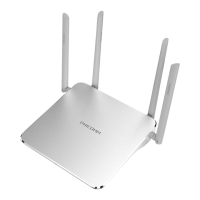

 To Next Page