9
190CW9 LCD
Lock/Unlock,Aging,Factory Mode
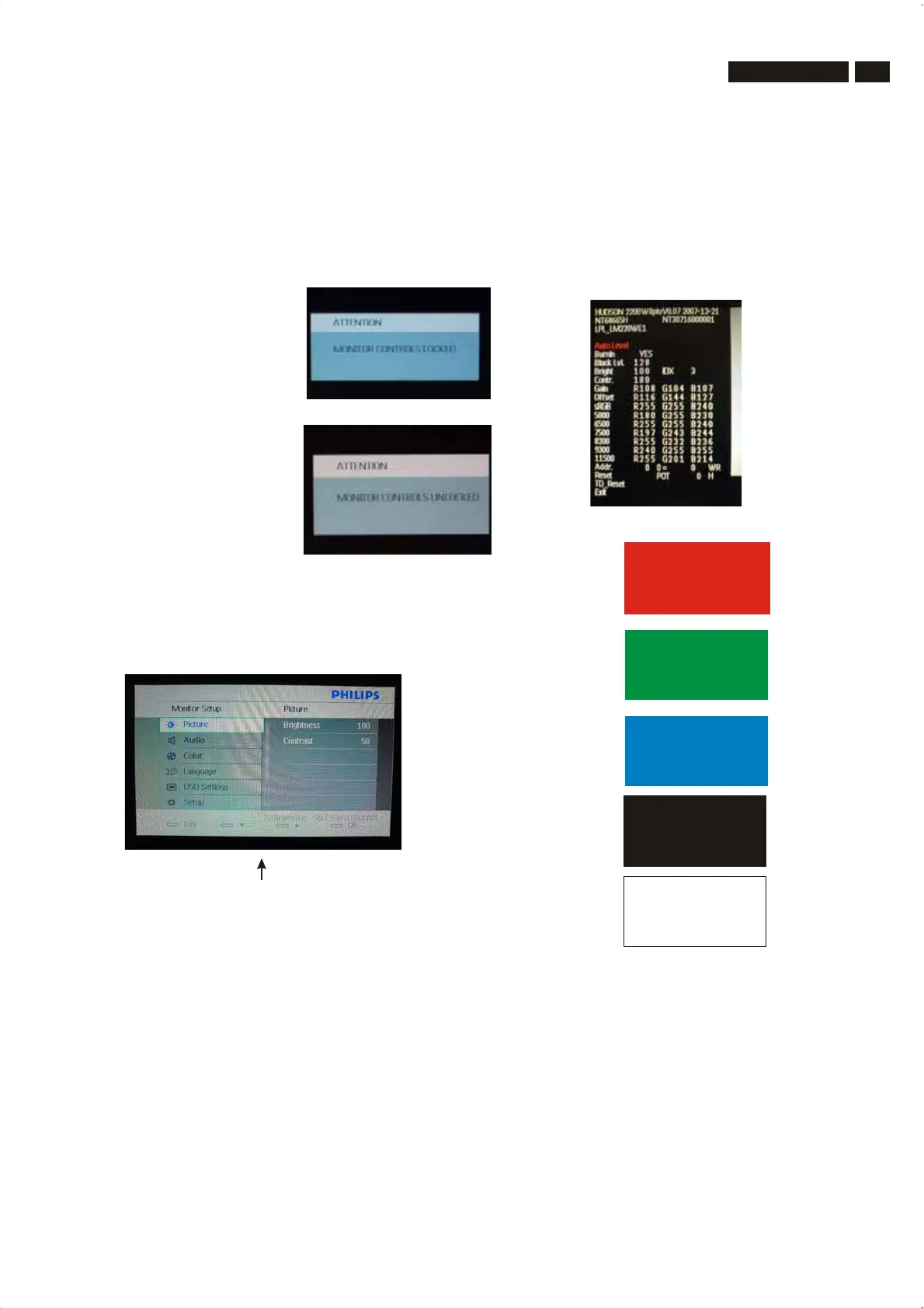
T o Lock/Unlock OSD FUNCTION(User Mode)
The OSD function can be locked by pressing"OK"button(1) for more
than 10 seconds, the screen shows following windows for 4 seconds.
Every time when you press"OK" button, this message
appears on the screen automatically .
Unlock OSD function
Unlocked OSD function can be released by pressing "OK" button for
more than 10 seconds again.
repeatly
Connect Signal cable again=> go back to normal display
After 3 seconds,
bring up:
Access Aging Mode
Step 1 : Access Factory Mode then enter Factory Menu.
Step2:Bypressing
" and " DOWN
key to Burning Icon. Press
MENU then press key to turn on Aging Mode.
"
"" "
Access Factory Mode
1). Turn off monitor.
2).
3).Press "MENU" button, wait until the OSD menu with
Characters "HUDSON 220SW8 V0.07 2007-12-21 (below OSD
menu) come on the Screen of the monitor.
[Push "AUTO" & "MENU" buttons at the same time and hold them]
+[Press "power" buttonuntil comes out "Windows screen" ]
=> then release all buttons
"
Factory Mode indicator
Factory Menu
Cursor can move on gray color area
Hot key function: by pressing " UP " and " DOWN " key
Simultaneously at User Mode (or Factory Mode)
(PS: The Of fset R G B function can be used on reduce or eliminate
snowy noise on the background when the resolution of video signal
is 1680*1050
vertical
60Hz. Slightly increase or decrease the value
until snowy noise completely disappear .
Step 3 : Disconnect interface cable between Monitor and PC.
"UP
"UP
" and " DOWN
http://www.wjel.net



 To Next Page