32BDL4050D
48
NOTE: Werecommendyoutosetupcurrentdateandtimeinthe
{Date and time}menubeforeusingthisfunction.
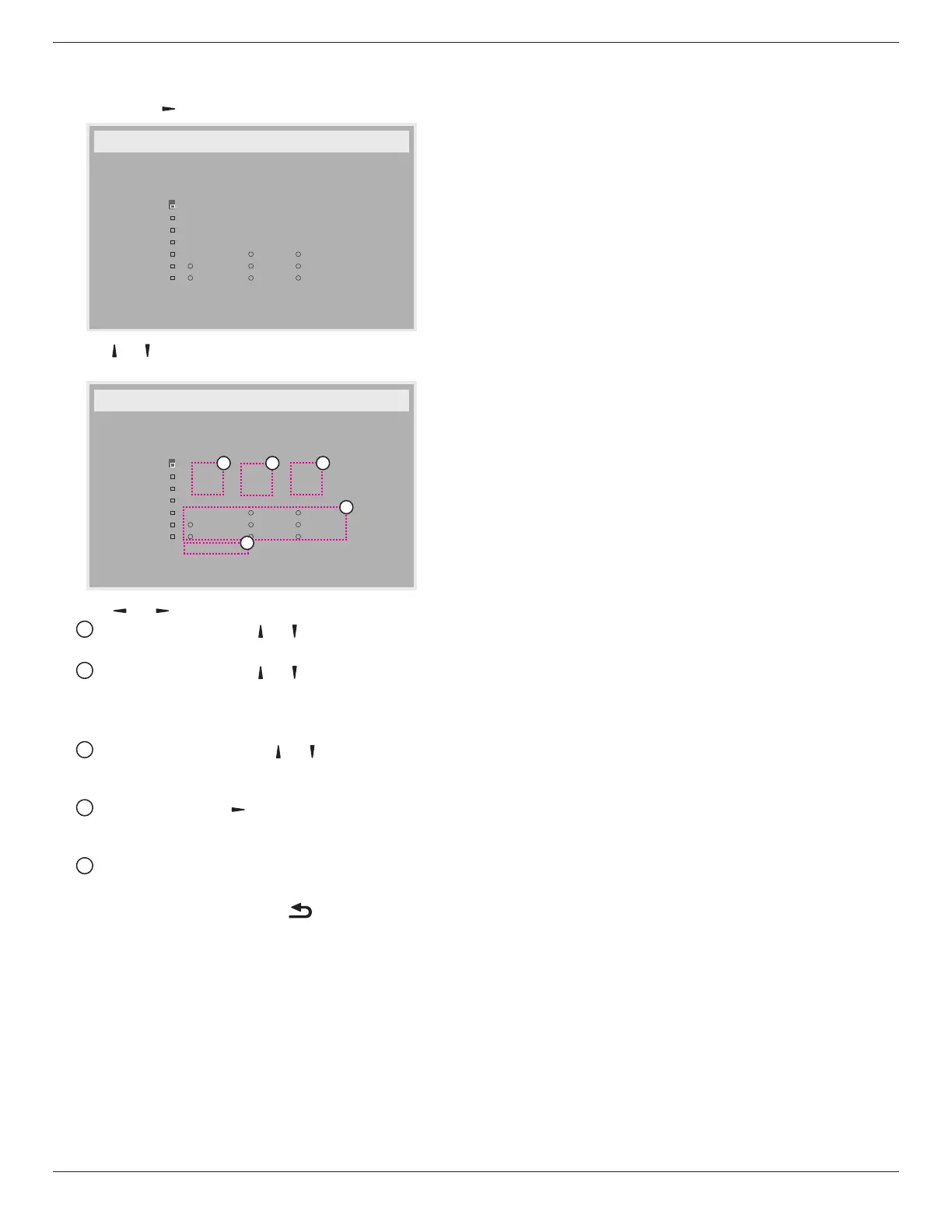
1. Press[OK]or[ ]buttontoenterthesubmenu.
Schedule
Today
1
2
3
4
5
7
6
2015 . 01 . 04 SUN 04 : 14 : 01
On
:
_
:
_ _ _ _
O
Input
WED
SAT
MON
THU
SUN
TUE
FRI
Every week
Clear all
playlist 0
2. Press[ ] or[ ] buttontoselectascheduleitem(itemnumber1~7),
andthenpress[OK]buttontomarkittheitemnumber.
Schedule
Today
1
2
3
4
5
7
6
2015 . 01 . 04 SUN 04 : 14 : 01
On
:
_
:
_ _ _ _
O
Input
WED
SAT
MON
THU
SUN
TUE
FRI
Every week
Clear all
playlist 0
4
1 32
5
3. Press[ ]
or[ ]buttontoselecttheschedule:
1
Power-onschedule:Press[ ] or[ ]buttontosetthehour
andminuteforthedisplaytoturnon.
2
Power-offschedule:Press[ ] or[ ] buttontosetthehour
andminuteforthedisplaytoturnoff.
Selectorleaveanempty“__”forboththehourandminuteslotif
youdonotwanttousethispower-onorpower-offschedule.
3
Input-sourceselection:Press[ ] or[ ] buttontoselectan
inputsource.Ifnoinputsourceisselected,theinputsource
willremainthesameaslastselected.
4
Dateschedule:Press[ ]buttontoselectwhichdayina
weekthisscheduleitemwillbetakeeffect,andthenpressthe
[OK]button.
5
WhenInput-sourceselecttoUSB,enabletoaccessplaylist
setting:
4.
Foradditionalschedulesettings,press[ ],thenrepeatthesteps
above.Acheckmarkintheboxnexttothenumberoftheschedule
itemindicatesthattheselectedscheduleisineffect.
NOTES:
• Iftheschedulesoverlap,thescheduledpower-ontimetakespriority
overscheduledpower-offtime.
• Iftherearetwoscheduleitemsprogrammedforthesametime,the
highestnumberedscheduletakespriority.Forexample,ifschedule
items#1and#2bothsetthedisplaytopoweronat7:00AMand
offat5:00PM,thenonlyscheduleitem#2willtakeeffect.
HDMI with One Wire
CECcontrol.
• {Off} -DisableCEC.(Default)
• {On}-EnableCEC.
Auto signal detection
Choosetoletthedisplaydetectanddisplayavailablesignalsources
automatically.
• {Off}-Onceasignalisconnected,itcanonlybeselectedmanually.
Iftheselectedinputisnosignal,setthedisplaytodisplaytheimage
automaticallyaccordingtothesearchorderofeachoption.
Theoptionsare:{All} / {Failover}
• {All}:DP -> HDMI1 -> HDMI2 -> DVI -> VGA->MediaPlayer->
Browser->SmartCMS->PDFReader->Custom.
• {Failover}
- Failover1:User-denedsetting.Default:HDMI1.
- Failover2:User-denedsetting.Default:HDMI1.
- Failover3:User-denedsetting.Default:HDMI1.
- Failover4:User-denedsetting.Default:HDMI1.
- Failover5:User-denedsetting.Default:HDMI1.
- Failover6:User-denedsetting.Default:HDMI1.
- Failover7:User-denedsetting.Default:HDMI1.
- Failover8:User-denedsetting.Default:HDMI1.
- Failover9:User-denedsetting.Default:HDMI1.
- Failover10:User-denedsetting.Default:HDMI1.
Power Save
Powersavemodes
Mode1:DCoff->Poweroff.LED:Red.
PowerSave->Poweroff,LED:Red
Mode2:DCoff->Poweroff,LED:Red.
PowerSave->PowerSaving.LED:Orange.Canbewakeup.
Mode3:DCoff->Backlightoff,LED:Red
PowerSave->Backlightoff,LED:Orange.Canbewakeup.
Mode4:DCoff->Backlightoff,LED:Red
PowerSave->Willnotenterpowersavemode.show“nosignal”only.
*Note:WhenAutoFWupdateisnotOFF,displaywillworkunder
Mode3forFWupdate,butOSDitemwillnotchange.






 To Next Page