75BDL3050Q
41
Therst‘p’denesplaymodeisimmediatelystopplayingwhen
bootcomplete.
Thenumberafter‘p’denesrepeatmode
- specifying0wouldmakethepartloopindefinitelytillthe
devicehasbootcomplete.
- specifying1wouldmakethepartplaybackonce.
Thenextnumberdenesthedelaytime(ms).Forexample,ifset
10,whenallimageleshasbeenplayback,systemwilldelay10ms.
Thepart0andpart1areimagefoldername.
Theaboveexample,thebootanimationwillplayataresolutionof1920
by1080pixels,ataframerateof30fps,startingwiththecontentsof
part0folderandafterplayingtheminoneloop,switchingtocontents
ofpart1folderandplayingthemcontinuouslytillthedeviceboot
complete.
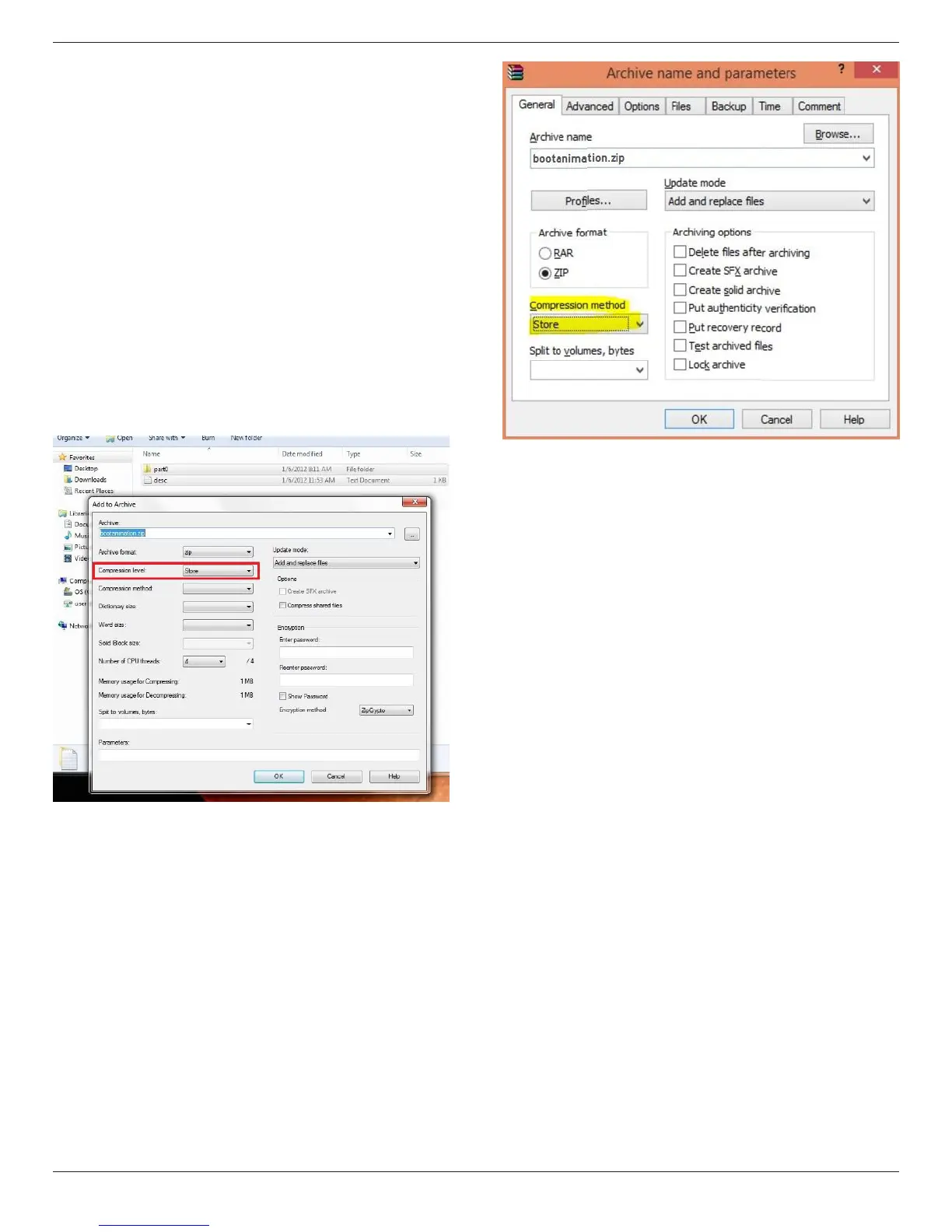
3. Ziple:
Selecteverything(imagefoldersanddesc.txt)insidetheBootanimation
folderandzipthemintoanewuncompressed zip archiveusingyour
favoritecompressionutilitylike7ziporWinRARandsoon.
Ifusing7zip,setcompressionlevelto“Store”
IfusingWinRAR,set“Compressionmethod”to“Store”
orelsebootanimationWON’Twork
4. Applythecustombootanimation
Procedure:
(1).Putyourcustombootanimztion.zipleintoexternalSDcardor
USBandplugintoPhillipsPDplatform.
(2.)MakesuretheLogooptionisenabled.
PressHomekeyonRCU:OSDmenu->Conguration2->Logo
->set“User”
(3.)Presscombinationkey“Home+1888”onRCUtogotoAdmin
mode:
Settings->SignageDisplay->GENERALSETTINGS->BootLogo
(4).Thesystemwillndthebootanimation.zipinexternalSDcardor
USBautomaticallyandcopyitto/data/local
(5.)Oncestep1~4hasbeendone,restartthesystem.Thenew
customizedbootanimationshouldbedisplayedduringboottime.



 To Next Page